Server Telemetry
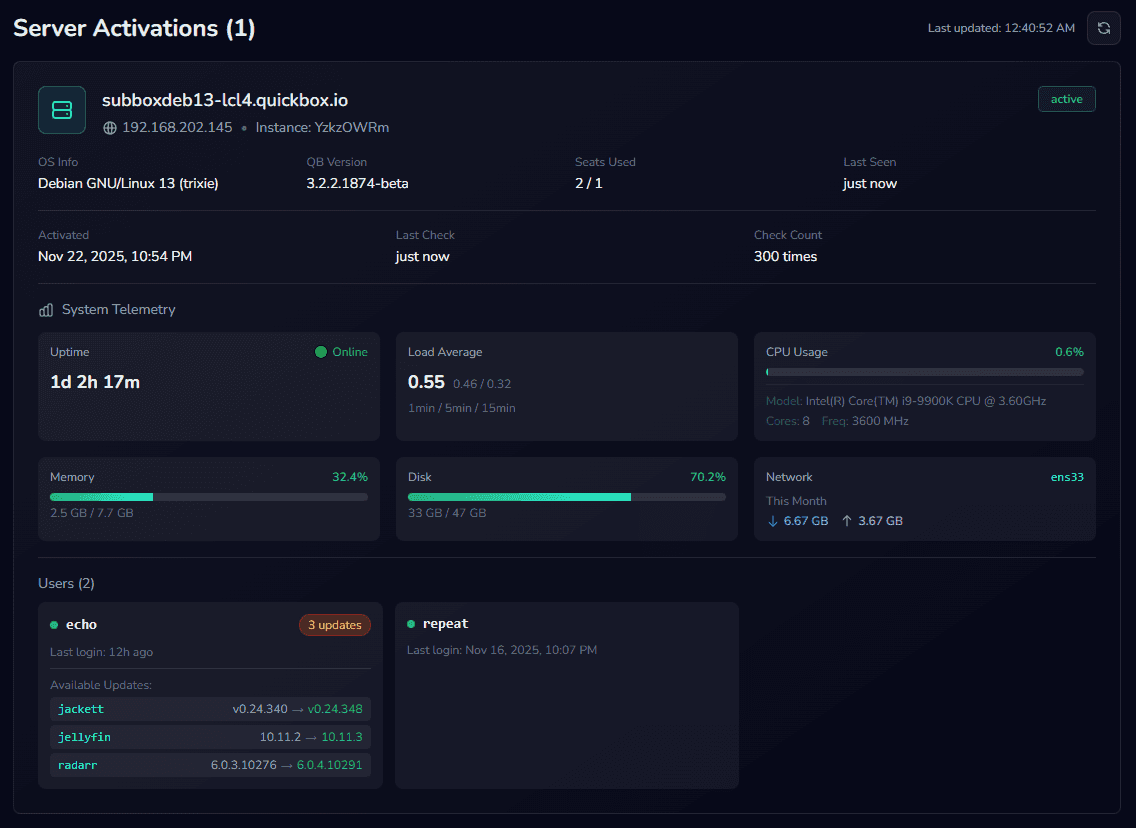
When you turn telemetry on, QuickBox Pro sends system metrics from your server to your QuickBox account so you can monitor it from anywhere. Telemetry is off by default on new installs. This page explains what is sent, why it’s useful, and how to turn it on or off.
What is Telemetry?
Telemetry is the automatic collection and transmission of system metrics from your QuickBox Pro server to your dashboard. This allows you to monitor your server’s health, resource usage, and user activity from anywhere.
While telemetry is on, QuickBox Pro sends metrics via the heartbeat system every 5 minutes by default to keep your account dashboard up to date. While it is off, nothing is sent and the heartbeat does not run.
This page covers the telemetry your server sends to your QuickBox account dashboard. It is separate from the System Dashboard’s Telemetry History Store, which keeps a durable local history of your metrics entirely on the server and never transmits anything off the machine.
What Data is Collected
System Metrics
- CPU - Processor name, core count, frequency, and usage percentage
- Memory - Total RAM, used RAM, and free RAM
- Disk Space - Total disk space, used space, and free space
- Network - Interface name, monthly RX/TX totals, and current RX/TX speeds
- Speed Test - Your server’s latest network speed test result: download and upload throughput (Mbps), ping and jitter (ms), the speed test tool used, and when the test ran. Sent only if a speed test has been run on the server.
- Uptime - How long the server has been running
- Load Average - 1-minute, 5-minute, and 15-minute load averages
Server Information
- Hostname - Your server’s hostname
- IP Addresses - Server’s public and local IP addresses
- OS Info - Operating system and version
- Server Version - The QuickBox Pro CLI Core version number
- Dashboard Version - The QuickBox Pro UI Dashboard version, when one is installed
- License Key and Instance ID - Identify your license and this server so the heartbeat can be authenticated
- Seats Used - The number of user accounts on the server
User Activity
- User List - Usernames and email addresses of QuickBox users
- Last Login - When each user last logged in
- Active Status - Whether each user account is active
- Pending Application Updates - For each user, the applications with an update waiting, with the installed and available versions
What is NOT Collected
QuickBox Pro only collects what’s necessary for system monitoring. Your personal data and content remain completely private.
We do not collect:
- File names, directories, or file contents
- Configuration files or settings
- Passwords or authentication tokens
- Personal media libraries or torrents
- Browsing history or activity logs
- Hardware serial numbers
- Your media consumption habits
Why is Telemetry Useful?
Real-time Monitoring - Check your server’s status from your dashboard anytime, anywhere.
Resource Planning - Track CPU, RAM, and disk usage trends over time to plan upgrades.
Update Notifications - See which applications have updates available at a glance.
User Management - Monitor user activity and last login times.
Troubleshooting - Diagnose performance issues remotely without SSH access.
Capacity Planning - Know when to upgrade before running out of resources.
Where to See Your Telemetry
- Sign in at quickbox.io. This is where every QuickBox account lives. If you came from the previous QuickBox site, sign in with the same email and password.
- Open
Licensesin the sidebar, under License Management. The Licenses page shows your license, its API keys, and a Servers table with the servers that license runs. If your account holds more than one license, pick the one you want first. - Open the license’s detail page. Select Telemetry on a server row, or Telemetry and details on the license card. Either opens License Details at
/. The Telemetry button on a server row opens that server’s row for you.dashboard/ licenses/ <license Id> - Find “Server Activations”. Each server is a row. Select the row, or the arrow at its end (“Show details”), to open it in place and read its telemetry.
The refresh icon beside the “Server Activations” heading (“Refresh telemetry data”) reloads the latest data straight away. The page also refreshes itself every 30 seconds while the license grants access and has an active API key. It does not make the server send a heartbeat. “Last updated” shows when the page last read the data.
If telemetry is off for the license, the servers are not monitored and the refresh icon is disabled. See Turning Telemetry On or Off to switch it on from the server.
| Where | What you’ll find |
|---|---|
License card → Telemetry and details | Opens the detail page: the license key, readouts for activations, users and last check, then the servers. |
| Server Activations table | Server name, status, IP address, OS, QuickBox core and dashboard versions (the dashboard version is left out when the server has not reported one), users, CPU, memory, disk and last seen. Columns drop away on narrower screens. |
| An open server row | An identity band, then live system telemetry, connection history and the active users on that server. |
| Associated API Keys | One line per key with its status. A key follows its license, so its status shows as suspended, expired or cancelled when the license is. Manage key opens the API key section. |
Per-server telemetry
When you open a server under Server Activations you’ll see:
- Identity band – when the server was activated, its last check, the check count, its instance ID, IP address, telemetry hostname, OS and QuickBox versions.
- System telemetry – server status with uptime, and, while the server is online, load average, CPU, memory, disk and network. A card appears only when the server reports that value.
- Connection history – select View History to open a timeline of when the server was online and offline. You can tick entries and clear them, or clear all finished entries. The entry for the current session is kept.
- Active users – shown while the server is online. Each QuickBox user on the server with their last login and any application updates waiting for them.
The portal side of this, including naming a server and deactivating one, is explained in Servers and activations.
Select the star on a server row in the Server Activations table to add it to your favorites. Favorite servers appear in the sidebar under Licenses, and each one opens straight to that server’s row. See Servers and activations for how favorites work.
How Does It Work?
- Cron Job - A cron job runs every 5 minutes (
*/)5 * * * * - Data Collection - QuickBox Pro gathers system metrics
- API Request - Data is sent to
/via HTTPSapi/ v1/ license/ heartbeat - Dashboard Display - Metrics appear in your license dashboard in real-time
Security & Privacy
HTTPS Encryption
All data is transmitted over HTTPS/TLS with industry-standard encryption
API Key Authentication
Only authenticated requests with valid API keys are accepted
Your Server Only
Data is associated with your license only, completely isolated from other users
No Third Parties
Data is not shared with third parties under any circumstances
Turning Telemetry On or Off
Telemetry is off by default on new installs. Servers installed before this default changed keep their existing setting. You can change it at any time without affecting your license.
Use the toggle in the Telemetry panel under System > API Control in the dashboard, or run:
qb manage telemetry -o on
qb manage telemetry -o off
qb manage telemetry -o status
The Telemetry panel can also show the exact data your server would send (Preview Payload), and Send Test sends one heartbeat immediately.
With telemetry off, real-time metrics do not appear in your account dashboard. Your license stays active and updates and every server dashboard feature work normally. Your account still lists the server, but it cannot show whether the server is online, because that status comes from the heartbeat (a server is shown offline after 7 minutes without one).
Technical Implementation
Here’s how telemetry works under the hood for those interested in the technical details.
Cron Job
The heartbeat is triggered by a cron job that runs every 5 minutes by default. The entry stays commented out in / until telemetry is turned on:
*/5 * * * * root /usr/local/bin/qb manage api -o heartbeat --cron >/dev/null 2>&1API Endpoint
Data is sent to:
POST /api/v1/license/heartbeatRequest Format
{
  "license_key": "your-license-key",
  "instance_id": "your-instance-id",
  "hostname": "server.example.com",
  "os_info": "Ubuntu 22.04 LTS",
  "server_version": "3.2.2.8903",
  "dashboard_version": "4.0.1.3760",
  "cpu_name": "Intel Xeon E5-2680 v4",
  "cpu_cores": 28,
  "cpu_frequency": "2.40 GHz",
  "cpu_usage": 15.3,
  "memory_total": 67108864,
  "memory_used": 45088768,
  "memory_free": 22020096,
  "disk_total": 1073741824,
  "disk_used": 536870912,
  "disk_free": 536870912,
  "uptime": 1234567,
  "load_average_1": 1.2,
  "load_average_5": 1.5,
  "load_average_15": 1.8,
  "server_public_ip": "203.0.113.10",
  "server_local_ip": "192.168.1.10",
  "network_interface": "eth0",
  "network_rx_month": 1099511627776,
  "network_tx_month": 549755813888,
  "network_rx_speed": 125000000,
  "network_tx_speed": 125000000,
  "network_test_download_mbps": 942.7,
  "network_test_upload_mbps": 918.3,
  "network_test_ping_ms": 4.2,
  "network_test_jitter_ms": 0.6,
  "network_test_engine": "librespeed-cli",
  "network_test_at": "2025-11-23T09:15:00Z",
  "seats_used": 1,
  "users": [
    {
      "username": "alice",
      "email": "alice@example.com",
      "is_active": true,
      "last_login": "2025-11-23T10:30:00Z",
      "software_updates": {
        "radarr": { "current": "5.14.0.9383", "available": "5.15.1.9428" },
        "sonarr": { "current": "4.0.10.2544", "available": "4.0.11.2680" }
      },
      "software_updates_count": 2
    }
  ]
}
Frequently Asked Questions
Join the Community
Media server operators sharing configs, getting support, and shaping the future of QuickBox Pro.
- Dedicated Support
- Feature Previews
- Community Configs
- Active Discussions