Notification Settings
QuickBox tells you things in two ways. An email goes to your registered address, and an in-app notification appears inside the portal: in the unread count on your avatar and sidebar, in the notifications panel, and in your Inbox. The Notifications tab lets you choose, for nine kinds of alert, whether each of those two channels is on.
Open Notification settings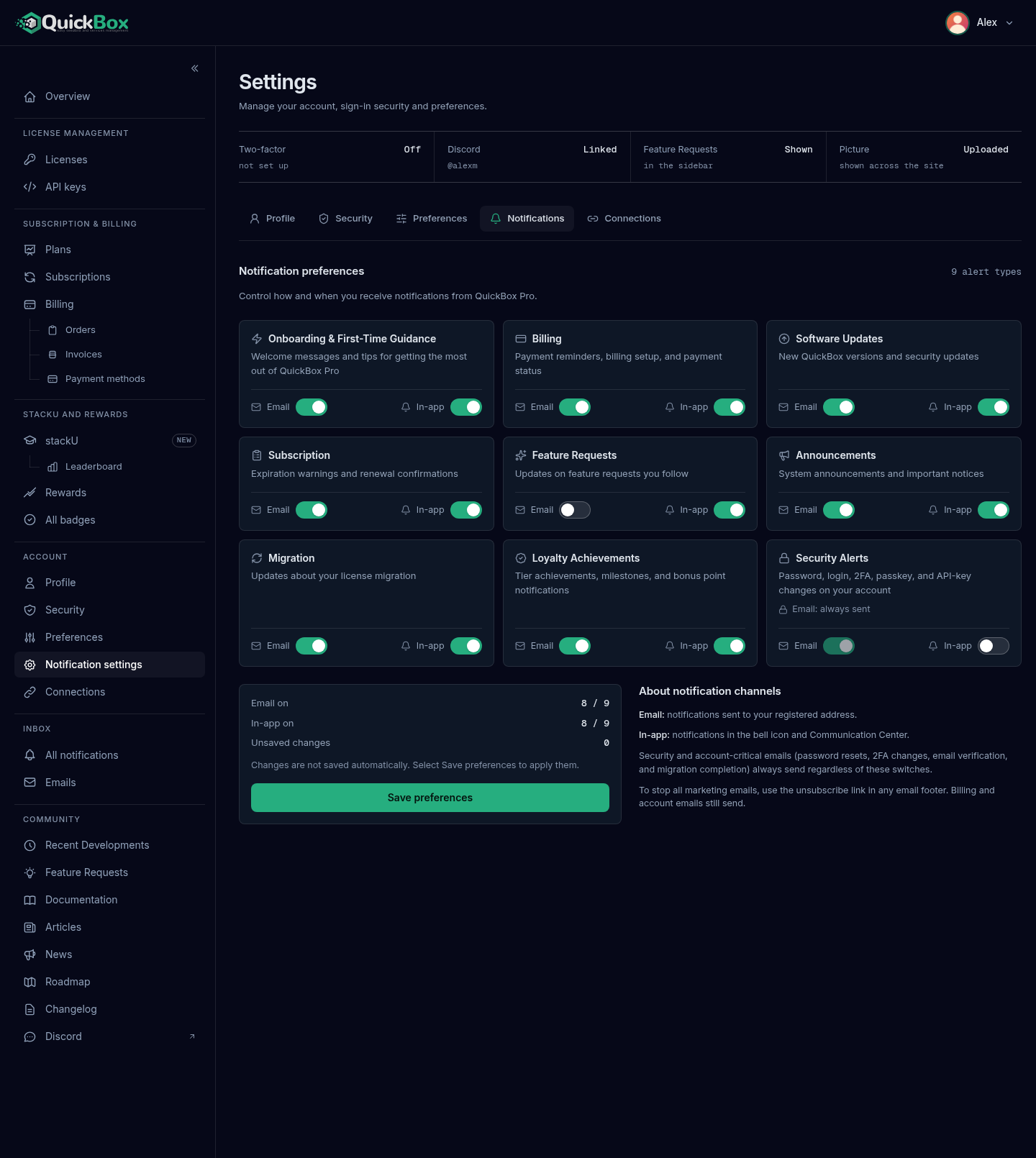
- Sidebar
- Notification settings (under Account)
- Address
- /dashboard/
settings ?tab=notifications - Also reachable at
- /dashboard/
settings/ notifications - Saves
- Save preferences (changes apply only when you click it)
The tab is called Notifications on the Settings page and Notification settings in the sidebar. They are the same screen. The address / shows it on its own page, titled Notification preferences with a Settings link back. That is the page the links in our email footers and the Preferences link in your Inbox open.
The nine alert types
Every type is one tile with its name, a one-line description and two switches. Until you save a change the tiles show these defaults.
| Alert type | What it covers | In-app | |
|---|---|---|---|
| Onboarding & First-Time Guidance | Welcome messages and tips for getting the most out of QuickBox Pro | On | On |
| Billing | Payment reminders, billing setup, and payment status | On | On |
| Software Updates | New QuickBox versions and security updates | On | On |
| Subscription | Expiration warnings and renewal confirmations | On | On |
| Feature Requests | Updates on feature requests you follow | Off | On |
| Announcements | System announcements and important notices | On | On |
| Migration | Updates about your license migration | On | On |
| Loyalty Achievements | Tier achievements, milestones, and bonus point notifications | On | On |
| Security Alerts | Password, login, 2FA, passkey, and API-key changes on your account | Always sent | Off |
On the Security Alerts tile the Email switch is on and locked, with the note “Email: always sent”. Hover the switch to see “Security alert emails always send to protect your account. They can’t be turned off.” The In-app switch on that tile is yours to turn on: it makes a password change also add a card to your Inbox. See Security alerts.
Change your settings
- Open Account → Notification settings in the sidebar.
- Find the tile for the alert type you want to change.
- Flip its Email switch, its In-app switch, or both. The switch moves at once but nothing is saved yet.
- Check the Save preferences panel: Email on and In-app on show how many of the nine are on, and Unsaved changes counts the tiles you have changed.
- Click Save preferences. A green “Preferences saved successfully!” message confirms it. If it fails you see “Failed to save preferences. Please try again.” and your switches stay as you set them so you can try again.
The panel’s own reminder is “Changes are not saved automatically. Select Save preferences to apply them.”
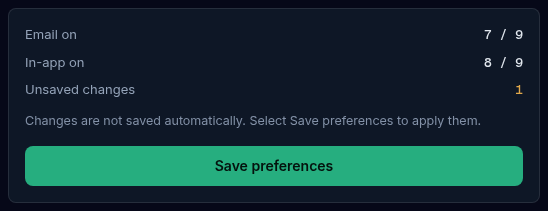
On a narrow screen
When the page is narrow the side panel is replaced by a bar fixed to the bottom of the screen. It shows “No unsaved changes” or, for example, “2 unsaved changes”, and carries the same Save preferences button, so it stays in reach while you scroll the tiles.
What the channels mean
The About notification channels box beside the tiles explains each one:
- Email: notifications sent to your registered address.
- In-app: notifications shown inside the portal, in the unread count and your Inbox.
- Security and account-critical emails always send regardless of these switches. That includes password resets, email verification, security alerts, two-factor, passkey and Discord changes, and key migration emails.
- To stop all marketing emails entirely, use the unsubscribe link in the footer of any email.
An in-app notification pops up as a short banner when it arrives, for about eight seconds (longer for a critical one), and then waits in your Inbox. Turning In-app off for a type stops those notifications being created at all.
Troubleshooting
Symptoms
- You switched something off but kept getting that email
- Your switch changes are gone after leaving the page
- You cannot find the Save preferences panel
- You cannot turn off the security emails
Resolution
- Check that you clicked Save preferences, and that it showed the green confirmation. Also check whether the email is one of the always-send kinds listed above.
- The tab saves only when you click Save preferences. Unsaved switches are discarded when you navigate away.
- When the page is narrow the panel becomes a bar fixed to the bottom of the screen, with the same button.
- That is intended. Security Alerts email is always sent. Only the In-app switch on that tile is adjustable.
FAQ
Related pages
Join the Community
Media server operators sharing configs, getting support, and shaping the future of QuickBox Pro.
- Dedicated Support
- Feature Previews
- Community Configs
- Active Discussions