Servers & Activations
A server in your account is a QuickBox Pro install that has been activated with the API key of one of your licenses. Each active server uses one activation slot of that license. This page covers how a server gets onto your license, how to read the lists of servers the portal shows, and what you can do with a server from there.
- Servers table
- Licenses (under License Management, in the Servers section)
- Address
- /dashboard/
licenses#servers - Detail page
- /dashboard/
licenses/ <license id> (opened with Telemetry and details on a license) - Favorites
- Under Licenses (listed in the sidebar)
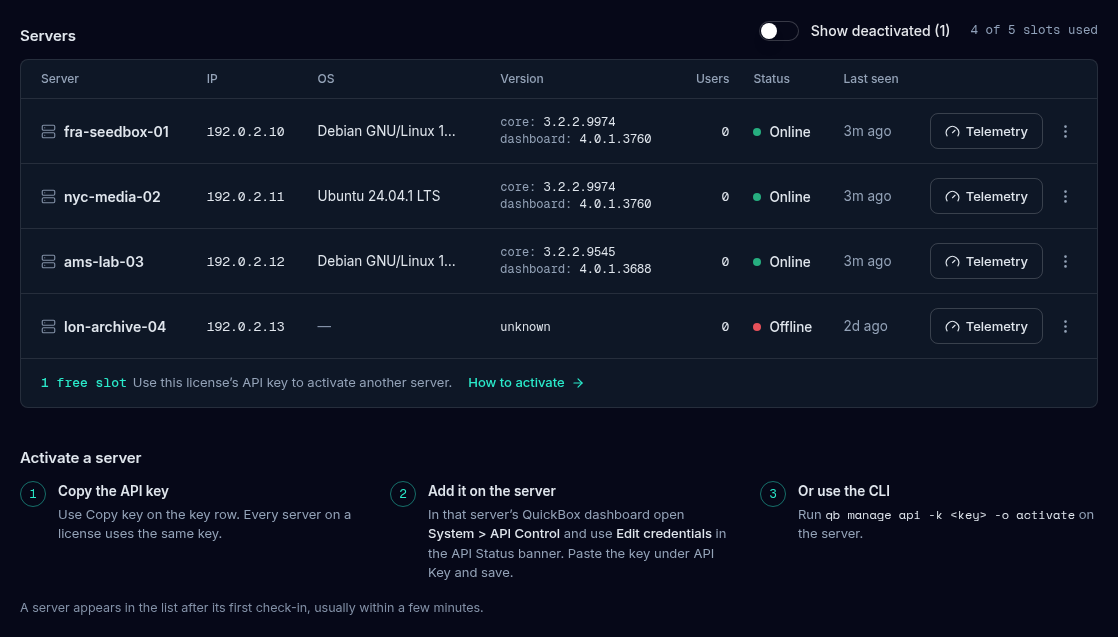
Activate a server
A new server appears in your list after you set your API key on it. The same three steps are printed at the bottom of the Licenses page under Activate a server.
-
Copy the API key. In the API key section of the Licenses page, select Copy key. Every server on a license uses the same key. If you need to find it first, see API Keys.
-
Add it on the server. Sign in to that server’s own QuickBox dashboard as an administrator and open System → API Control. In the QuickBox Central banner at the top, open the credentials editor with the arrow at its right (Edit credentials), paste the key under API Key and select Save.
-
Or use the command line. Run this on the server:
bashqb manage api -k qbp_YOUR_KEY
The server shows up in the portal after its first check-in, usually within a few minutes. Reload the Licenses page if it has not appeared yet. The command is covered in the qb manage reference and the dashboard screen in API Control.
The Servers table tells you when a slot is free, for example “2 free slots. Use this license’s API key to activate another server.” If every slot is in use, deactivate a server you no longer need, or choose Add activations on the license card.
The Servers table on the Licenses page
The Servers section lists the servers on the license that is open on the page. The heading shows how many slots are used, for example “3 of 5 slots used”. It always stays a table, even on a phone.
| Column | What it shows |
|---|---|
| Server | The server’s name: its display name if you set one, else its hostname, else its IP address. |
| IP | The server’s address. |
| OS | Its operating system. Wide screens only. |
| Version | The QuickBox core version and, when the install reports one, the dashboard version. Wide screens only. |
| Users | How many user accounts are on the server. |
| Status | Online, Offline or Deactivated. |
| Last seen | How long ago the server last checked in, for example “3m ago”. |
| (actions) | A Telemetry button and a three-dot menu. |
Columns drop away as the table narrows, least important first, so the server name, its status and the actions are always there. Hover a long name or OS to see it whole.
Only the first eight servers are listed. If the license has more, a line reads “Showing 8 of N servers” with View all N servers, which opens the license’s detail page.
Show deactivated (N) is a switch above the table when you have deactivated servers. They show as Deactivated with “uses no slot”.
Telemetry and the three-dot menu
- Telemetry opens the license’s detail page with that server’s row already open. On a narrow table it shrinks to a gauge icon.
- The three-dot menu (More actions) holds Deactivate server…. Keeping it behind a menu stops a stray click from freeing a slot.
The license detail page
Select Telemetry and details on the license card, or View telemetry and details in a license’s menu, to open the detail page for one license. It is headed License Details, with the line “View activation telemetry and API keys”, a chip for the kind of license (LIFETIME, COMPLIMENTARY or SUBSCRIPTION) and a chip for its status. Back to Licenses returns you.
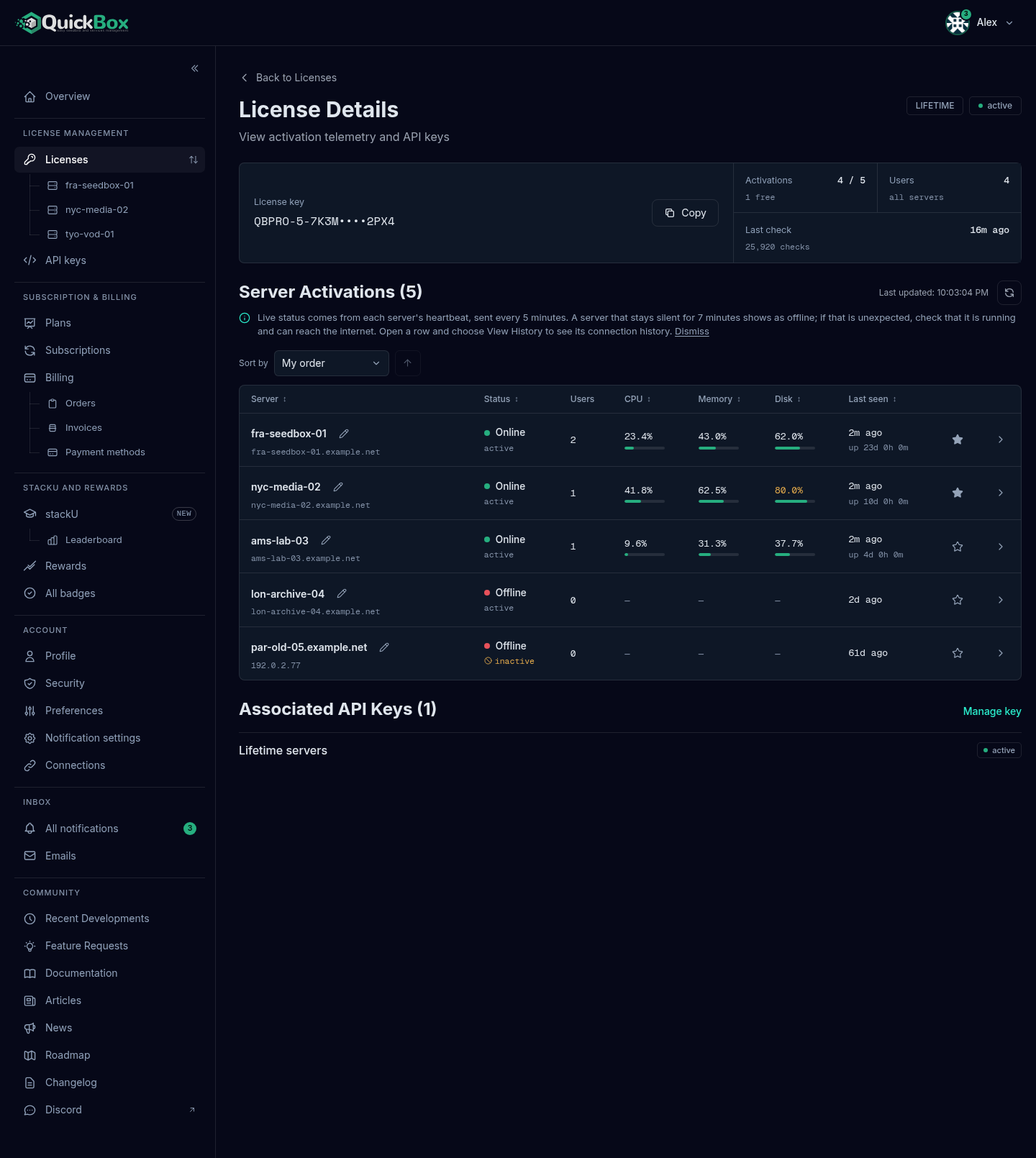
From top to bottom it holds:
- A banner, only when the license needs something. It explains the state in plain words and offers the next step, such as Update Payment Method or Add Payment Method. If an invoice has been prepared for you it reads “Invoice ready for payment” with Pay Invoice.
- The License key card. This one prints the full key, with a Copy button, and beside it three readouts: Activations (used out of allowed, and how many are free), Users (across all servers) and Last check (when the license was last checked, and how many checks).
- Server Activations (N), the table below.
- Associated API Keys (N), one line per key with its status and a Manage key (or Manage keys) link back to the API key section.
While the license grants access and has an active API key, this page quietly refreshes itself every 30 seconds. The refresh button next to the heading refreshes it right away, and “Last updated” shows the time of the last refresh.
The Server Activations table
Each row is a server. Select a row, or the arrow at its end (Show details), to open it in place. Columns appear as the table widens: Server, Status, IP address, OS, QuickBox (core and dashboard versions), Users, CPU, Memory, Disk, Last seen, a star and the arrow. On a phone only the server, its status and the arrow remain.
With two or more servers, Sort by lets you choose how the rows are ordered: My order (the order of your sidebar favorites, see below), Server, Status, CPU, Memory, Disk or Last seen. The arrow beside it flips ascending and descending. Only sorts whose column is on screen are offered, and your choice is remembered in this browser. With more than eight servers a search box appears (“Search by name, host, address or OS”).
What an open row shows
An opened row has several parts.
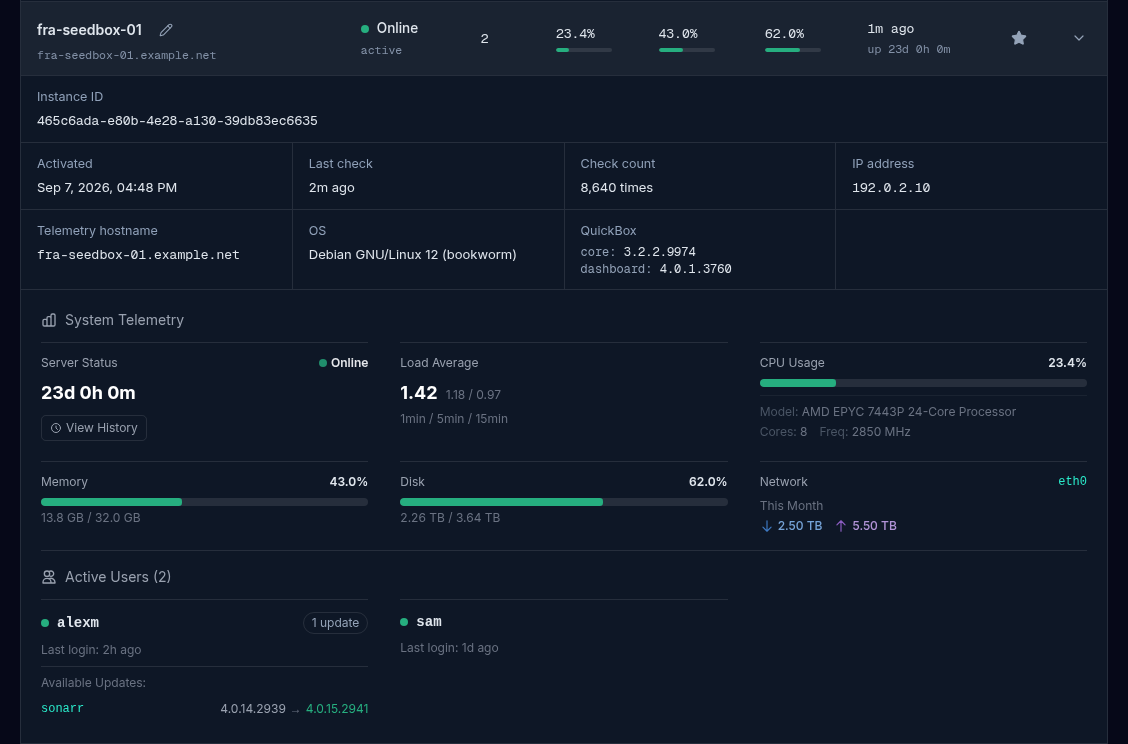
- Identity band. Activated (the date), Last check, Check count, Instance ID (a click selects it so you can copy it), IP address, Telemetry hostname, OS and the QuickBox versions. Facts that already have a column are shown here only while that column is hidden.
- System Telemetry. Server Status with uptime. When the server is online you also see Load Average (1, 5 and 15 minutes), CPU Usage with model, cores and frequency, Memory and Disk with a bar each that turns amber from 75 percent and red from 90, and Network with the interface and this month’s download and upload. A card appears only when the server reports that value.
- Connection history. See below.
- Active Users. Shown while the server is online. Each QuickBox user on the server with their last login, and any application updates waiting for them with the installed and the available version.
Connection history
Under Server Status, View History (it becomes Hide History) opens a timeline of when the server was online and offline. The newest 50 entries are kept.
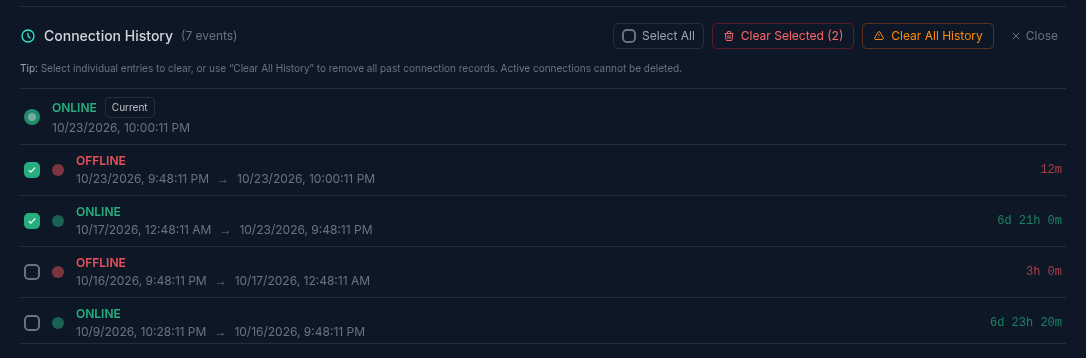
Each entry shows Online, Offline or Awaiting heartbeat, when it started and ended, and how long it lasted. The newest, still-running entry is marked Current.
You can tidy the list:
- Select All ticks every finished entry, or tick entries one at a time. Clear Selected (N) then deletes them after a confirmation.
- Clear All History deletes every finished entry after a confirmation.
- Close hides the panel.
The current entry cannot be deleted.
Clearing connection history removes the entries for good. Only finished entries are removed; the one still running is kept.
What Online, Offline and Not monitored mean
| Status | What it means |
|---|---|
| Online (green) | The server’s last heartbeat is recent. |
| Awaiting heartbeat (amber) | The server is a little overdue. Its next heartbeat was expected more than 5 minutes after the last, but it has not been silent for 7 minutes yet. On a narrow table this reads Awaiting. |
| Offline (red) | No heartbeat for more than 7 minutes. The row says when the server was last seen. |
| Not monitored (grey) | Telemetry is off for this license, so its servers are not monitored. This happens when the license is not currently active or has no active API key. The row shows “Telemetry off”. |
The portal uses one rule everywhere: a server is online while its last heartbeat is no more than 7 minutes old. The heartbeat comes from the server itself.
A server sends its heartbeat only while Telemetry is turned on in its own dashboard, and telemetry is off by default on new installs. With it off, the server is still listed and still works, but the portal cannot show it as online or show its metrics. Turn it on under System → API Control, or run qb manage telemetry -o on. What is sent and how to change it is explained in Server Telemetry.
Name a server
A server’s display name is the name you see everywhere in the portal: the tables, the sidebar and the account menu. It is yours alone.
- Open the license’s detail page with Telemetry and details, and find the server in the Server Activations table.
- Next to the server’s name select the pencil (Edit display name).
- In Edit Display Name, type a name under Display Name (up to 150 characters).
- Select Save. A “Display name saved” message confirms it.
The original hostname is kept and still shows in the server’s details as Telemetry hostname. To go back to the hostname, clear the field and save.
Favorite servers and the sidebar
A favorite is a shortcut. Starring a server puts it in the sidebar, directly under Licenses, so it is one click away from anywhere in the portal.
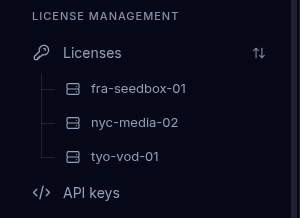
To add or remove a favorite: on the Server Activations table of the detail page, select the star at the end of the row (Add to favorites or Remove from favorites). On a narrow table the star sits under the server name. A message confirms “Server added to favorites” or “Server removed from favorites”.
To use one: select it in the sidebar. It opens that license’s detail page with the server’s row already open and in view.
Only active servers are listed, and each shows its display name, or its hostname, or its IP.
To put them in your own order: when you have two or more favorites and the sidebar is expanded, an Arrange servers button appears beside Licenses.
- Select Arrange servers.
- Drag a favorite by its grip, or use the up and down arrows on each row.
- Select Done (the tick) to save the order, or Cancel (the cross) to leave it as it was.
While you arrange, the sidebar links do not navigate. If saving fails you see “Could not save the new order. Your previous order is back.” The saved order is also the My order sort in the Server Activations table. The same list and Arrange control are in the menu drawer on a phone, and the account menu lists your favorites with a green dot on the ones that are online.
Deactivate a server
Deactivating frees the slot so you can use it for another server.
- Open the Servers table on the Licenses page.
- On the server’s row select the three-dot menu (More actions).
- Choose Deactivate server….
- Read the confirmation: “Deactivate server. This frees one activation slot, and the server stops reporting until it is activated again.”
- Select Deactivate.
“Server deactivated successfully” confirms it, and the free-slot count goes up. The server stays in the list as Deactivated if Show deactivated is on. To use it again, activate it again with the steps above.
The server itself is not touched, so it keeps running. But it no longer reports to your account until you set the API key on it again.
Troubleshooting
Symptoms
- A server I activated is not in the list.
- A server that is running shows Offline.
- A server shows Awaiting heartbeat.
- Every server on a license says Not monitored.
- I cannot activate another server.
- A server shows the wrong name.
Resolution
- Wait a few minutes for its first check-in and reload the page. If it still does not show, confirm the key on the server with
qb manage apiand that the server can reach the internet. - Online status comes from the heartbeat. Turn on Telemetry on that server under System → API Control, or run
qb manage telemetry -o on. See Server Telemetry. - The heartbeat is a little late. The server goes Offline only after 7 minutes of silence. If it stays that way, check the server is running and online.
- The license is not currently active, or it has no active API key. Fix the payment from the license card, or if the key was revoked, recreate it in API Keys.
- Every slot is in use. Deactivate a server you no longer need, or choose Add activations on the license card.
- Names are yours to set. Use the pencil next to the name and Save, or clear the field to fall back to the hostname.
Good habits
Do
- Name every server so the sidebar and tables read clearly.
- Favorite the servers you check often.
- Turn on Telemetry if you want the portal to show whether a server is online.
Don't
- Do not share your API key to give someone else a server. Every server on a license uses it.
- Do not deactivate a server you still use unless you plan to activate it again.
FAQ
Where to go next
Join the Community
Media server operators sharing configs, getting support, and shaping the future of QuickBox Pro.
- Dedicated Support
- Feature Previews
- Community Configs
- Active Discussions