stackU
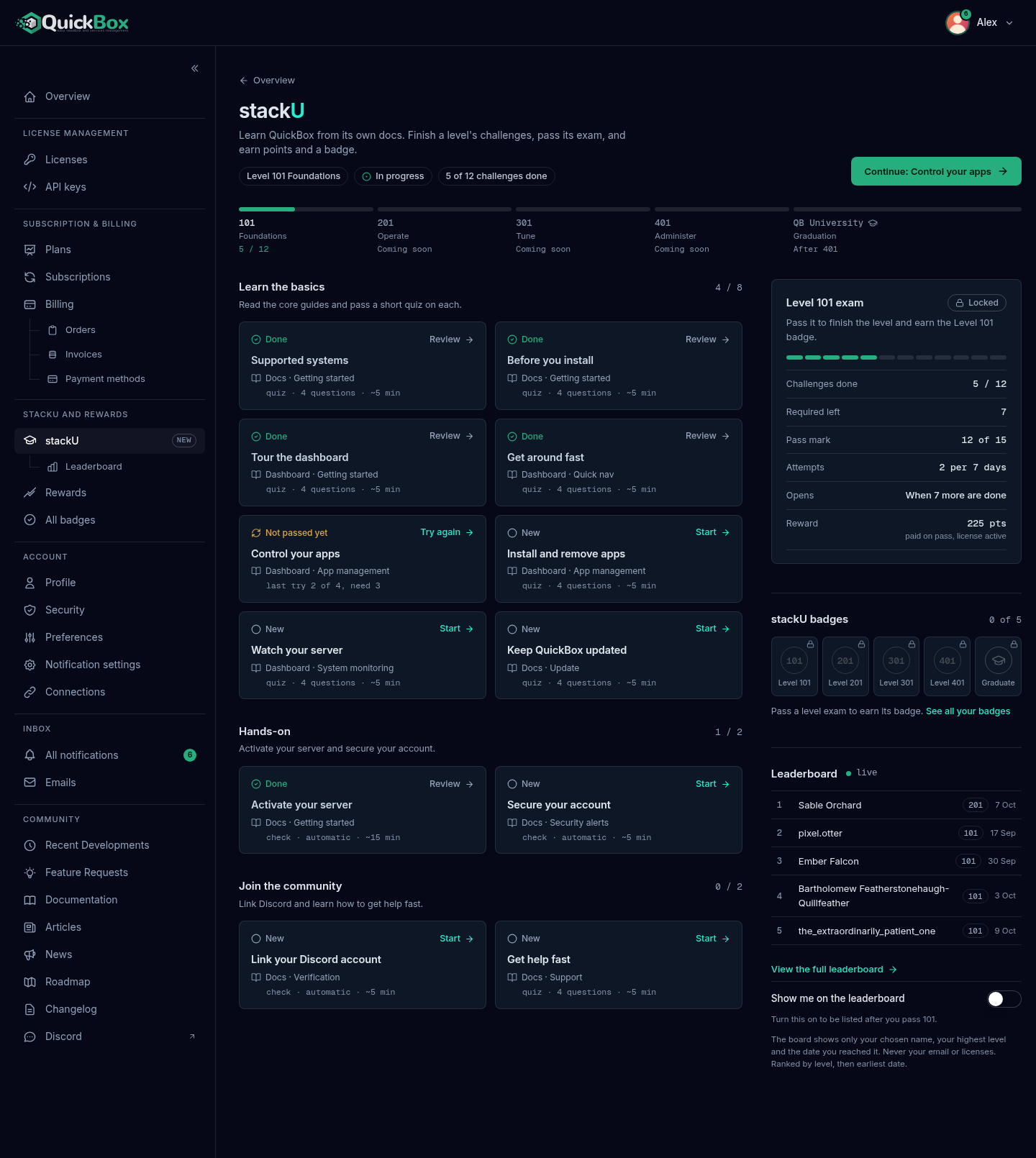
stackU turns the QuickBox docs into a short course that lives in your account. Each challenge is built from one page of the docs. You read the page, prove you took it in, and the work counts toward a level.
Finish a level’s challenges, pass its exam, and you earn points, a badge for the level, and (if you choose) a place on the leaderboard.
Learn from the real docs
Every challenge comes from one page of the docs, so you learn the product the way it works today.
Quizzes and account checks
Pass a short quiz, or finish a check that is confirmed from your own QuickBox account.
A level exam
When a level's challenges are done, a 15 question exam closes the level and pays its points.
Points, badges, leaderboard
Each passed exam pays points once, earns a badge, and can put you on the opt-in leaderboard.
Where to find it
Open stackU in the left sidebar, in the group called stackU and rewards. Under it sits a Leaderboard link that jumps to the leaderboard section of the same page. The group also holds Rewards and All badges.
- Sidebar
- stack
U (under stackU and rewards) - Address
- /dashboard/
stacku - Public leaderboard
- /stacku
You can also start from the stackU section on your Overview page, where Browse challenges opens the full page.
The ladder
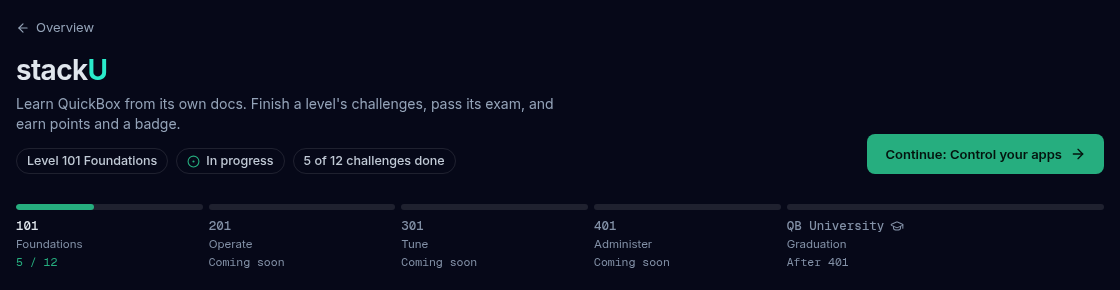
stackU has five steps. They sit in a row under the page title, one bar for each: 101, 201, 301, 401 and QB University.
| Step | Name | What it covers | Points when you pass |
|---|---|---|---|
| 101 | Foundations | Install QuickBox Pro, activate your server and find your way around | 225 |
| 201 | Operate | Run day-to-day operations on your server | 300 |
| 301 | Tune | Streaming, network performance and backups | 300 |
| 401 | Administer | Users, roles, the API and server transfers | 375 |
| QB University | The capstone | A cumulative exam across every level. Pass it to graduate. | 300 |
Together the levels pay up to 1,500 points, once per account.
Under each bar the page shows a status: Passed, a count such as “4 / 12” for the level you are on, Exam ready, Locked, Coming soon, or “After 401” for the capstone. A level that is not open yet shows Coming soon, and a note says which levels are on the way.
Take the levels in order. A level’s exam opens no sooner than 7 days after you complete the level before it. Challenges themselves pay no points. The exam at the end of the level pays the points.
Graduating from QB University gives you a role on the site and in Discord, and a badge.
The state words under the title
Chips under the page title tell you where you are at a glance.
| Chip | Meaning |
|---|---|
| Level 101 Foundations | The level the page is focused on |
| In progress | You are working through the level’s challenges |
| Exam ready | Every required challenge is done and the exam is open |
| Exam in progress | You have an exam attempt open that you can resume |
| No attempts left | You have used the exam attempts for now |
| Exam opens soon | The exam is waiting out the pause after the previous level |
| Passed 101 | You passed that level’s exam |
| Locked | The level opens once the previous one is complete |
| Graduated | You passed QB University |
| 225 pts held | Points are earned but waiting for an active license |
| 225 pts to claim | Points are earned and ready for you to claim |
A Continue button next to the title takes you straight to the challenge you started, or else the first required one you have not touched.
Challenges
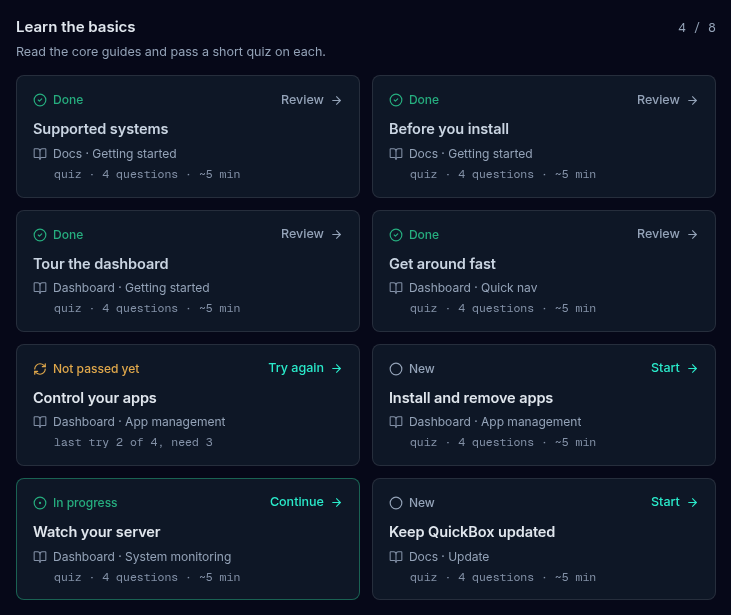
A level is a set of challenges grouped into modules. Level 101 has 12, in three modules: Learn the basics, Hands-on, and Join the community. Each one is a tile showing its state, its action, the docs page it comes from, and what it asks.
| Kind | What you do | Label on the tile |
|---|---|---|
| Quiz | Read the docs page, then answer 4 questions written from it | quiz |
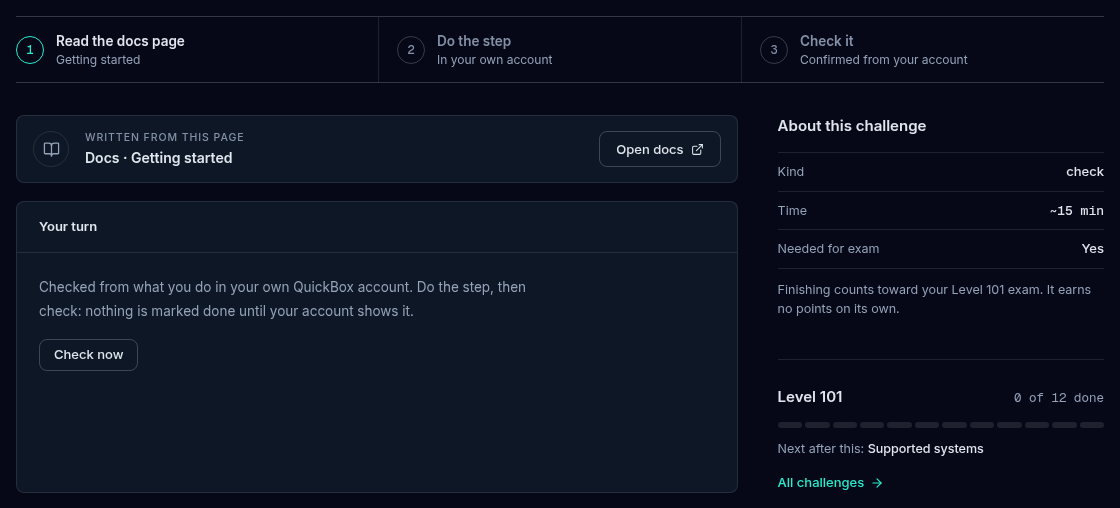
| Check | Do a step in your own QuickBox account, then ask the page to check it | check |
| Read | Open the docs page and read it | visit |
The tile’s action reads Start, Continue or Review. A quiz you tried and did not pass reads Not passed yet with your last score and offers Try again.
Points are never paid for a single challenge. Each one counts toward the exam.
Taking a quiz
- On the stackU page, select a quiz tile. Its page opens, showing three steps: read the docs page, answer 4 questions, check your answers.
- Select Open docs to read the page the questions come from. It opens in a new tab.
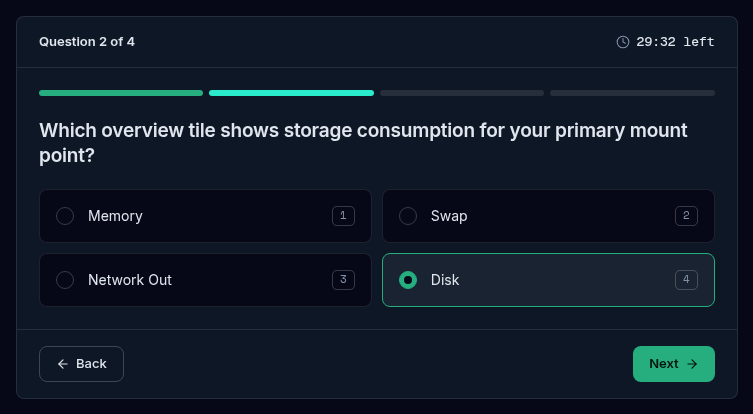
- Select Start quiz. The questions arrive one at a time, drawn at random.
- Pick an answer for each question. You can use the mouse, the number keys 1 to 9, the up and down arrows to move between answers, the left and right arrows to move between questions, and Enter to move on.
- On the last question the button changes to Check answers. Review your picks. Any question without an answer is listed, and it counts as wrong.
- Select Submit quiz. Your score shows right away.
A quiz passes with 3 of 4 right. You get 30 minutes from the moment you start, and you can leave and come back while the attempt is open. You may start up to 3 attempts in any rolling 24 hours.
After a pass the panel reads Passed and Challenge complete., shows a Why these answers note for each question, and offers Continue. After a miss it reads Not this time, shows your score, and under Read again links each missed question to the docs section it came from. Select Try again while you have an attempt left, or Back to stackU.
Doing a check
- Open the check’s tile. It explains what to do in your account, for example activating a server, turning on two-factor authentication or adding a passkey, or linking Discord.
- Do the step in your account.
- Return to the challenge and select Check now.
If your account shows it, the challenge completes: “Done. Your account shows it, so this challenge is complete.” If not, you see “Not yet” with a hint, and you can check again any time.
The checks in Level 101 are Activate your server, Secure your account and Link your Discord account.
Reading challenges
A reading challenge asks you to open a docs page. Select Open the docs page. It opens in a new tab and the challenge is marked complete as soon as you open it.
Locked levels
If a level is locked, you can still open its challenges and read the docs, but the controls are off until the previous level is complete.
The level exam
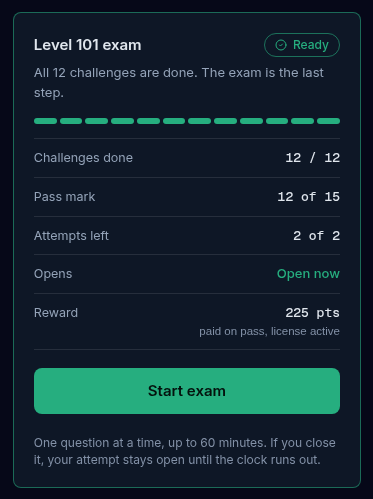
When every required challenge in a level is done, the exam opens. Until then the exam card on the right shows how many challenges remain and what else it is waiting for.
| Level exam | |
|---|---|
| Questions | 15, drawn at random from every quiz in the level |
| To pass | 12 correct |
| Attempts | 2 in any rolling 7 days |
| Time | 60 minutes once you start |
| QB University exam | 25 questions, 22 to pass, drawn across all the levels |
Take the exam
- On the stackU page, find the exam card on the right. Its pill reads Ready when the exam is open.
- Select Start exam. The exam opens as its own full-screen view. If you left an attempt open, the button says Resume exam and picks up where you stopped.
- Answer the questions one at a time. A strip of numbered segments along the top shows answered, skipped and current questions, and you can select a segment to jump to it.
- On the review step, check the list of unanswered questions. You can jump back to any of them.
- Select Submit exam. Submitting ends the exam and grades it at once. You cannot change answers afterwards.
If you close the window mid-exam, the attempt stays open until the clock runs out. If time runs out before you submit, nothing is graded and the screen reads Time ran out. Starting again uses one of your attempts.
Your result
- Pass. The screen reads “Level 101 complete” and lists what you earned: your points (or the note that they are held), your badge, and the next level. Select Back to stackU, or Start level 201 when that level is open.
- Not this time. The screen shows your score and the attempts you have left. Your finished challenges stay finished. Read the docs again and select Try again while you still have an attempt. When none is left, it says when the next one opens.
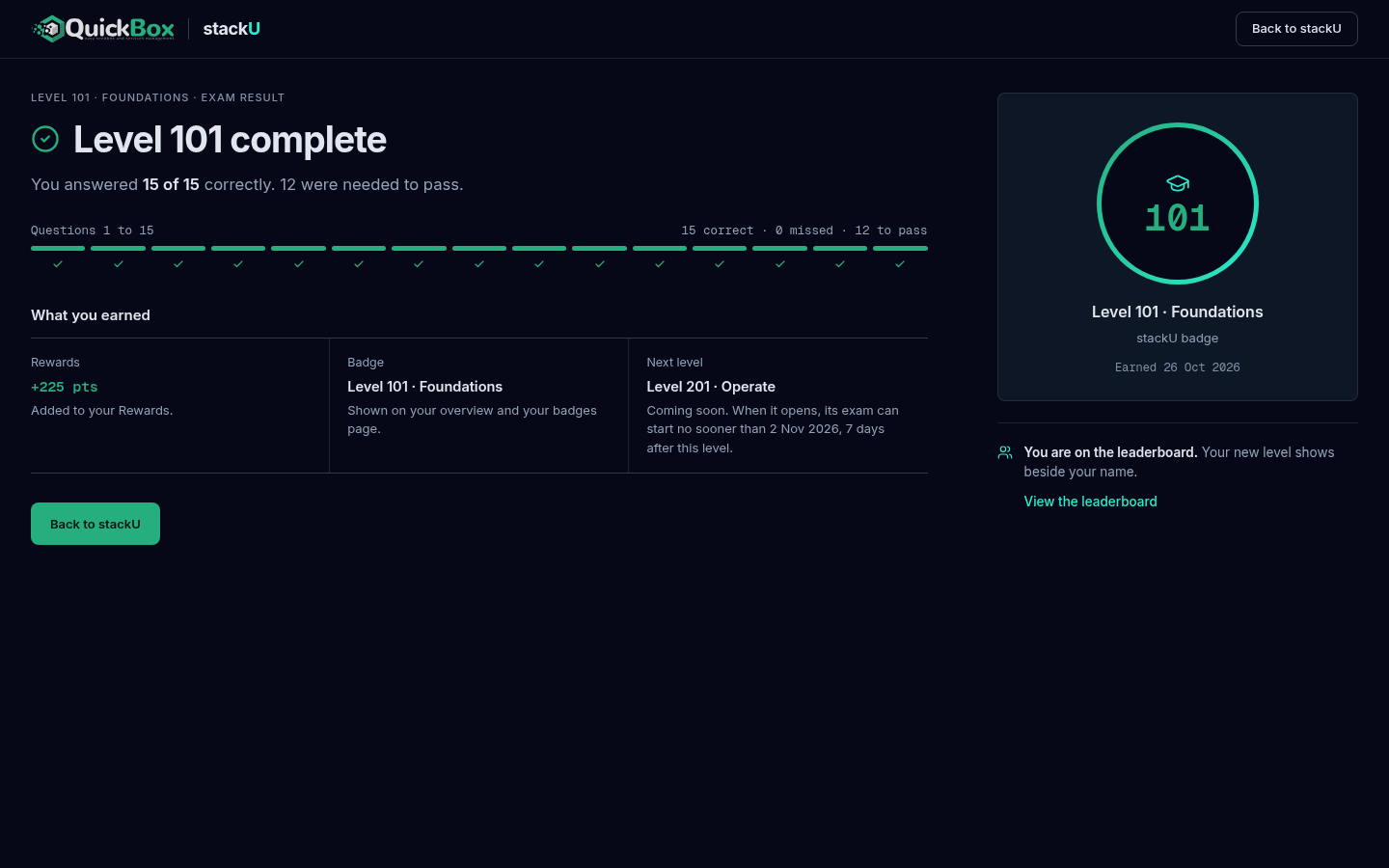
After a pass, the main column of the stackU page shows Your result (your score, the level badge and the points) in place of How the exam works, and Your attempts lists every graded attempt with its date and score.
Points and your license
stackU points are paid into your Rewards balance, at 1 point = $0.01, with no tier multiplier.
Points are released only while your account has an active license and is in good standing. Your progress and your badge are always saved. If you pass without an active license, the points are held, and the page shows a reward card at the top of the right column.
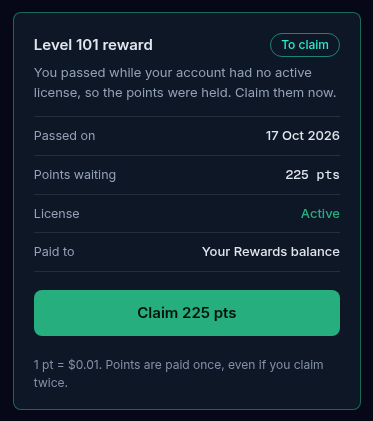
You see
- The reward card says Points held and the button reads Compare plans
- The reward card says To claim and the button reads Claim 225 pts
- No reward card appears
What to do
- Get an active license on the Plans page. Your progress and badge are kept, and the points are released when you claim with an active license.
- Select the Claim button. The points move into your Rewards balance, and are paid only once even if you select it twice.
- Nothing is waiting. Points already paid show in Rewards.
If a refund, a reversed payment or a lost chargeback removes your last active license, the stackU points already paid are taken back. Your badges and role stay. A subscription that simply ends or is cancelled takes nothing back.
Badges
Passing a level’s exam earns its badge. The stackU badges card on the right shows one tile for each step, with a count that reads “N of 5”. Earned tiles are lit and unearned ones are locked. A line under the tiles names your latest badge and the day you earned it. Select See all your badges to open the Badges page.
The leaderboard
The leaderboard card lists the top members by the highest level they have finished, then by who reached it first. It never ranks by exam score.
You are not on it unless you choose to be.
- In the leaderboard card, switch on Show me on the leaderboard. It saves as soon as you change it.
- Under Show me as, pick My site display name or My linked Discord handle. The Discord option needs a linked Discord account.
- You are listed once you have passed your first level.
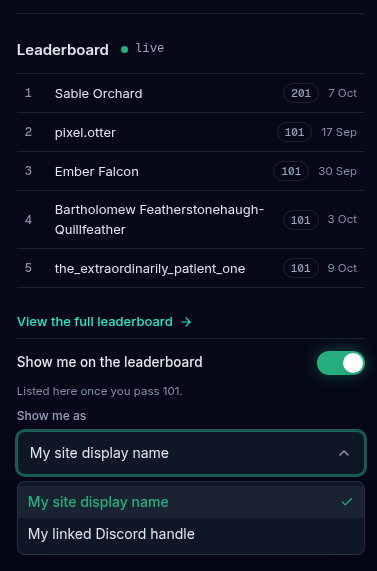
Switch the setting off at any time and you are removed at once. The board shows only your chosen name, your highest level and the date you reached it, never your email or licenses. View the full leaderboard opens the public page at /.
When you are on the board but outside the rows shown on the page, your own row is added underneath with “You” and your name.
Troubleshooting
Symptoms
- The exam card has no Start exam button
- A level shows Locked or Coming soon, or the exam shows Exam opens soon
- A quiz says No attempts left
- Check now says Not yet
- The page says stackU is not available right now
Resolution
- Finish every required challenge in the level. The card lists how many remain, or the date the exam opens if it is waiting after the previous level.
- Locked opens once the previous level is complete. A level marked Coming soon is not open yet and appears when it is released. Exam opens soon is the 7 day pause after the previous level, and the card names the date. Read the docs in the meantime.
- A quiz allows 3 attempts in any rolling 24 hours. The challenge page says when the next attempt opens.
- Do the step in your account first. The hint under the button says what is missing, then check again.
- Your progress is safe. Refresh the page to try again.
Questions
Do
- Read the docs page before you start its quiz.
- Link Discord and turn on two-factor authentication early. They are Level 101 checks.
- Use the Open docs button on a missed question to re-read just that section.
- Keep your account in good standing so points are released.
Don't
- Don't start an exam attempt you cannot finish. The clock runs for 60 minutes.
- Don't spend your two exam attempts back to back. Read the docs between them.
- Don't skip questions. An unanswered question counts as wrong.
Keep reading
Join the Community
Media server operators sharing configs, getting support, and shaping the future of QuickBox Pro.
- Dedicated Support
- Feature Previews
- Community Configs
- Active Discussions