Preferences
The Preferences tab collects the small settings that shape how the portal behaves for you. It has three tiles: one switch for the Feature Requests link, one shortcut to your notification choices, and one switch for how site credits are used when a subscription renews.
Open Preferences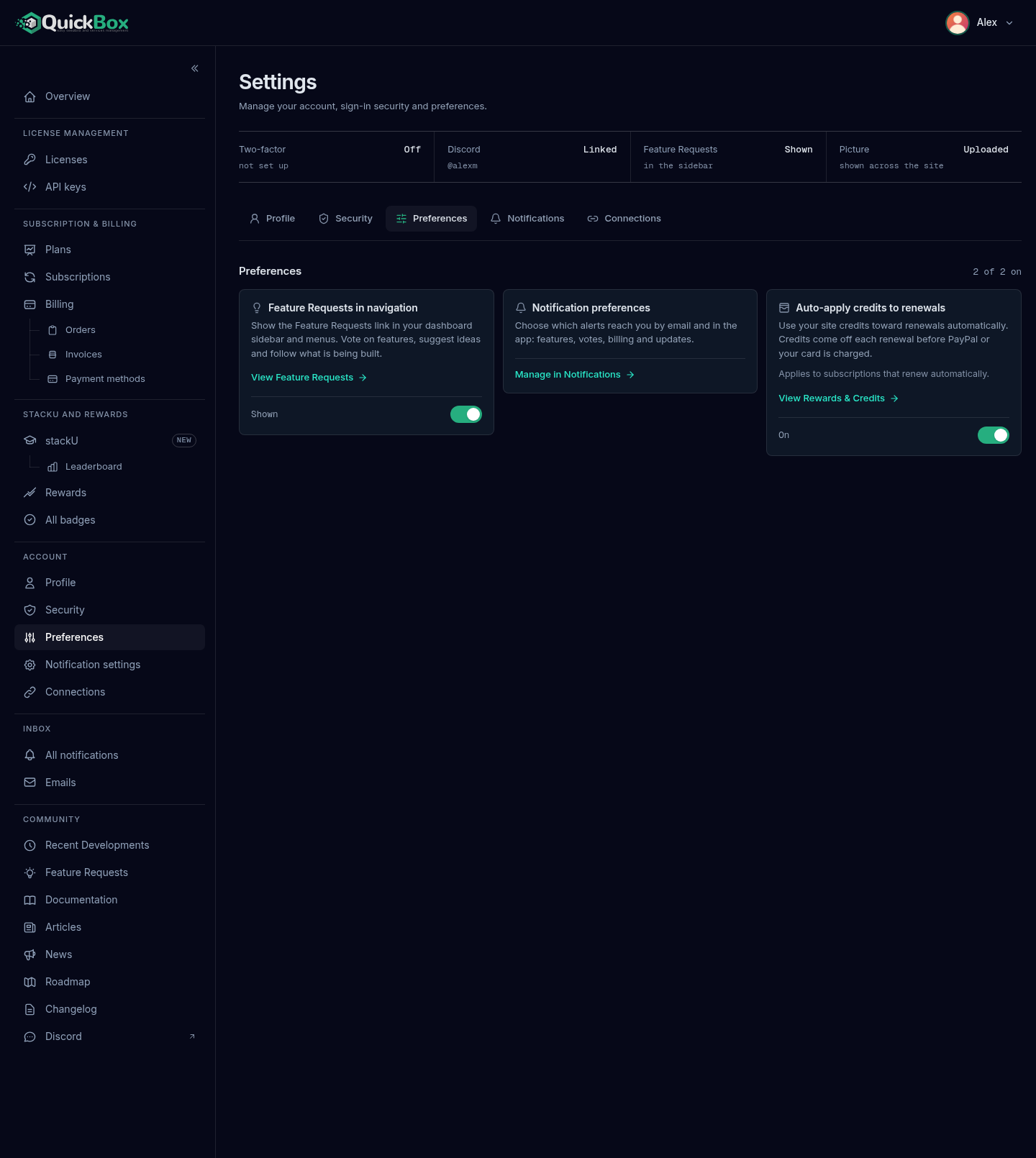
- Sidebar
- Preferences (under Account)
- Address
- /dashboard/
settings ?tab=preferences - Saves
- Immediately (when you flip a switch, with a confirmation message at the top of the page)
The tab header counts the switches that are on, for example “2 of 2 on”. The notification shortcut is a link, not a switch, so it is not counted.
Feature Requests in navigation
This tile is described as “Show the Feature Requests link in your dashboard sidebar and menus. Vote on features, suggest ideas and follow what is being built.”
Its state reads Shown or Hidden, and the same state appears as the Feature Requests readout in the Account status band at the top of the Settings page.
Hide or show the link
- Open Account → Preferences in the sidebar.
- On the Feature Requests in navigation tile, click the switch.
- A green message confirms it: “Feature Requests visible in navigation.” or “Feature Requests hidden from navigation.”
The sidebar row and the account menu entry change straight away. While the link is shown, the tile also carries a View Feature Requests link to the page itself.
Hiding the link only removes it from your navigation, and you can show it again at any time. See Community for what the Feature Requests page does.
Notification preferences
This tile reads “Choose which alerts reach you by email and in the app: features, votes, billing and updates.” It has no switch. Click Manage in Notifications and the page moves to the Notifications tab, which is covered in Notification settings.
Auto-apply credits to renewals
This tile reads “Use your site credits toward renewals automatically. Credits come off each renewal before PayPal or your card is charged.” Under the switch it adds “Applies to subscriptions that renew automatically.”
It is on by default. With it on, whatever credit balance you hold is taken off each automatic renewal first, and only the remainder is charged to your saved card or PayPal account. With it off, renewals are charged in full and your credits stay where they are for later.
Turn it off or on
- Open Account → Preferences.
- On the Auto-apply credits to renewals tile, click the switch.
- A green message confirms the change:
- Turning it on: “Credits will come off each renewal before PayPal or your card is charged.”
- Turning it off: “Auto-apply credits disabled. Renewals will charge your payment method in full.”
The tile’s state word reads On, Off, Loading while the saved value is being read, or Unavailable if it could not be read. In the last case the tile says “This setting could not be loaded. Reload the page to try again.” and the switch stays disabled.
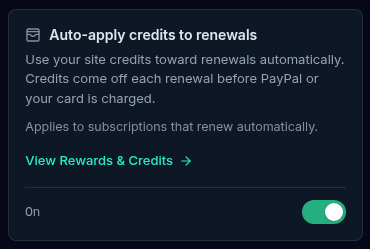
The tile links to View Rewards & Credits, which opens the Rewards page where your credit balance lives.
This switch is about renewals. Coupons apply to the first payment at checkout and are not part of this setting. How credits, renewals and payment methods fit together is covered in Subscriptions and Payment methods.
Troubleshooting
Symptoms
- The Feature Requests link has disappeared from the sidebar
- The auto-apply switch is greyed out and says Unavailable
- A renewal charged the full amount even though you hold credits
Resolution
- Turn Feature Requests in navigation back on in Preferences. The link only shows when that switch is on.
- Reload the page. The saved value could not be read, and the switch stays disabled until it can be.
- Check that Auto-apply credits to renewals is on, and that the subscription renews automatically. See Subscriptions.
FAQ
Related pages
Join the Community
Media server operators sharing configs, getting support, and shaping the future of QuickBox Pro.
- Dedicated Support
- Feature Previews
- Community Configs
- Active Discussions