Billing Overview
The Billing page is the home of your payment side of QuickBox Pro. It shows your next charge, the payment method that pays for renewals, your site credits and your last payment, and it points you at anything that needs your attention before a renewal fails. From here you reach your payment methods, your invoices and your order history.
Open Billing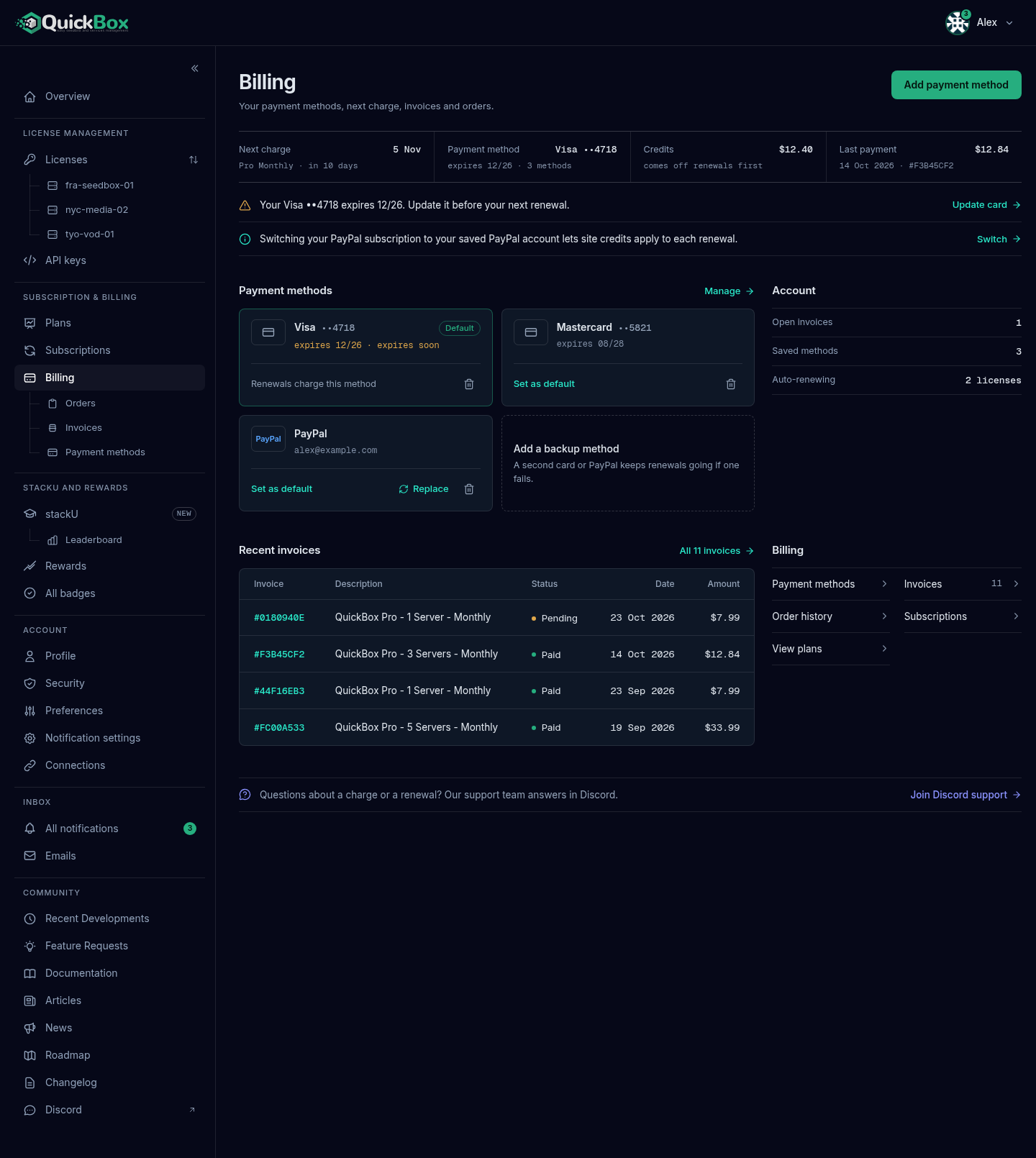
- Sidebar
- Billing (under Subscription & Billing)
- Address
- /dashboard/
billing - Who sees it
- Every signed-
in customer
Where billing lives in the portal
Everything that involves money sits in the Subscription & Billing group of the sidebar, with site credits under stackU and rewards.
| Sidebar entry | What it is for | Guide |
|---|---|---|
| Plans | Choose and buy a license | Plans & Checkout |
| Subscriptions | See each subscription, cancel it, turn its renewal back on, switch what pays it | Subscriptions |
| Billing | This page | You are here |
| Billing → Orders | Every purchase and renewal payment | Orders & Invoices |
| Billing → Invoices | Receipts and invoices to print, download or pay | Orders & Invoices |
| Billing → Payment methods | Cards and your PayPal account | Payment Methods |
| Rewards | Points, coupons and site credits | Rewards |
What the Billing page shows
The header is Billing with the line “Your payment methods, next charge, invoices and orders.” The Add payment method button sits at its right.
The summary band
Four readouts sit across the top. Three of them are links.
| Readout | What it shows | Selecting it opens |
|---|---|---|
| Next charge | The date of your earliest automatic renewal, with the plan and “in N days” or “today”. It reads “None” with “auto-renew is off” when your subscriptions do not renew, “lifetime, nothing due” when you only have lifetime licenses, or “no subscription”. | Subscriptions |
| Payment method | Your default method: the card brand and last four digits with “expires” and the date, or “PayPal account”. With none, it reads “None” and “add one to auto-renew”. When you have several, it adds how many. | Payment methods |
| Credits | Your site credit balance with “comes off renewals first”. | Not a link |
| Last payment | The amount of your most recent payment that took money, with its date and invoice number. A payment that credits fully covered is not counted. | That invoice |
If a readout cannot load, it reads “Unavailable” and says what could not load; the rest of the page still works.

Needs attention
When something can stop a renewal, a line appears under the band, most urgent first. Each line has a link that goes straight to the fix.
| What the line says | Link |
|---|---|
| ”Payment failed for” a plan, “so it is not active. Pay the invoice or update your card to restore it.” | View invoice, or Update card when there is no invoice to open |
| A plan on PayPal “is suspended, so it is not active. Check its payment in your PayPal account, or ask support to restore it.” | View subscription |
| ”Your migrated” license “ends in N days” or “has ended”. “Add a payment method so it renews.” | Set up billing |
| ”Your” card “expired” with its date, with “Renewals cannot be charged to it.” when it is your default. Or “expires” with its date and “Update it before your next renewal.” | Update card |
| ”Switching your PayPal subscription to your saved PayPal account lets site credits apply to each renewal.” | Switch |

If you arrive from a link that sets up billing for a migrated subscription, a Set up billing for your migrated subscription notice also appears with an Add payment method button. It says: “To continue your subscription after the current period ends, add a payment method. It renews automatically using the method you add.”
Payment methods
Each saved card and your PayPal account is a tile with its default marker and its actions. The last tile, Add a backup method, adds another. With nothing saved, the section reads “No payment methods” and offers Add your first payment method. Manage at the section’s right opens the full Payment Methods page. The two pages share the same tiles, so anything you do here you can also do there.
Beside the tiles, an Account panel lists Open invoices, Saved methods and Auto-renewing, the number of licenses that renew on their own.
Recent invoices
The last four invoices, newest first, with the invoice number, description, status, date and amount. The link above the table reads All invoices, or All N invoices when you have more than four, and opens the full list. See Orders & Invoices.
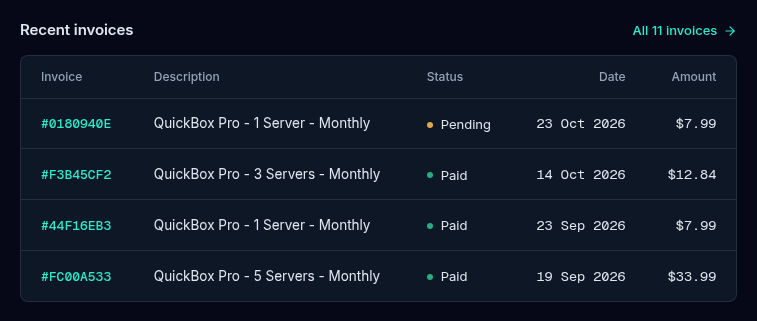
The panel to the right of the invoices holds shortcuts to the other billing pages, and a closing line reads “Questions about a charge or a renewal? Our support team answers in Discord.”
How billing works
When you buy a subscription it renews through the payment method you chose at checkout, your card with Stripe or your PayPal account. A new PayPal subscription asks you once to approve saving your PayPal account, and each renewal is then charged from that saved account. Every renewal takes your site credits off first and charges your card or PayPal only for what is left.
A subscription started with Stripe keeps renewing through Stripe, and one started with PayPal keeps renewing through PayPal. Changing your default payment method does not move it. To move from one gateway to the other, cancel the subscription, let its paid period run out, then buy a new subscription with the other gateway. Checkout refuses a second subscription while one is still running, even one set to end, so expect the new purchase to wait for the old period’s end. If you need help planning the move, ask in Discord.
You can have a card and a PayPal account saved at the same time. Saving a method only lets QuickBox Pro use it for future purchases; it does not move anything that is already running. At checkout the payment dialog lets you pick which one pays that purchase. See Plans & Checkout.
The life of a subscription
| Status you see | What it means | Your access |
|---|---|---|
| Active | The subscription is current. The renewal line on the Subscriptions page reads “Renews” with a date. | Full access |
| Active, ends at period end | You cancelled, but the paid period has not ended. The row reads “Ends” with a date and “cancels at period end”. | Full access until the period ends. You can turn renewal back on. |
| Suspended | A renewal could not be collected, and the 72-hour grace period is running. | Paused until the payment is made. |
| Payment failed | The first payment on a new subscription did not go through. | Not active until it is paid. |
| Expired or Cancelled | The paid period ended after a cancellation, or the grace period passed without payment. | None. Buy a new subscription or a lifetime license. |
Once a license has been suspended for 72 hours without payment, it expires and cannot be revived. Your account, settings, orders and points are kept. See Failed Payments & Grace Period.
Cancelling
You can cancel from the Subscriptions page. Cancelling stops the next renewal; it does not cut off access. You keep full access through the end of the period you already paid for, and until then you can turn renewal back on.
Refunds and credits
QuickBox Pro has a strict no-refund policy that covers subscriptions, renewals and lifetime licenses. There are no partial refunds or prorated credits when you cancel mid-period. The Refund Policy page has the full statement.
Site credits and reward points can offset payments. By default credits come off every renewal first, from a card or a saved PayPal account. A renewal that your credits cover in full is settled with no charge. To keep your credits for later, turn off Auto-apply credits to renewals in Preferences. The Rewards guide covers earning and converting points.
Frequently asked
Do
- Check the Needs attention lines on Billing after you change a card or when a renewal is close.
- Keep a payment method saved while a subscription is running.
- Leave Auto-apply credits to renewals on so your credits come off every renewal first.
- Cancel before the renewal date if you do not want to renew; access continues through the paid period.
Don't
- Don't expect a new default payment method to move an existing subscription to another gateway.
- Don't wait past 72 hours after a failed renewal; the license then expires for good.
- Don't expect a refund for unused time after cancelling.
Billing guides
Choose a plan, apply coupons and credits, and pay.
Cancel, turn renewal back on, switch billing.
Cards, PayPal, default method.
Purchase history, receipts and invoices.
Recover a renewal that did not go through.
One-time purchase, no renewals.
Join the Community
Media server operators sharing configs, getting support, and shaping the future of QuickBox Pro.
- Dedicated Support
- Feature Previews
- Community Configs
- Active Discussions