Your Profile
The Settings page is where you manage your own account: your picture, your sign-in security, a few preferences, your notification choices and your Discord link. It opens on the Profile tab, which shows who the account belongs to and lets you choose the picture that appears across the portal.
Open Profile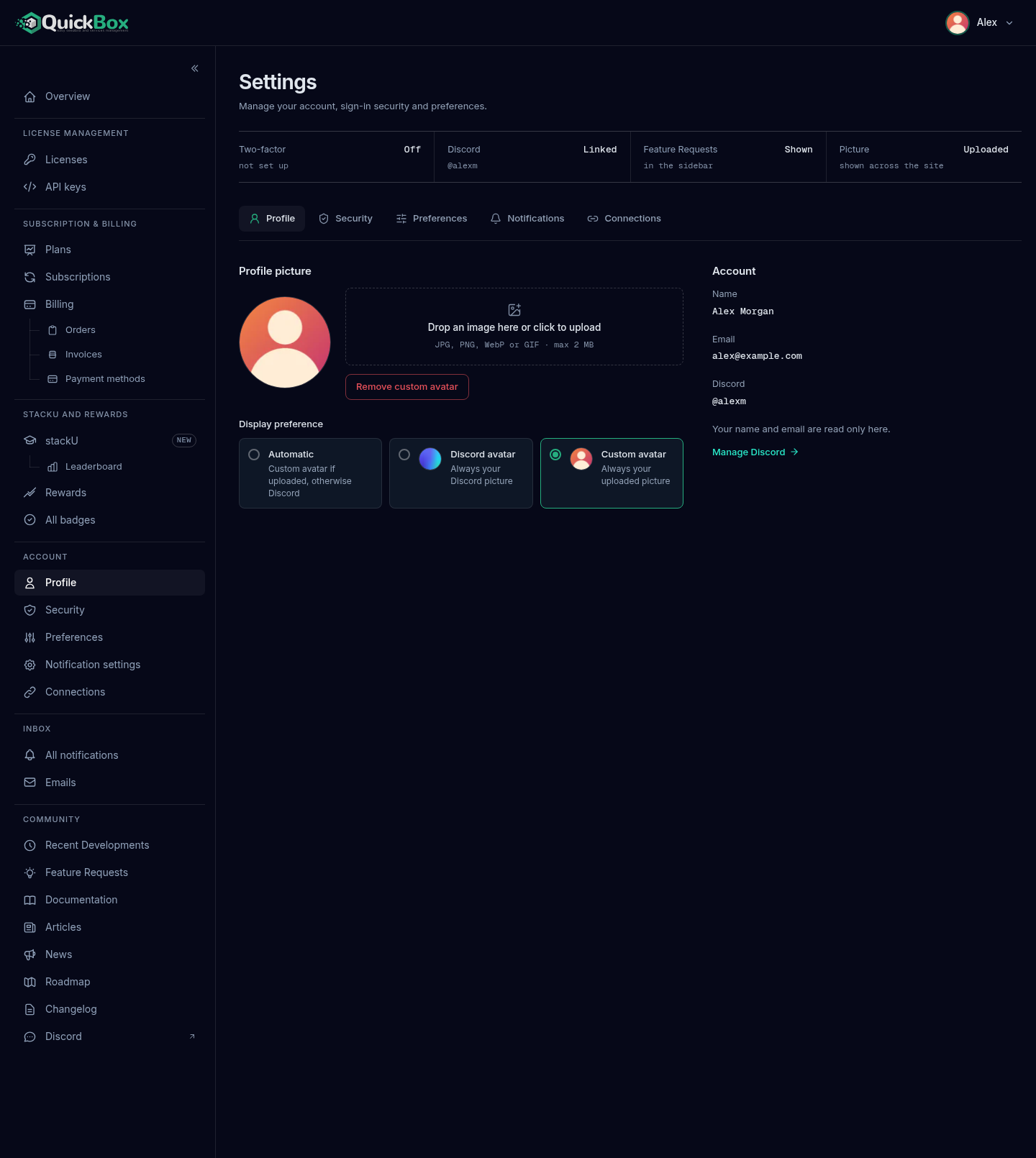
- Sidebar
- Profile (under Account)
- Address
- /dashboard/
settings - Who sees it
- Every signed-
in customer
What you see on the page
The page is titled Settings and reads “Manage your account, sign-in security and preferences.”
Under the title, an Account status band shows four readouts at a glance:
| Readout | What it tells you |
|---|---|
| Two-factor | On (with “authenticator app”) or Off (with “not set up”). Change it on the Security tab. |
| Discord | Linked with your @handle, Not linked, or Checking while the page looks it up. Change it on the Connections tab. |
| Feature Requests | Shown or Hidden “in the sidebar”. Change it on the Preferences tab. |
| Picture | Which picture is in use: Auto, Discord or Uploaded. Change it on this page. |
Below the band is a row of five tabs. Each tab is also a row under Account in the left sidebar (on a narrow screen, open the sidebar with the menu button at the top left), so you can reach any of them in one click from anywhere in the portal.
| Sidebar row | Settings tab | What it is for |
|---|---|---|
| Profile | Profile | Your picture, name and email (this page) |
| Security | Security | Password, two-factor authentication and passkeys |
| Preferences | Preferences | Feature Requests link and auto-applying credits |
| Notification settings | Notifications | Which alerts reach you, by email and in the app |
| Connections | Connections | Linking your Discord account |
Each tab has its own address, for example /. The Profile tab is the default and has no ?tab= part. A link such as / also lands on the right tab.
The Account card
The right-hand card is titled Account. It lists:
- Name and Email as they are on your account. If either is empty it reads “Not set”.
- Discord, with your
@handle, but only when a Discord account is linked.
Under the details the card says “Your name and email are read only here.” There is no field to edit them on this page. If your name or email needs to change, email echo@quickbox.io.
The last line of the card is a link into the Connections tab. It reads Connect Discord when no account is linked and Manage Discord when one is.
Choose your profile picture
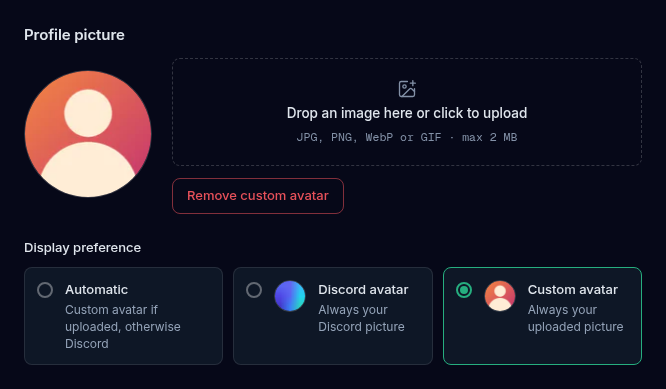
The left-hand card is titled Profile picture. It shows the picture currently in use at full size, a drop zone, and, once you have more than one picture to choose from, the display preference.
Upload a picture
- Open Account → Profile in the sidebar.
- In the Profile picture card, click the dashed drop zone that reads Drop an image here or click to upload, or drag an image file onto it.
- Pick a JPG, PNG, WebP or GIF file no larger than 2 MB. A different type shows “Invalid file type. Please upload a JPG, PNG, WebP, or GIF image.” and a larger file shows “File too large. Maximum size is 2MB.”
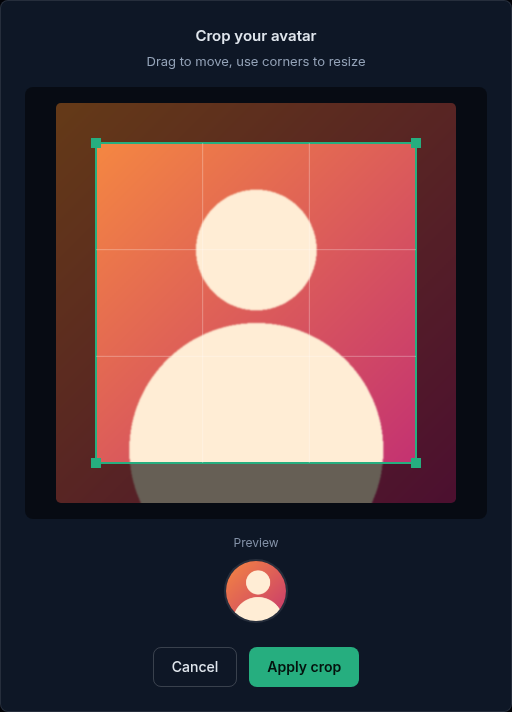
- A Crop your avatar window opens with the hint “Drag to move, use corners to resize”. Drag the square to position it, drag a corner to resize it, and check the round Preview underneath.
- Click Apply crop. The drop zone shows Uploading, then a green “Avatar uploaded successfully!” message appears and the new picture replaces the old one. Uploading also sets Display preference to Custom avatar, so your uploaded picture is the one shown everywhere.
Click Cancel in the crop window to back out without changing anything.
Remove an uploaded picture
When you have uploaded a picture, a red Remove custom avatar button sits under the drop zone. Click it and the picture is removed. It does not appear until you have an uploaded picture.
Choose which picture is shown
Once you have an uploaded picture or a Discord picture, a Display preference choice appears under the drop zone:
| Option | What it means |
|---|---|
| Automatic | ”Custom avatar if uploaded, otherwise Discord.” This is the default until you upload a picture, which switches you to Custom avatar. |
| Discord avatar | ”Always your Discord picture.” Only listed when your Discord account has a picture. |
| Custom avatar | ”Always your uploaded picture.” Only listed when you have uploaded one. |
Click an option and a green “Display preference updated!” message confirms it. If you have neither an uploaded picture nor a Discord picture, the choice is replaced by the note “Upload a picture or link Discord to choose which one is shown.”
Troubleshooting
Symptoms
- The upload says Invalid file type
- The upload says File too large
- There is no Display preference choice
- The Discord line is missing from the Account card
Resolution
- Use a JPG, PNG, WebP or GIF file. Other formats, including HEIC, are refused.
- Resize the image to 2 MB or less and try again.
- The choice only appears when you have something to choose between. Upload a picture or link Discord first.
- That line only shows when a Discord account is linked. Use Connect Discord on the Connections tab.
FAQ
Related pages
Join the Community
Media server operators sharing configs, getting support, and shaping the future of QuickBox Pro.
- Dedicated Support
- Feature Previews
- Community Configs
- Active Discussions