Rewards Points
Every payment you make to QuickBox earns points, and points are worth real money off your next purchase.
The Rewards page in your account is where you see your points, watch your tier climb, and turn points into a one-time coupon or into site credits that come off your bills automatically.
This page walks through the Rewards page card by card, then explains how points are earned, how tiers work, and how each way of redeeming behaves.
Where to find it
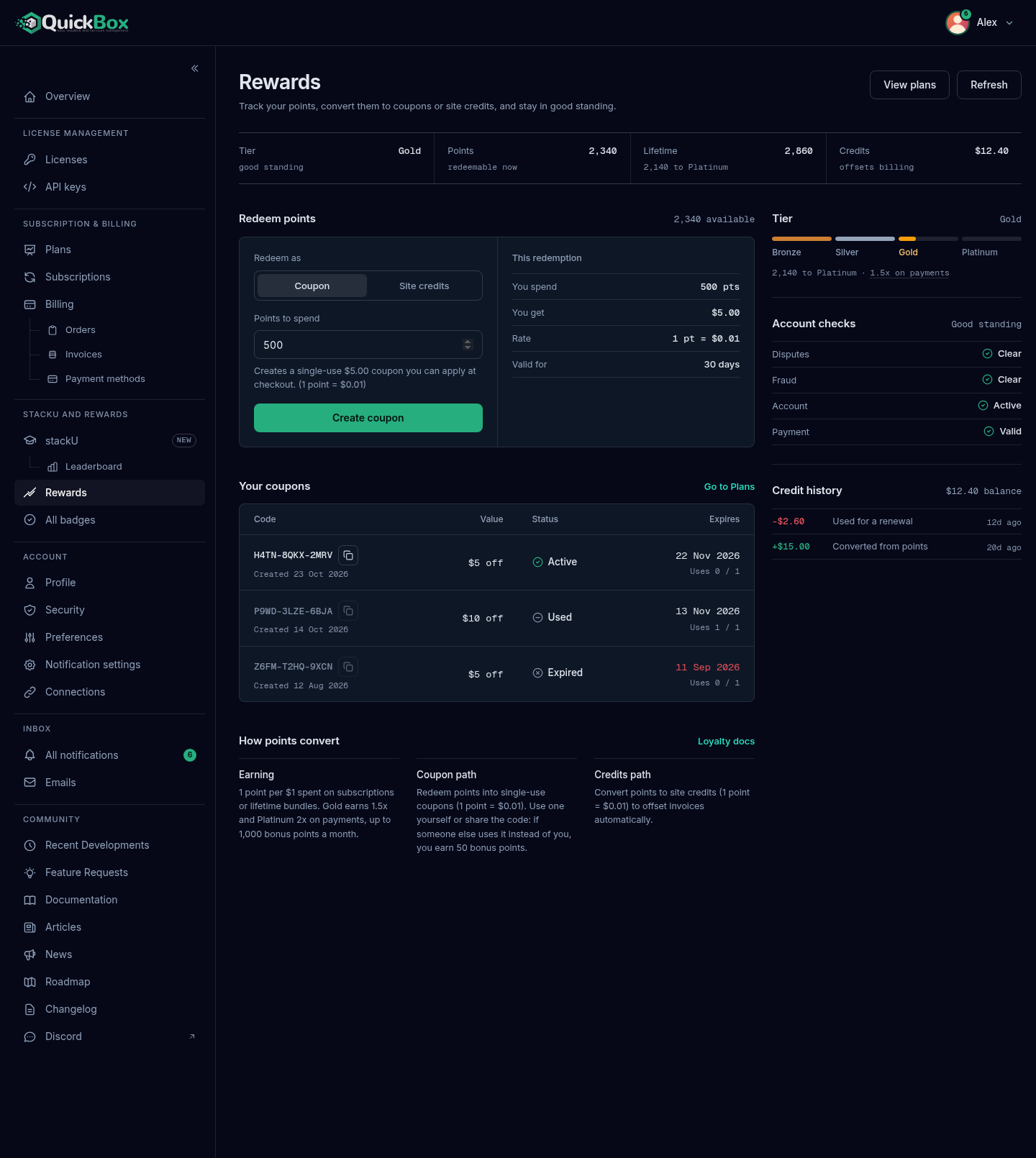
Sign in, then open Rewards in the left sidebar, in the group called stackU and rewards. The address is /.
- Sidebar
- Rewards (under stackU and rewards)
- Address
- /dashboard/
loyalty - Header buttons
- View plans, Refresh
- Exchange rate
- 1 point = $0.
01
The Refresh button at the top right reloads your points, credits and coupons. View plans opens the Plans page, where coupons are used.
If the page cannot load your points, it shows a Rewards could not be loaded notice with a Try again button. Your coupons and credit history may still appear below it.
What is on the page
The page has a summary band across the top, a main column on the left, and a narrow column on the right. On a phone the cards stack in one column.
| Card | Where | What it shows |
|---|---|---|
| Summary band | Top | Four readouts: Tier (with “good standing” or “action needed” under it), Points (your spendable balance), Lifetime (all points ever earned, and how many are left to the next tier) and Credits (your site credit balance). |
| Redeem points | Left | The controls that turn points into a coupon or site credits. |
| Your coupons | Left | Every coupon you have made, with its code, value, status and expiry. |
| How points convert | Left | Three short notes: Earning, Coupon path and Credits path, plus a Loyalty docs link to this page. |
| Tier | Right | The four-step tier ladder and how far you are from the next tier. |
| Account checks | Right | Four checks that decide whether you can redeem. |
| Credit history | Right | Your most recent site credit entries. |
When one of the four account checks fails, a Redeeming is paused notice appears under the band and names the reason, for example “Points cannot be redeemed while the account is suspended.”
How you earn points
Points are added to your balance automatically. You never have to claim them. Every point is worth exactly one cent, whatever your tier.
| Way to earn | When it happens | Points |
|---|---|---|
| Payments | Each successful payment: a new purchase, a lifetime license, or a subscription renewal | 1 point for every $1 charged, rounded down. A discount or credit that lowers the charge lowers the points, because you earn on what was actually paid. |
| Tier bonus on payments | Payments made while you hold Gold or Platinum | Gold adds half again and Platinum doubles the payment points, up to 1,000 bonus points a month. See the tier table below. |
| Account anniversaries | When your account reaches 6 months, 1 year and 2 years | A one-time bonus at each milestone. You get a notification when it lands. |
| Community Spirit | Someone else uses a coupon you made | 50 points, once per coupon. See sharing a coupon. |
| stackU level exams | You pass a level exam on the stackU page | Points set by the level, paid once. See stackU. |
If a payment is refunded or disputed, the points it earned are taken back with it, including its tier bonus. Your tier never goes down, because tiers follow the lifetime points you have earned and not your spendable balance.
Your points have no expiry date. Coupons you make from them do expire, and site credits do not.
Tiers
Your tier is set by your lifetime points, which is every point you have ever earned. Spending points on coupons or credits does not lower it.
| Tier | Lifetime points | What you get |
|---|---|---|
| Bronze | Entry | The base rate of 1 point per $1 |
| Silver | 500 | The Silver tier badge |
| Gold | 2,000 | 1.5x points on payments (up to 1,000 bonus points a month) and the Gold tier badge |
| Platinum | 5,000 | 2x points on payments (up to 1,000 bonus points a month) and the Platinum tier badge |
The tier bonus follows the tier you held before the payment, so a payment that lifts you into Gold does not multiply itself. The 1,000 point cap is counted per calendar month in UTC and covers bonus points only, never your base points.
Tier badges appear on the Badges page.
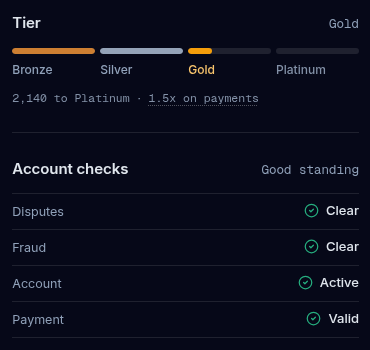
On the Tier card, the bar has four segments, one for each tier. Reached segments are filled, your current segment fills in step with your progress, and tiers you have not reached stay empty. Under the bar a line reads like “1,140 to Platinum” (or “Top tier” at the top), followed by your earning rate. Select the underlined rate to open a small How points work note.
Redeeming points
You can turn points into one of two things. Both use the same rate of 1 point = $0.01.
| Coupon | Site credits | |
|---|---|---|
| What you get | A single-use fixed-amount code | Money added to your credit balance |
| Valid for | 30 days after you make it | No expiry |
| Best for | A first purchase or a one-time discount, or a gift to someone else | Renewals, which take credits off automatically before you are charged |
| Where it is used | The coupon box when you check out | Checkout, and every renewal if auto-apply is on |
Turn points into a coupon or credits
- Open Rewards in the sidebar.
- In the Redeem points card, under Redeem as, choose Coupon or Site credits.
- Type a whole number in Points to spend. The field opens at 500 when you have points to spend. The smallest amount is 1 point.
- Check the panel on the right of the card. It lists You spend, You get, the Rate, and either Valid for 30 days (coupon) or Applied to Your credit balance (site credits).
- Select Create coupon or Convert to site credits.
A confirmation appears: “Coupon CODE created for $5. See below to copy it!” or “Converted 500 pts into $5.00 site credits.”
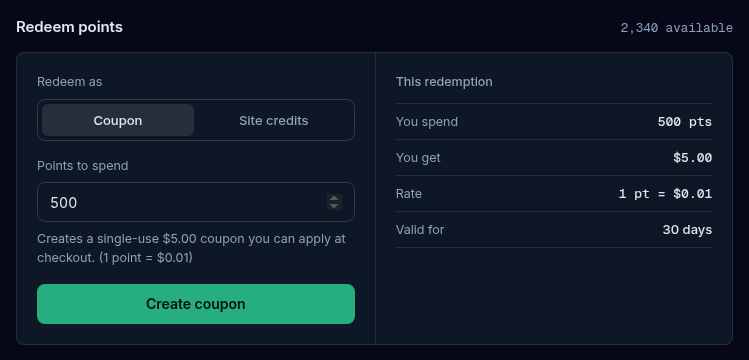
If you type more points than you have, a line under the field says “You have N points.” The button stays off when your balance is zero or an account check has failed, and then it explains “Resolve account holds to redeem points.” The card also changes its right panel to Your points, with what you have, what it is worth, and what to do next.
Your coupons
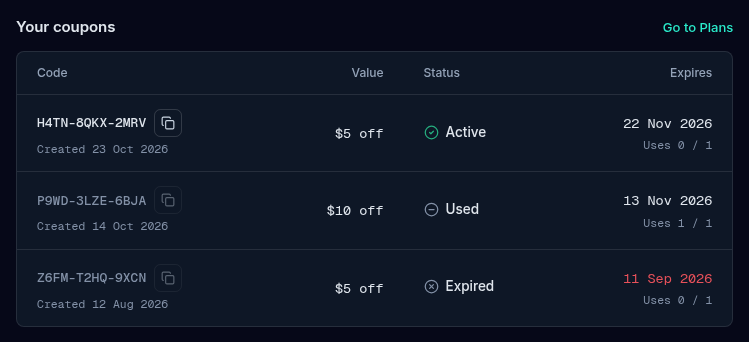
A new coupon appears in the Your coupons card straight away.
| Column | What it means |
|---|---|
| Code | The coupon code, with a copy button beside it. The button is off once the coupon is used, expired or inactive. |
| Value | The discount, for example “$5 off”. |
| Status | Active, Used, Expired or Inactive. Expired and used win over active. |
| Expires | The last day you can use it. Expired dates show in red. |
| Uses | How many times it has been used out of how many it allows. A loyalty coupon allows one. |
| Created | The day you made it. |
On a wide screen Uses and Created are their own columns. On a narrower one they fold under the code and the expiry, and on a phone each coupon is a small card. With no coupons the card reads “No coupons yet.” The Go to Plans link at the top right of the card opens the Plans page.
Use a coupon
- Copy the code from Your coupons.
- Open Plans in the sidebar and choose a plan to start checkout.
- In the checkout dialog, open Have a coupon?
- Paste the code into Enter coupon code and select Apply.
The dialog shows “Applied” with the amount taken off. Select Remove to take it off again.
A coupon discounts a purchase. It does not apply to a renewal, so use credits for renewals.
Sharing a coupon
Each coupon works once in total, for you or for anyone you give the code to. If someone else uses it, you earn 50 points as a Community Spirit bonus and get a notification. If you use your own coupon, there is no bonus.
Site credits
Credits show in the Credits readout in the summary band and in the Credit history card, which lists your latest entries with the amount, the reason and how long ago. Conversions from points appear there as a plus amount, and credits used on a bill appear as a minus amount.
Credits come off your bills in two places:
- At checkout, open Have credits to burn? in the checkout dialog to take credits off the order.
- On renewals, credits come off automatically before your card or PayPal is charged. This is on by default. You can turn it off with Auto-apply credits to renewals in Preferences under Account in the sidebar.
If credits cover a renewal in full, the renewal is settled and nothing is charged. Credits can only reduce bills in your own account. They cannot be paid out as cash.
Account checks
The Account checks card shows four checks, each with a one-word state. You can redeem only while all four are fine.
| Check | Good | Needs attention |
|---|---|---|
| Disputes | Clear | Open |
| Fraud | Clear | Hold |
| Account | Active | Suspended |
| Payment | Valid | Invalid |
The card heading reads Good standing or Action needed. A hold blocks redeeming points. It does not remove your points, which wait for you until the hold is cleared. Holds are cleared by QuickBox and not from this page, so write to echo@quickbox.io or ask in Discord if one looks wrong.
Paying with Stripe or PayPal
Coupons and credits work the same with both. A few details differ by how the subscription is billed.
- A new PayPal subscription. At checkout, PayPal asks you once to approve saving your PayPal account with QuickBox Pro. Your coupon and credits come off the first payment, and every later renewal is charged from the saved PayPal account with your credits taken off first.
- An older PayPal subscription. One that PayPal bills directly charges a fixed amount, so credits do not come off its renewals. Select Switch billing on the subscription on the Subscriptions page and confirm. It keeps renewing automatically, now from your saved PayPal account, and credits come off from the next renewal.
- A fully covered order. A lifetime order that coupons and credits cover in full is completed with no payment taken. A subscription’s first payment must still be paid by card or PayPal.
A coupon is spent on one purchase. Credits keep working on every renewal, so convert points to credits if you mostly want lower renewal bills.
Questions
Do
- Convert points to site credits if you want lower renewal bills.
- Leave "Auto-apply credits to renewals" on in Preferences so credits come off before you are charged.
- Use a coupon within 30 days of making it.
- Check the Account checks card first if redeeming is blocked.
Don't
- Don't expect a coupon to discount a renewal. It applies to a purchase.
- Don't make a coupon you cannot use soon. Credits are a safer store of value.
- Don't expect cash back from credits or points.
Keep reading
Join the Community
Media server operators sharing configs, getting support, and shaping the future of QuickBox Pro.
- Dedicated Support
- Feature Previews
- Community Configs
- Active Discussions