Migration Window Closed
The previous QuickBox site and its account login have retired, and every remaining account was carried over to the current quickbox.io site for you. The old login and the Migration Utility are gone because the move is already done. The one step left for you is setting your new API key on each server (see below).
If an old email sends you to the Migration Utility, that link now simply opens your dashboard. Sign in and you land in the portal described throughout this section.
- Sign in
- https://quickbox.io/login
- Email and password
- The same as before (the ones you used on the old site)
- Key format
- qbp_ (your new API key starts with it)
What was carried over for you
Same sign-in
Your account carries the same email and password from the old site. Sign in and you are in. No reset is needed.
Set your key on each server
Your license key moved to the new qbp_ format. Set the new key on each server under System > API Control, or with qb manage api -k. Updates can fail until you do.
A new API key
A fresh qbp_ API key was created with your license and is waiting in your account under API keys in the sidebar.
Your price stays
Subscriptions keep the price you were already paying. Nothing about your plan changed in the move.
Sign in
- Go to quickbox.io/login .
- Enter the same email address and password you used on the old site, then select Sign In. Your account was created for you with those credentials, so there is no separate registration and no password reset to do first.
- If you have a passkey or use Discord, Sign in with Passkey and Continue with Discord work too, as long as they land on the account that holds your email.
Select Forgot password? on the sign-in page. The reset email goes to the address on your account, which is the same one you had on the old site.
Put your new API key on each server
When your account was carried over, your license key moved to the new format too. Your new key starts with qbp_. Your servers still have the old key saved, and the QuickBox update tools (qb update and friends) check for the new format, so until a server has the new key its updates can fail.
First copy your new key. In the portal sidebar, open API keys under License Management. It opens the Licenses page at its API keys section, where you can copy the key, see where it is in use, and regenerate it. See API keys.
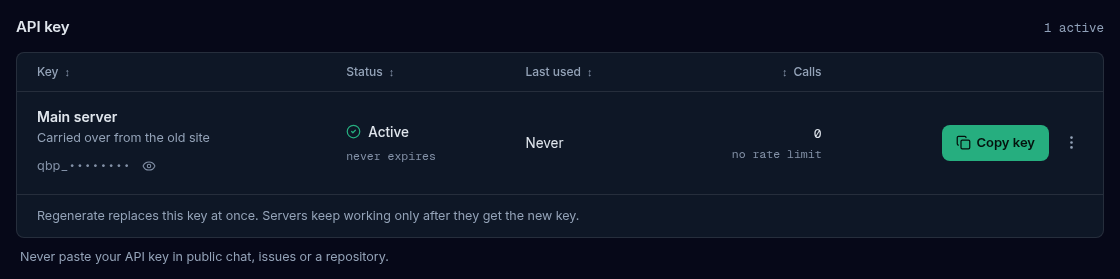
Then set it on each server, in either of two ways:
- In your QuickBox dashboard: open System > API Control. In the QuickBox Central section, select Edit credentials, paste the new key into API Key, and select Save.
- From the command line: run the command below. It swaps the old key out and activates the new one in one step.
qb manage api -k qbp_YOUR_NEW_KEYDo the same on any new server you set up. Every flag of the command is in the qb manage reference.
Subscriptions and billing
If you are on a subscription, two things are worth knowing.
Your price is unchanged. You keep the price you were already paying. The carry-over did not reprice anything.
Set up billing before your access date. Your access on the current platform runs through the date your subscription was already paid through, and never less than two weeks from the day it was carried over. To keep your subscription going past that date at your current price, add a payment method before then.
- Open Billing in the sidebar, under Subscription & Billing.
- In the attention list, select Set up billing on the line for your carried-over subscription.
- The Add Payment Method window opens straight away, over a Set up billing for your migrated subscription notice. Add a card or connect PayPal. The subscription renews automatically with the method you add.
- If you close the window first, select Add payment method on the notice to open it again.

If no payment method is on file when your access date arrives, the subscription lapses and you would have to start a new one at the current price.
Lifetime keys need nothing here. There is no renewal and no billing to set up.
Finish up
FAQ
Join the Community
Media server operators sharing configs, getting support, and shaping the future of QuickBox Pro.
- Dedicated Support
- Feature Previews
- Community Configs
- Active Discussions