API Keys
Your API key is the secret a server uses to prove it belongs to your license. You set it once on each server, and from then on the server uses it to check in, receive updates and, if you turn telemetry on, report its health. Every license is created with a key, and you manage it from the API key section of the Licenses page.
- Sidebar
- API keys (under License Management)
- Address
- /dashboard/
licenses#api- keys - Old address
- /dashboard/
api- keys (forwards to the address above)
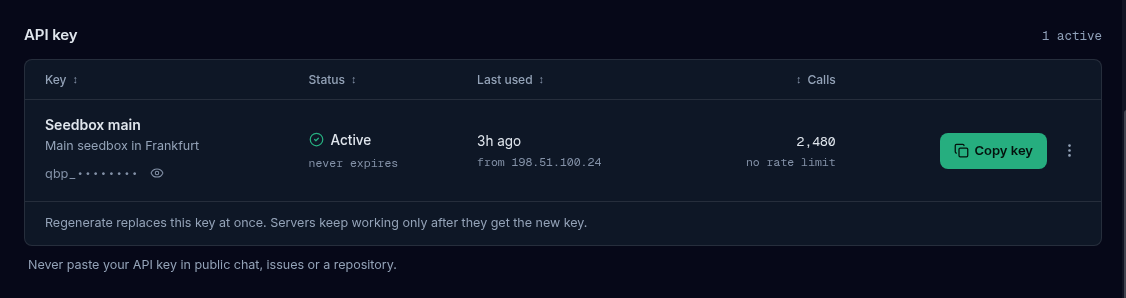
The license key identifies the license and appears masked on the license card. The API key starts with qbp_ and is what you set on a server. They are managed in different places on the same page. See Licenses.
Find your key
- In the sidebar, under License Management, select API keys. You can also open Licenses and scroll to the API key section.
- If you own several licenses, the section follows the license you have open. Pick another license from Your licenses to see its key, or switch to All keys.
The section heading reads API key when there is a single key and API keys otherwise, with a count of how many are active.
Read the key table
Each key is one row.
| Column | What it shows |
|---|---|
| Key | The key’s name, an optional description, and the key itself masked as qbp_•••••••• with an eye button to show it. |
| Status | Active, Paused, Expired or Revoked, with a line under it. |
| License | Only in All keys view: the kind of license and its masked key. |
| Last used | How long ago a server used the key and, when recorded, the address it came from (“from” and an IP). Never if it has not been used. |
| Calls | How many times the key has been used, with its limit (“N / hour”) or “no rate limit”. Wide screens only. |
| Created | When the key was created. Wide screens only. |
The status words mean:
| Status | Line under it | What it means |
|---|---|---|
| Active | ”never expires”, or “expires” and a date | The key works. |
| Paused | ”license on hold” or “key paused” | The key is not working right now. The usual cause is the license: it is suspended, expired or cancelled. Sort out the license and the key works again. |
| Expired | The expiry date | The key’s own end date has passed. |
| Revoked | ”servers using it stop” | You revoked it. It can never work again. |
A note under the table sums it up. With one key: “Regenerate replaces this key at once. Servers keep working only after they get the new key.” With several: “Each key works on its own. Regenerate or revoke one and the others keep working.”
Copy your key
Select Copy key on the key’s row. The whole key goes to your clipboard and the button reads Copied for a moment. You do not have to show the key first.
If your browser blocks the copy, you see “Could not copy the API key. Use the eye to show it, then copy it.” Use the next section instead.
The full key is not part of the page. It is fetched at the moment you select Copy key or the eye, and only for the account that owns it.
Show or hide your key
Select the eye next to the masked key (Reveal key). The key appears in place, shortened in the middle. Two things change:
- The eye becomes a crossed eye (Hide key). Select it to hide the key again.
- A Copy shown key button appears beside it.

Set the key on a server
Copying a key is half the job. The other half is putting it on the server, in the server’s own dashboard under System → API Control, or with qb manage api -k qbp_YOUR_KEY. The steps are in Servers & Activations. The same key goes on every server of that license.
Rename a key
A key’s name and description are for you. A clear name helps when you have more than one.
- On the key’s row, open the three-dot menu (More actions).
- Choose Edit details.
- In Edit API key, change Name (required, up to 100 characters) and Description (optional, up to 500).
- Select Save changes. “API key updated successfully” confirms it.
Regenerate a key
Regenerating creates a new key and ends the old one at once. Use it if you think a key has leaked, or when you simply want a fresh one.
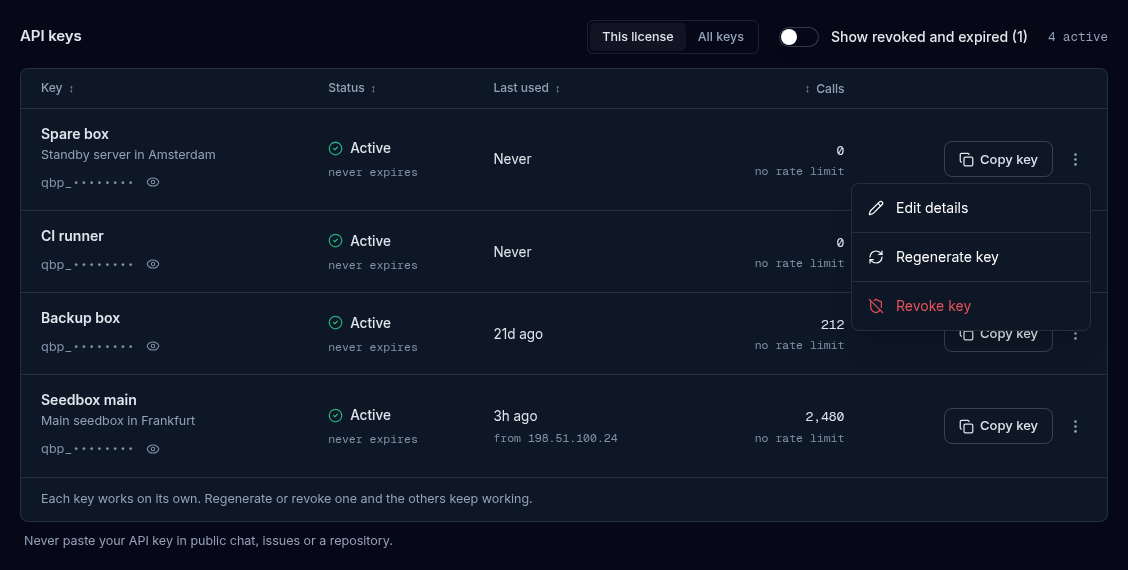
- Open the three-dot menu on the key’s row and choose Regenerate key. (A revoked or expired key cannot be regenerated.)
- Read the confirmation. It says:
- The current key stops working immediately.
- Servers using the old key lose access until you set the new one.
- There is no undo.
- Select Regenerate key to continue, or Cancel.
- The API key regenerated window shows the new key with a Copy button. Select Done when you have it. You can always show it again from the key table.
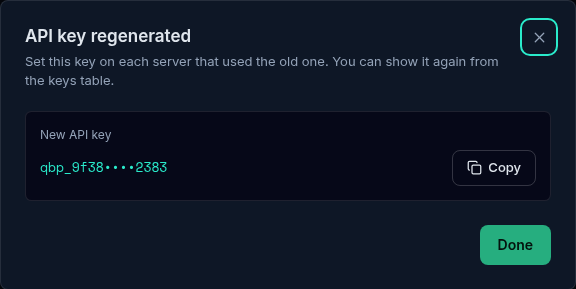
Then set the new key on every server that used the old one. Until you do, those servers cannot check in.
The old key stops working the instant you confirm. Have the new key ready to paste before you regenerate if the servers are in use.
Revoke a key
Revoking switches a key off for good, without making a new one.
- Open the three-dot menu on the key’s row.
- Choose Revoke key.
- The confirmation warns that every server using this key stops at once. Select Revoke key, or Cancel.
- “API key revoked successfully” confirms it.
The row stays in the table as Revoked, with a struck-through key and no Copy key button.
Every server using that key stops at once. If you want to replace a key rather than remove it, use Regenerate key instead.
Recreate a revoked key
If you revoked the only key and your license is active, you can make a new one.
- Revoked keys are hidden by default. Switch on Show revoked and expired in the section header.
- On the revoked key’s row, open the three-dot menu.
- Choose Recreate API key.
- The confirmation says a brand new key will be created, the revoked key stays revoked, and you can show the new one again from the table. Select Create new key.
- The API key recreated window shows the new key. Copy it and set it on your servers.
The menu entry is offered only while the license is active.
The menu at a glance
| Menu entry | When it is there | What it does |
|---|---|---|
| Edit details | Always | Change the name and description. |
| Regenerate key | The key is not revoked and not expired | Replace the key. The old one stops at once. |
| Recreate API key | The key is revoked and the license is active | Create a new key. |
| Revoke key | The key is not already revoked | End the key for good. |
Several keys, several licenses
- This license and All keys choose which keys the section lists. They appear only when you own more than one license. In All keys a License column tells the keys apart.
- Show revoked and expired (N) is a switch in the section header. It is off by default, so old keys stay out of the way.
- Once the list holds five or more keys, a search box (“Search by name, ID, IP, license or server”) and a Filter by status menu appear. The status filter offers In use (has servers), Unused (no servers) and Paused, plus Revoked and Expired when old keys are shown. The table pages at 10 keys.
Troubleshooting
Symptoms
- The key shows Paused.
- A server stopped checking in after I regenerated the key.
- The section says 'This license has no API key.'
- Copy key says it could not copy.
- The section says 'Your API keys could not be loaded.'
Resolution
- The license is not active. Look at the license card and the Needs attention lines on the Licenses page, and fix the payment or suspension. See Licenses.
- The old key no longer works. Set the new key on that server in System → API Control, or with
qb manage api -k qbp_YOUR_KEY. See Servers & Activations. - A key is created with every license. If one is missing, ask in Discord and we will add it. If you revoked it and the license is active, use Recreate API key.
- Use the eye to show the key, then select Copy shown key.
- Select Try again. If it keeps failing, reload the page.
Good habits
Do
- Give each key a clear name and description.
- Regenerate the key straight away if you think it has been exposed.
- Set the new key on every server before you close the window that shows it, or keep it in a password manager.
Don't
- Do not paste your API key in public chat, issues or a repository.
- Do not revoke a key your servers still use unless you mean to stop them.
FAQ
Where to go next
Join the Community
Media server operators sharing configs, getting support, and shaping the future of QuickBox Pro.
- Dedicated Support
- Feature Previews
- Community Configs
- Active Discussions