Account Portal
Your QuickBox account, in one place
Licenses, servers, API keys, billing, rewards and settings behind one sign-in.
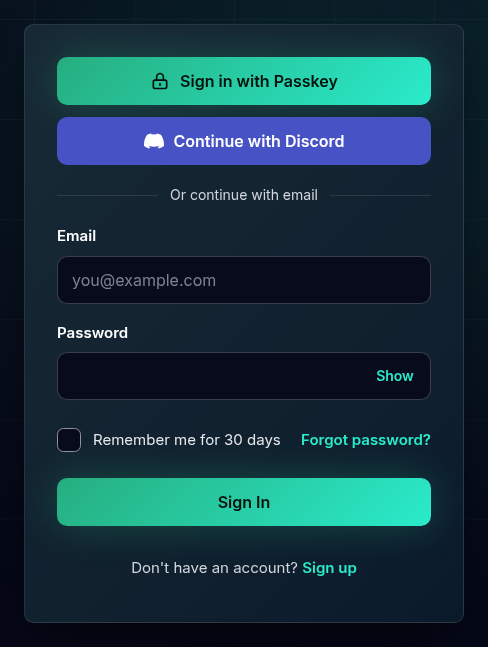
The Account Portal is the signed-in part of quickbox.io. It is where you see the licenses you own, the servers they run, the API key each server uses, what you pay and when, your rewards, and the settings of your account. It is separate from the QuickBox dashboard that runs on your own server: the portal is about your account, the server dashboard is about the machine.
- Portal address
- https://quickbox.io/dashboard
- Sign-in address
- https://quickbox.io/login
- You need
- A Quick
Box account (a license is not required to sign in)
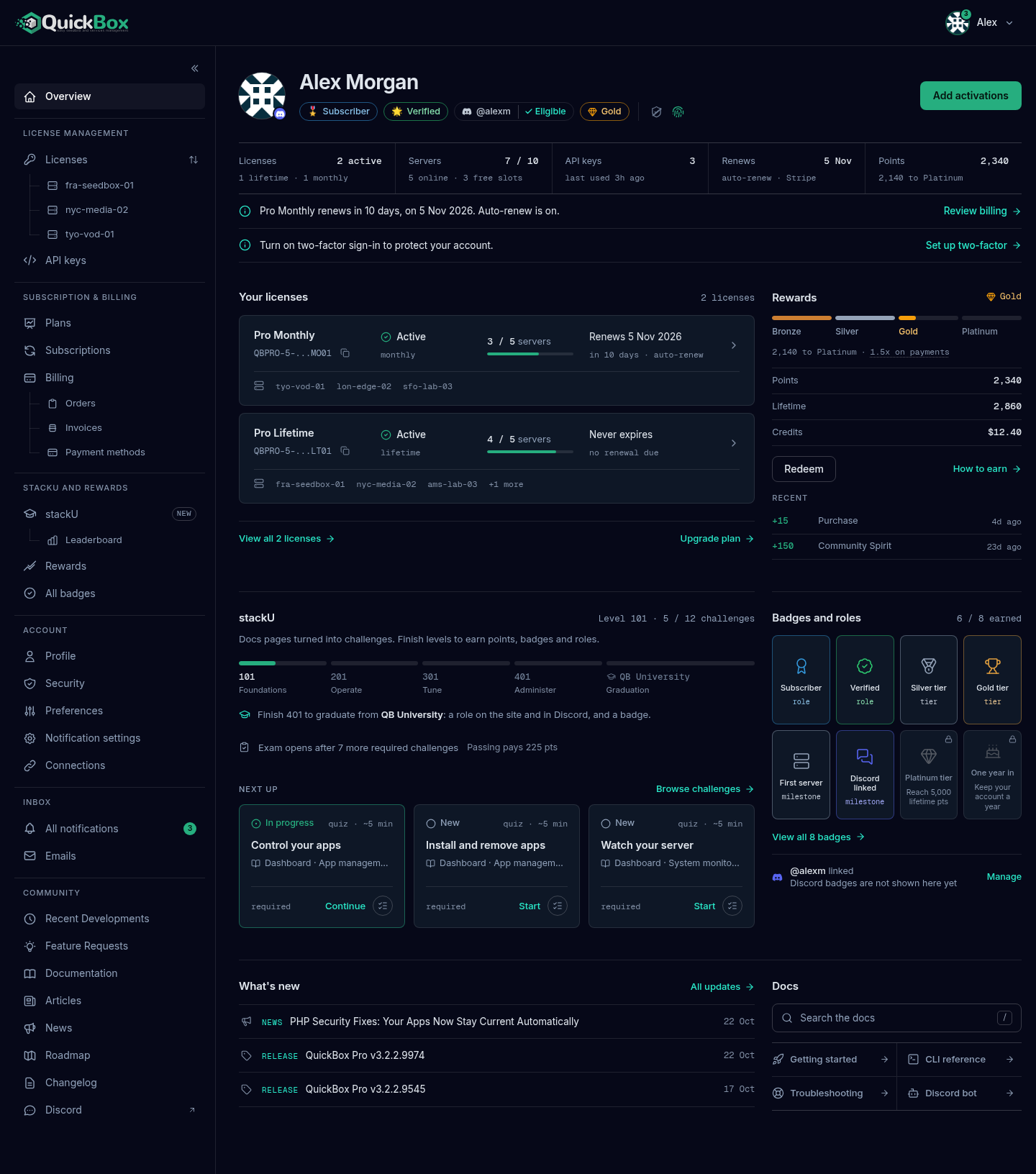
Sign in
- Go to
https://.quickbox. io/ login - Choose how to sign in:
- Sign in with Passkey uses a passkey you set up earlier on this account.
- Continue with Discord uses your Discord account. It works when that account is already linked to your QuickBox account or shares its verified email.
- Under Or continue with email, type your Email and Password.
- Tick Remember me for 30 days if you want to stay signed in on this browser. Skip it on a shared computer.
- Select Sign In.
- If your account uses two-factor sign-in, an Authentication code field appears after your password. Type the 6-digit code from your authenticator app.
You land on your Overview page, or on the page you were heading to when the sign-in screen appeared.
A new account is asked to verify its email before the portal opens. The Verify Your Email page takes the 6-digit code we send you, and Resend verification code sends a fresh one. When the code is accepted you are taken to the portal.
Forgot your password? Select Forgot password? under the Password field. After a wrong password the error message also carries a Reset your password link.
Find your way around
The portal has three parts that stay put while you move between pages.
The top bar
The QuickBox logo on the left returns you to the quickbox.io home page. On the right, your account menu shows your picture, your first name and a small arrow. A green number on the picture is your count of unread notifications.
Select it to open the menu:
- The top row shows your name and email, with Profile on the right. It opens your Profile.
- Notifications opens a panel of your latest notifications with a View all link. See Inbox.
- Below that, every destination from the sidebar is listed again in groups, so you can jump anywhere without leaving the menu.
- Sign Out is at the bottom right and returns you to the quickbox.io home page.
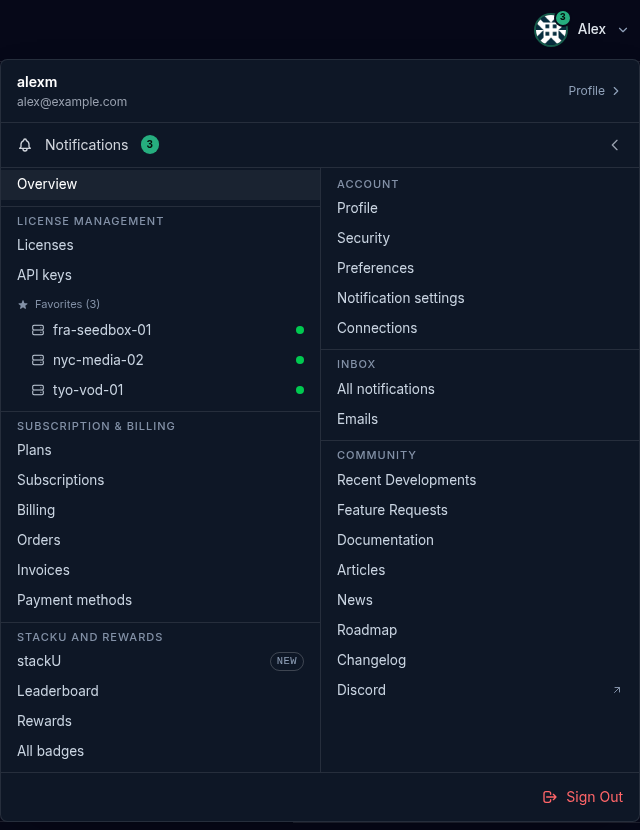
The sidebar
The sidebar groups the portal into six areas. The group names show in capitals.
| Sidebar group | What it holds | Guide |
|---|---|---|
| Overview (no group name) | The first page after sign-in, a summary of everything | Your Overview Page |
| License Management | Licenses, your favorite servers listed under it, and API keys | Licenses & API Keys |
| Subscription & Billing | Plans, Subscriptions, and Billing with Orders, Invoices and Payment methods under it | Plans & Billing |
| stackU and rewards | stackU with its Leaderboard, Rewards, and All badges | stackU & Rewards |
| Account | Profile, Security, Preferences, Notification settings, Connections | Account Settings |
| Inbox | All notifications and Emails | Inbox |
| Community | Recent Developments, Feature Requests (when switched on), Documentation, Articles, News, Roadmap, Changelog, Discord | Community |
The page you are on is highlighted. Discord opens in a new tab. Feature Requests shows only while the Feature Requests in navigation setting is on, which you control in Preferences.

The double arrow at the top of the sidebar collapses it to a narrow column of icons, and the same button expands it again. Hover an icon to see its name. The portal remembers your choice on your account.
On a phone or a narrow window
Below about 768 pixels wide the sidebar is hidden. Select the menu button at the left of the top bar (Open navigation menu) to open the same destinations in a drawer.
The guides
The summary you see first: identity, status, licenses, rewards and news.
Your licenses, the servers they run and the key each server uses.
Plans, subscriptions, payment methods, orders and invoices.
Points, tiers, badges and the stackU learning path.
Profile, security, preferences, notifications and connections.
Notifications and the emails we have sent you.
Recent developments and feature requests.
Rewards at a glance
Every $1 on a payment earns 1 point, and one point is always worth one US cent. Gold earns 1.5x and Platinum 2x points on payments, up to 1,000 bonus points a month. You can turn points into a coupon or site credit on the Rewards page. The full rules are in stackU & Rewards.
Troubleshooting sign-in
Symptoms
- Incorrect email or password.
- Too many attempts. Try again in a few minutes.
- That 2FA code is not valid.
- Discord sign-in did not finish.
- Your account has been suspended.
Resolution
- Check the email and password, then select Reset your password if you cannot remember it. If you created the account with Discord, use Continue with Discord instead.
- Wait a few minutes before you try again. Repeated wrong attempts pause sign-in for that email and address.
- Open your authenticator app and type the newest 6-digit code it shows.
- Your Discord account has to share a verified email. Sign in with your email and password instead, then link Discord on the Connections tab.
- Email echo@quickbox.io with [Support] at the start of the subject.
FAQ
Join the Community
Media server operators sharing configs, getting support, and shaping the future of QuickBox Pro.
- Dedicated Support
- Feature Previews
- Community Configs
- Active Discussions