Licenses
The Licenses page is the home of everything you own. It shows each QuickBox Pro license on your account, the API key your servers use to prove that license, and the servers that are running on it. The page is titled Licenses and API keys and is built so the common case, one license, reads at a glance. If you hold several licenses it adds a list above and lets you choose which one to look at.
- Sidebar
- Licenses (under License Management)
- Address
- /dashboard/
licenses - Also reached from
- Overview (the Licenses and Servers readouts, and the rows of Your licenses)
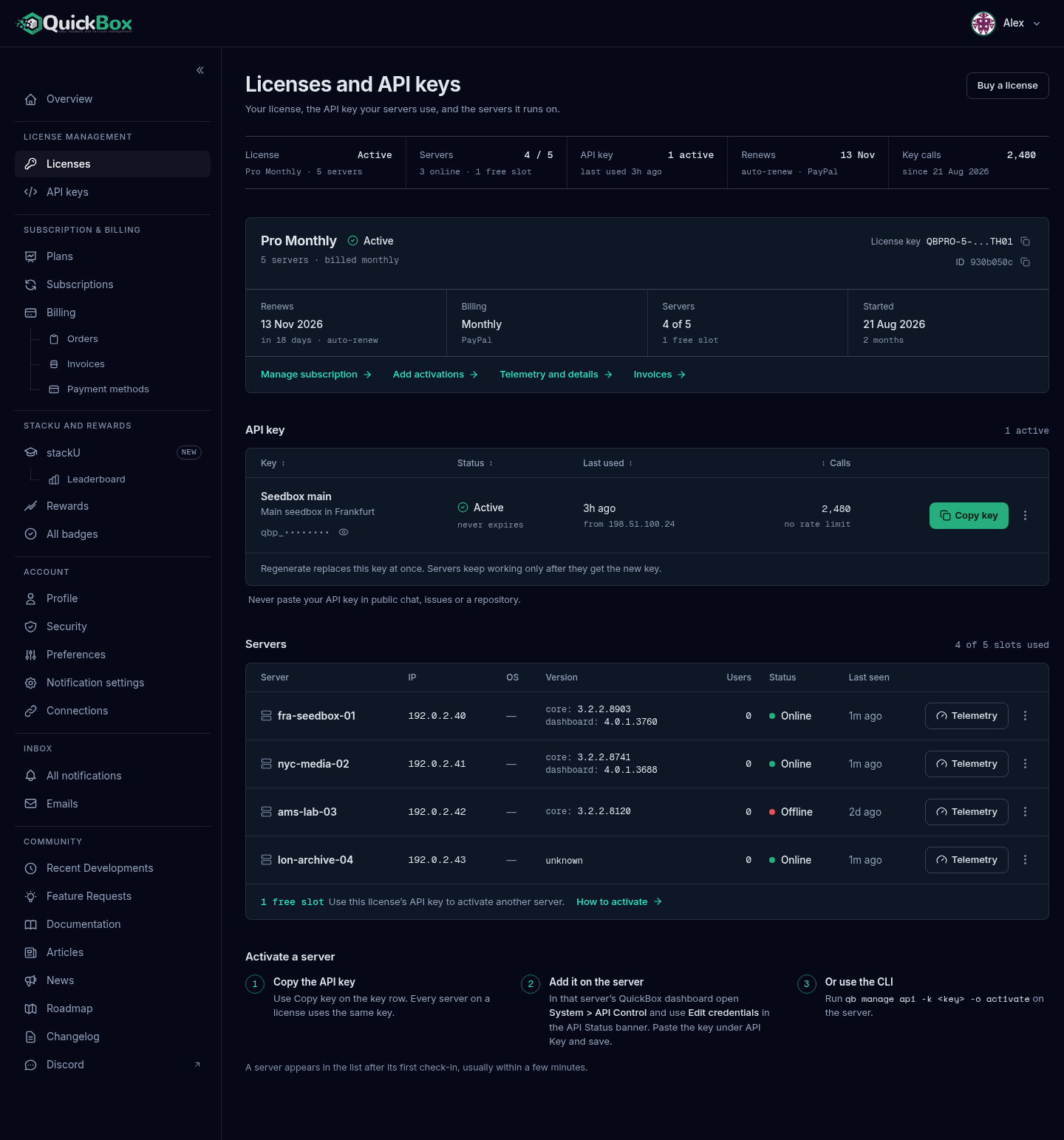
Your license key identifies the license itself. It is shown masked on this page (the first part and the last four characters) and you copy it with the copy button next to it. Your API key is the secret each of your servers uses to check in against that license. It starts with qbp_, and you manage it in the API keys section further down this same page. A server is activated with the API key, not the license key.
How the page is laid out
From top to bottom the page holds:
- The title Licenses and API keys and a Buy a license button. The button opens Plans. It is the main green button while you own no license, and a quieter one once you do.
- The license status band, five readouts summarizing the license or licenses on show.
- Needs attention lines, at most two, only when something wants you.
- Your licenses, a list of every license. It appears only when you own more than one. See Several licenses.
- The license card for the license on show.
- The API key section. Its own guide is API Keys.
- The Servers table and the Activate a server steps. Their own guide is Servers & Activations.
The sidebar row API keys opens this same page already scrolled to the API key section, and the old address / forwards to it.
The license status band
Five readouts sit under the title. Servers and API keys are links that scroll to their sections lower on the page.
For one license, the band describes that license:
| Readout | What it shows |
|---|---|
| License | Its status (Active, Payment failed, Suspended and so on) and its plan name with how many servers it allows. |
| Servers | Servers in use out of servers allowed, then how many are online and how many slots are free. Scrolls to the Servers table. |
| API key | How many keys are active and when one was last used. Scrolls to the API key section. |
| Renews, Ends or Expires | The date. Renews with “auto-renew” and the payment method, Ends with “does not auto-renew”, Ended after the date, or Expires: Never with “no renewal due” for a lifetime license. A license on hold reads On hold. |
| Key calls | How many times the key has been used since it was created. |
With several licenses, the band adds the licenses up:
| Readout | What it shows |
|---|---|
| Licenses | How many are active, and how many of each kind you hold (for example 1 lifetime, 2 monthly). |
| Servers | Total servers in use, online and free across the licenses on show. |
| API keys | Total active keys and when any was last used. |
| Next renewal or Next end | The soonest date among licenses that are still running, and whether that license renews on its own. |
| Key calls | Total key uses across all keys, all time. |
Needs attention
Under the band, up to two lines tell you what to do first. Each has a colored icon, one sentence and one link. They appear in this order of importance.
| What it says | Link |
|---|---|
| ”The last payment on your license failed. Its API keys and servers are paused until it is fixed.” | Fix payment, opens Billing |
| ”Your license is suspended. Its API keys and servers are paused.” | See why, opens the license’s detail page |
| ”Your license needs billing set up before it can renew on its own.” | Set up billing, opens Billing |
| ”Your license ends on a date and will not renew on its own.” | Renew |
| ”Seedbox-1 has not checked in for 4 days.” (with your own server’s name). Shown once a running server has been silent for 3 days or more. | View server, opens that server’s row |
| ”No server uses this license yet. Copy its API key below and set it on a server to activate it.” Shown when you own exactly one license, it is running, it has no server and nothing else needs you. | How to activate |
With several licenses, “Your license” in these lines is replaced by the license’s name so you can tell which one is meant.
The license card
The license card is the license itself. It is the card the whole page is about.
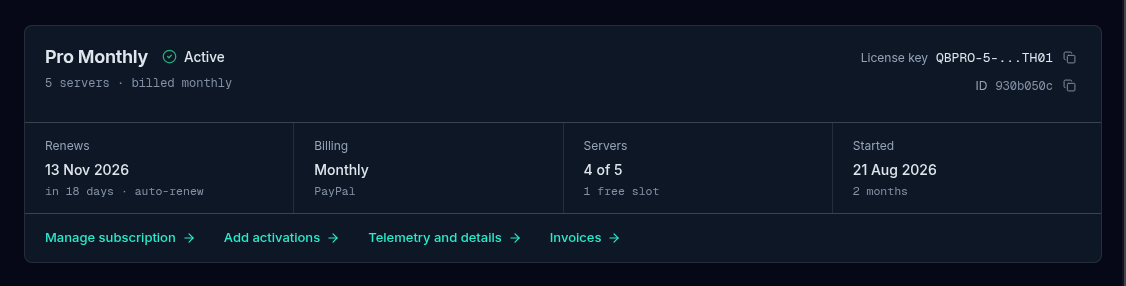
At the top you see the plan name and its status, then a line such as “5 servers · billed monthly” (how many servers the license allows and how it is billed: monthly, yearly, lifetime, complimentary or subscription).
On the right are two copyable values:
- License key shows the masked key. The copy button next to it copies the whole key, not the masked one.
- ID shows the first eight characters of the license ID. Its copy button copies the full ID.
Four facts run across the middle:
| Fact | What it shows |
|---|---|
| Renews, Ends, Expired or Expires | The date and how far away it is. A license on hold shows Renewal with “On hold” and either “until payment is fixed” or “access is paused”. |
| Billing | Monthly, Yearly or Subscription with the payment method it is charged to (for example a card, or PayPal), Paid in full for a lifetime license, or No charge for a complimentary one. It says “no payment method on file” when none is saved. |
| Servers | Servers in use out of servers allowed, then the free slots. |
| Started | The day the license was created and how long ago. |
Along the bottom are links. Some only appear when they apply:
- A green button when the license needs something: Fix payment, Set up billing, See why or Renew.
- Manage subscription, for a running subscription. Opens Subscriptions.
- Add activations, for every license except a complimentary one. Opens Plans.
- Telemetry and details. Opens the license’s detail page, covered in Servers & Activations.
- Invoices, for a subscription (hidden on narrow screens). Opens Orders & Invoices.
What the status words mean
The same words appear on the card, in the list of licenses and on Overview.
| Status | What it means | What to do |
|---|---|---|
| Active | The license grants access. | Nothing. |
| Payment failed | The last payment did not go through. The license’s API keys and servers are paused until it is fixed. | Use Fix payment, then see Grace period. |
| Billing setup | The license needs billing set up before it can renew on its own. It keeps working until its end date. | Use Set up billing, or add a payment method. |
| Suspended | Access is paused and the license’s API keys and servers are paused with it. | Use See why for the reason and the next step. |
| Expired | The billing period ended without a renewal. | Use Renew. |
| Cancelled | The license has ended. | Buy a new license from Plans if you want to continue. |
Expired and cancelled licenses are tucked away by default, see below. A license with a failed payment is never hidden.
Several licenses
When you own more than one license, a Your licenses list appears above the license card. Choosing a row opens that license in the card below, together with its keys and servers. The page opens on the most urgent license, and the card heading reads License details with your place in that ranking, for example “1 of 3”.
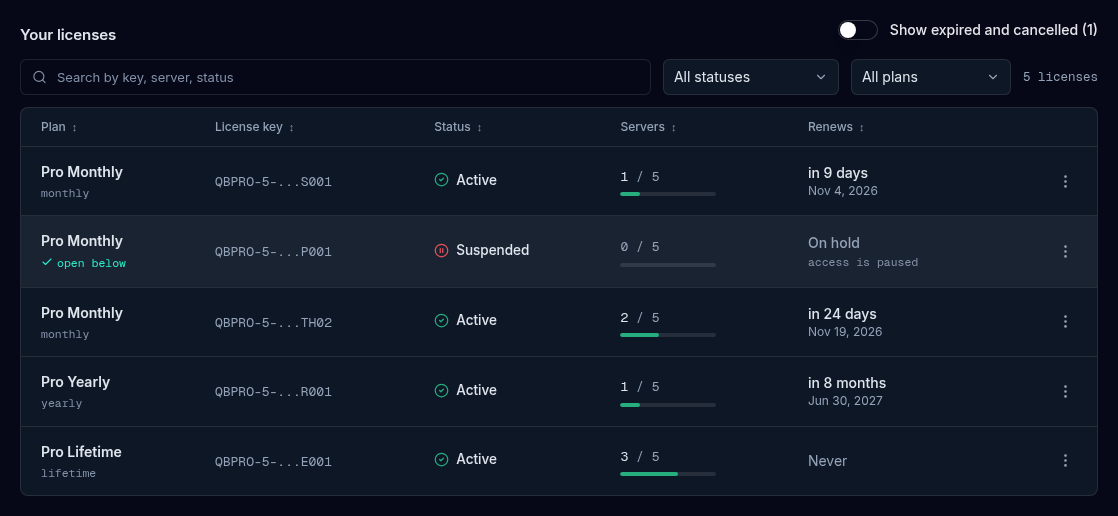
The list has these columns: Plan (the name with its kind underneath), License key (masked), Status, Servers (used out of allowed, with a bar), Renews (how far away, the date, and a note such as “Ending soon” or “Renewal pending”), and on wide screens Key last used and Created. The row you picked reads “open below”. Select a column title to sort by it. Select Status on a row for a small note with the license’s activations and users.
The address changes to include ?license= and the license’s ID, so reloading the page or sending the link opens the same license.
Above the list, once you have more than three licenses, there is a search box (“Search by key, server, status”) and two filters, Filter by status and Filter by plan (Lifetime, Subscription, Complimentary). A counter shows how many licenses match. The list shows 10 at a time.
Show expired and cancelled (N) is a switch above the list. It is off by default, so ended licenses stay out of the way. If every license you own has ended, they are shown anyway.
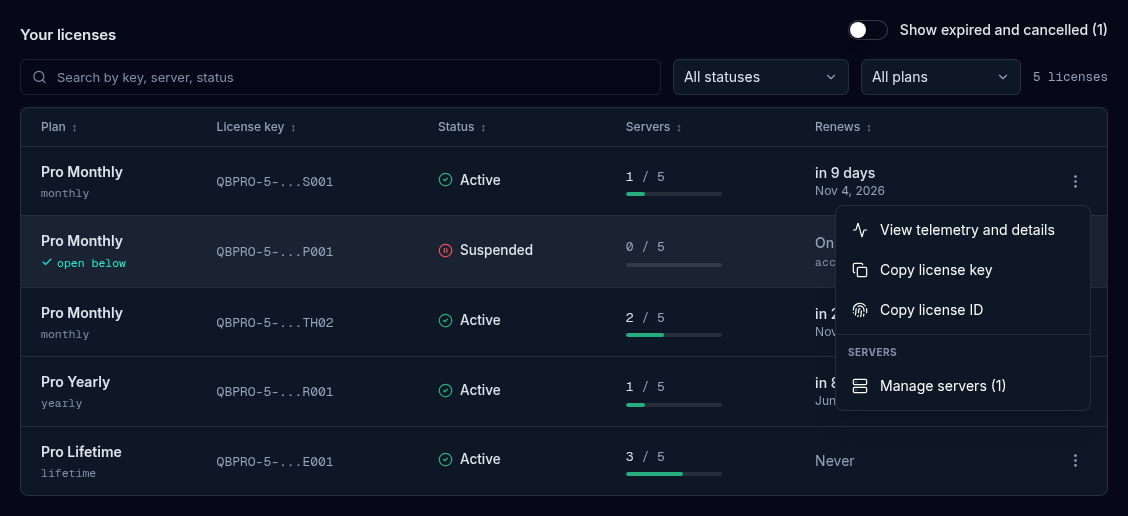
The three-dot menu on a row
Each row ends with a License actions button. Its menu holds:
- View telemetry and details, the license’s detail page.
- Copy license key and Copy license ID.
- Manage servers (N), when the license has active servers. Opens that license in the card below, with its keys and servers.
When you have no license
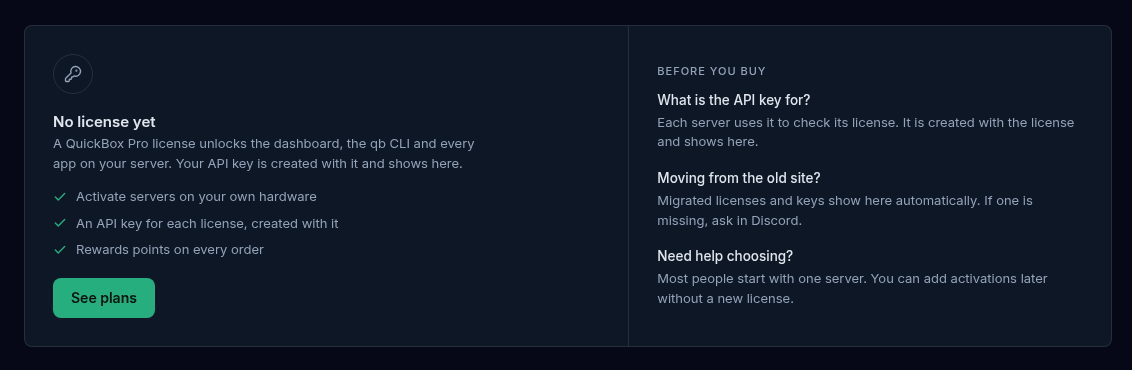
Before your first purchase the page shows one card: No license yet. It says what a license gives you, lists three things (activate servers on your own hardware, an API key for each license, Rewards points on every order) and has a See plans button. Beside it, Before you buy answers three questions: what the API key is for, what to do if you came from the old site (migrated licenses and keys show up here automatically), and how to choose.
Troubleshooting
Symptoms
- The page says 'Your licenses could not be loaded.'
- A license I bought is not in the list.
- A license shows Payment failed, Suspended or Billing setup.
- A license I let lapse is missing from the list.
- A migrated license or key is missing.
Resolution
- Nothing was changed. Check your connection and select Try again.
- Check you are signed in with the account that bought it. A license belongs to that account only. If it still is not there after a payment confirmed, ask in Discord.
- Use the green button on the license card. Each of these states has its own guide: Grace period and Payment methods.
- Expired and cancelled licenses are hidden while you own a running one. Switch on Show expired and cancelled above the list.
- Migrated licenses and keys show here automatically. If one is missing, ask in Discord. See Migration Window Closed.
Good habits
Do
- Give each server a name you will recognise, so the Servers table and the sidebar read clearly.
- Keep a payment method on file so a renewal never lapses.
- Check the Needs attention lines when you open the page.
Don't
- Do not paste your license key or API key into public chat, issues or a repository.
- Do not deactivate a server you still use. It frees the slot, but the server stops reporting until you activate it again.
FAQ
Where to go next
Activate a server, read its status and telemetry, name it and favorite it.
Copy, reveal, rename, regenerate and revoke the key your servers use.
Renewals, payment methods and what happens after a failed payment.
The summary that links into this page.
Join the Community
Media server operators sharing configs, getting support, and shaping the future of QuickBox Pro.
- Dedicated Support
- Feature Previews
- Community Configs
- Active Discussions