Community
The Community group in your sidebar is where you follow what QuickBox is building and have a say in it.
Two pages are specific to your account. Recent Developments is a live feed of what the team pushes. Feature Requests is where you vote on ideas and send in your own.
| Sidebar link | Opens | What it is |
|---|---|---|
| Recent Developments | / | A live feed of commits and releases, with emoji reactions |
| Feature Requests | / | Vote on requests, track their status, submit your own |
| Documentation | / | These docs |
| Articles | / | Guides and write-ups |
| News | / | Announcements |
| Roadmap | / | What is planned |
| Changelog | / | What shipped in each release |
| Discord | The QuickBox server invite | Opens in a new tab |
Recent Developments
Open Recent Developments in the Community group. The page shows commits from the QuickBox repositories as they land, so you can see exactly what changes and when. It is live: new pushes appear on the page without a refresh.
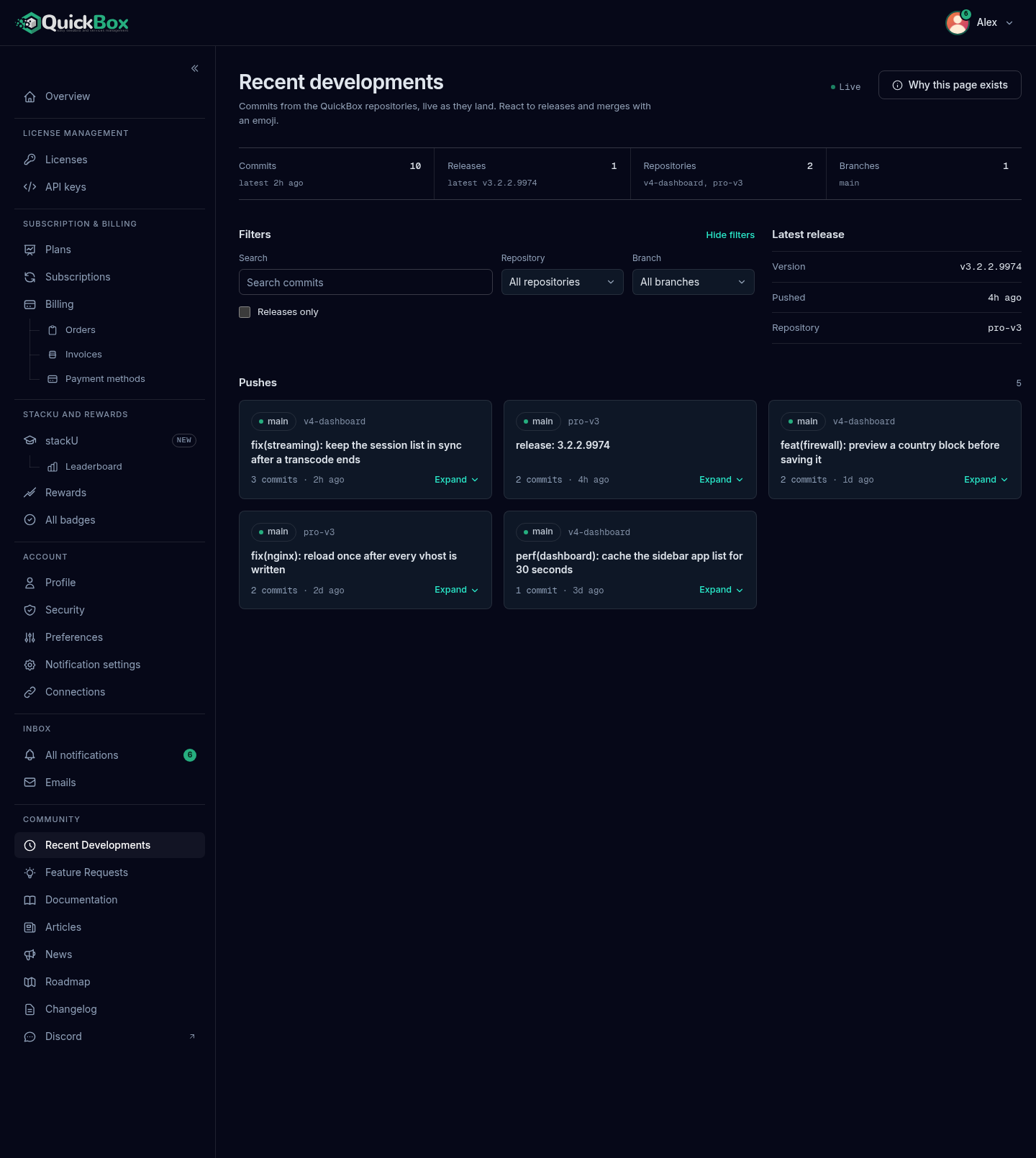
A Why this page exists button at the top right opens a short note explaining why the feed is open to you. Press Escape or Close to dismiss it.
The summary band
Four readouts sum up the feed.
| Readout | Shows |
|---|---|
| Commits | How many commits are in the feed, and how long ago the latest landed. When a filter is on it reads “shown / total”. |
| Releases | How many releases are in the feed, and the latest version. |
| Repositories | How many repositories appear, and their names. |
| Branches | How many branches appear, and their names. |
Find a change
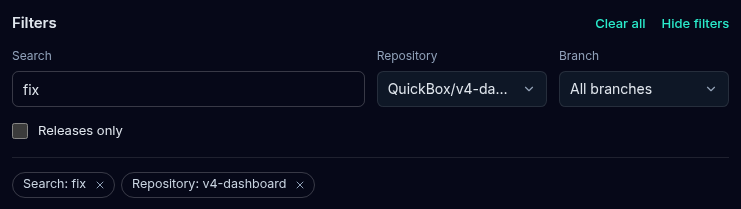
Use the Filters section to narrow the feed. On a phone it starts folded away so the feed is first on screen; select Show filters to open it, and Hide filters to fold it again.
- In Search, type a word from a commit’s title or message, an author, a repository, a branch or a version.
- Pick a Repository or a Branch, or leave them on All repositories and All branches.
- Tick Releases only to see tagged releases and nothing else.
Each active filter appears as a removable chip under the fields. Select the x on a chip to drop that one, or select Clear all to start over. If nothing matches, the page says “No commits match” and offers Clear all filters.
Read a push
The feed groups commits into pushes. Commits to the same repository and branch within 90 minutes of each other read as one push.
Each push card shows the branch and repository, the title of the newest commit, how many commits it holds and how long ago it landed.
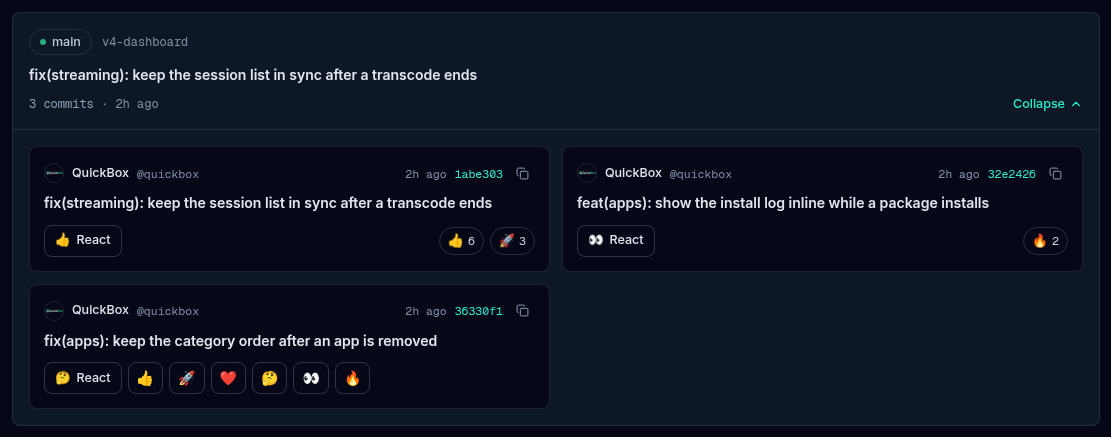
- Select a card, or its Expand control, to open it. The card opens in place across the full width.
- Read the commits inside. Each one shows the author, the time, a short hash, its title, and its message.
- Select the copy icon beside the hash to copy the full hash. A release commit carries a Release v badge with its version.
- Select Collapse to close the push.
When the feed has a tagged release, a Latest release panel appears beside the filters with its version, when it was pushed, and its repository.
React to a commit
Inside an open push, each commit has a React button.
- Select React. A row of six emoji opens.
- Select one. Your reaction is counted and the row closes.
- Select the same emoji again to take your reaction back.
Reactions show to the right of the commit as small chips with their counts, and the ones you chose are highlighted.
The feed opens with the most recent 50 commits.
Feature Requests
Open Feature Requests in the Community group. This is where you vote on what you want built and send in ideas. Requests are kept in sync with the QuickBox issue tracker on GitHub, and the most voted guide the roadmap.
The link is controlled by a setting. Open Preferences under Account in the sidebar and switch Feature Requests in navigation back to Shown. It is shown by default. Turning it off only hides the sidebar link. The page itself stays at /.
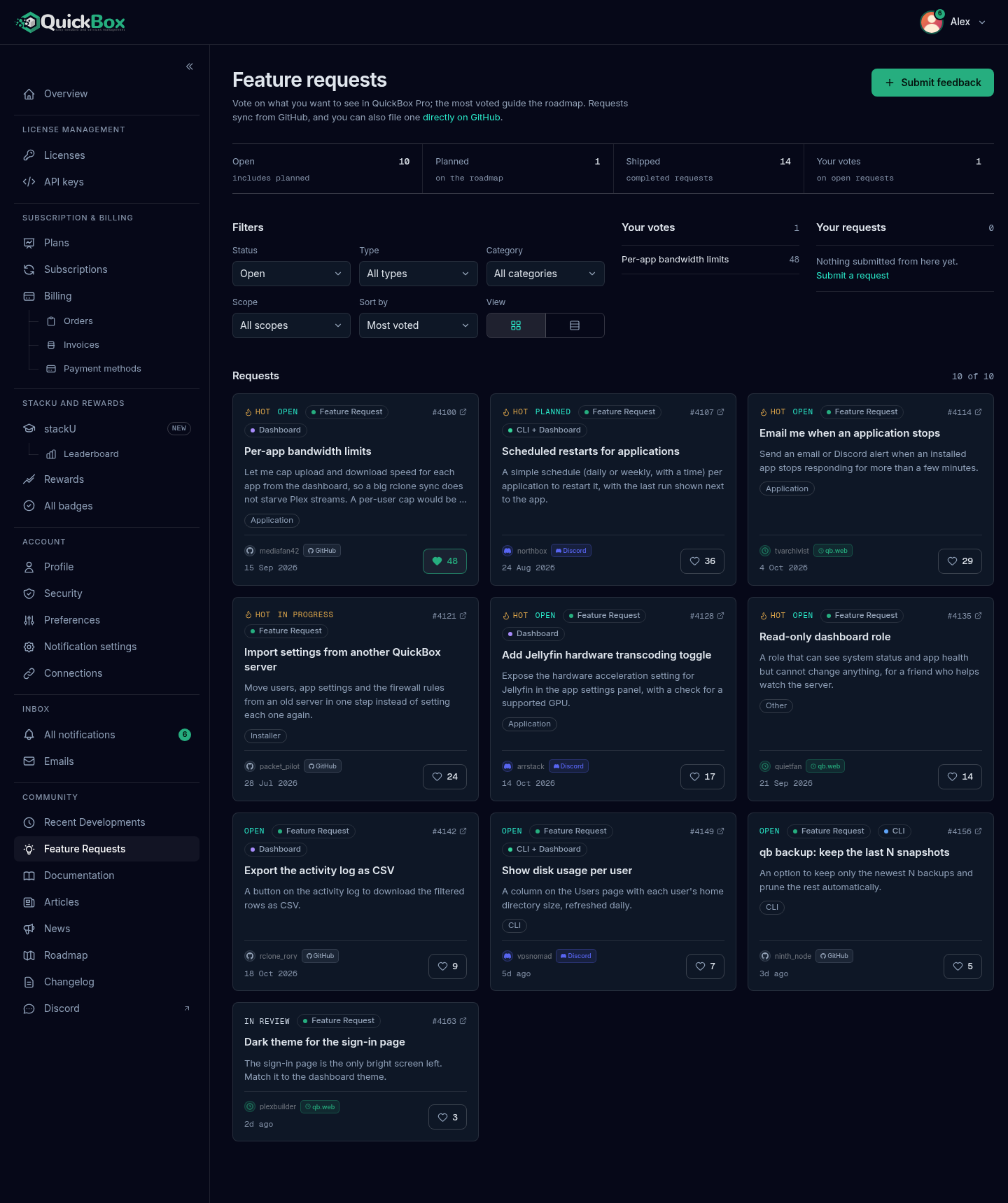
The summary band
| Readout | Shows |
|---|---|
| Open | How many requests are open, including planned ones |
| Planned | How many are on the roadmap |
| Shipped | How many are completed |
| Your votes | How many open requests you have voted for |
Find a request
The Filters section has six controls.
| Control | Choices |
|---|---|
| Status | All, Open, In review, In progress, In beta, Planned, Awaiting release, Completed, Won’t fix, Invalid, Duplicate. It opens on Open. |
| Type | All types, Feature, App suggestion, Bug, Docs |
| Category | All categories, then areas such as Application, CLI, Bot, Documentation, Installer and Update |
| Scope | All scopes, CLI, Dashboard, CLI + Dashboard |
| Sort by | Most voted (the default), Newest first, Recently updated |
| View | Card view or List view |
When anything differs from the opening view, a Clear filters button appears. The list shows 12 requests a page, with Previous, page numbers and Next underneath.
Each request shows a status word, a type and a scope, its title and a short description, labels, who asked, when, and a heart with the vote count. A request with many votes is marked Hot, and a pinned one is marked Pinned. The issue number links to the request on GitHub in a new tab.
Vote
- Select the heart on a request. The count goes up and the heart fills.
- Select it again to take your vote back.
Your votes in the rail lists your top votes, and selecting a title in it opens that request.
Read a request
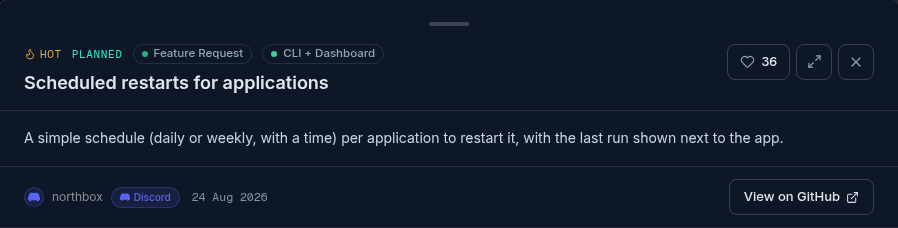
Select a request’s title, or its card, to open the detail panel. It slides in at the bottom of the page with the full description, labels and a vote button.
- Detach the panel to float lets you drag it by its handle so you can browse the list behind it. Dock the panel to the bottom puts it back.
- While the panel floats, Previous request and Next request step through the list without closing it.
- View on GitHub opens the issue in a new tab.
- Close panel closes it.
Submit your own
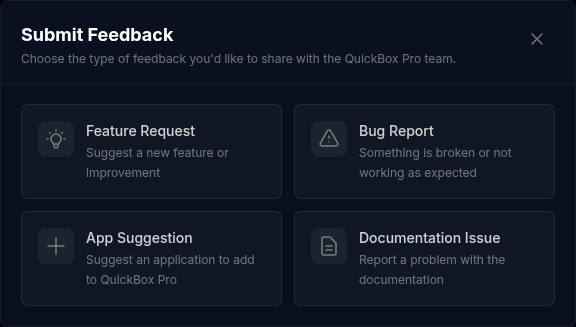
Select Submit feedback at the top right of the page, or Submit a request in Your requests or on the empty list.
- Choose what you want to send: Feature Request, Bug Report, App Suggestion or Documentation Issue.
- Fill in the form. Fields marked with a red asterisk are required. A feature request takes 2 steps, a bug report 3, an app suggestion 2 and a documentation issue 1. Select Continue to move on and Back to return.
- On the last step select Submit.
When it goes through, the dialog reads Submitted! and “Your submission has been received”, with a button that opens the new issue on GitHub. The list on the page catches up within the hour.
If you send the same type again too soon, the dialog says you have already submitted one recently and when to try again. Your own requests appear in Your requests once the list has synced.
You can also file directly on GitHub. The directly on GitHub link in the page header opens the issue chooser for the QuickBox repository.
Symptoms
- Feature Requests is missing from the sidebar
- My new request is not in the list
- The page says Failed to load feature requests
- Recent Developments says Could not load the feed
Resolution
- Switch Feature Requests in navigation back to Shown in Preferences.
- Requests sync from GitHub, so a new one can take up to an hour. The confirmation dialog links to the issue straight away.
- Select Try again. If it keeps failing, reload the page.
- Select Try again. The feed fills in as soon as it can be read.
Questions
Keep reading
Join the Community
Media server operators sharing configs, getting support, and shaping the future of QuickBox Pro.
- Dedicated Support
- Feature Previews
- Community Configs
- Active Discussions