Connections
The Connections tab is where you link your QuickBox Pro account to your Discord account. Today Discord is the one connection it manages, so the tab is a single Discord section that shows whether the link is on and gives you the button to change it.
Open Connections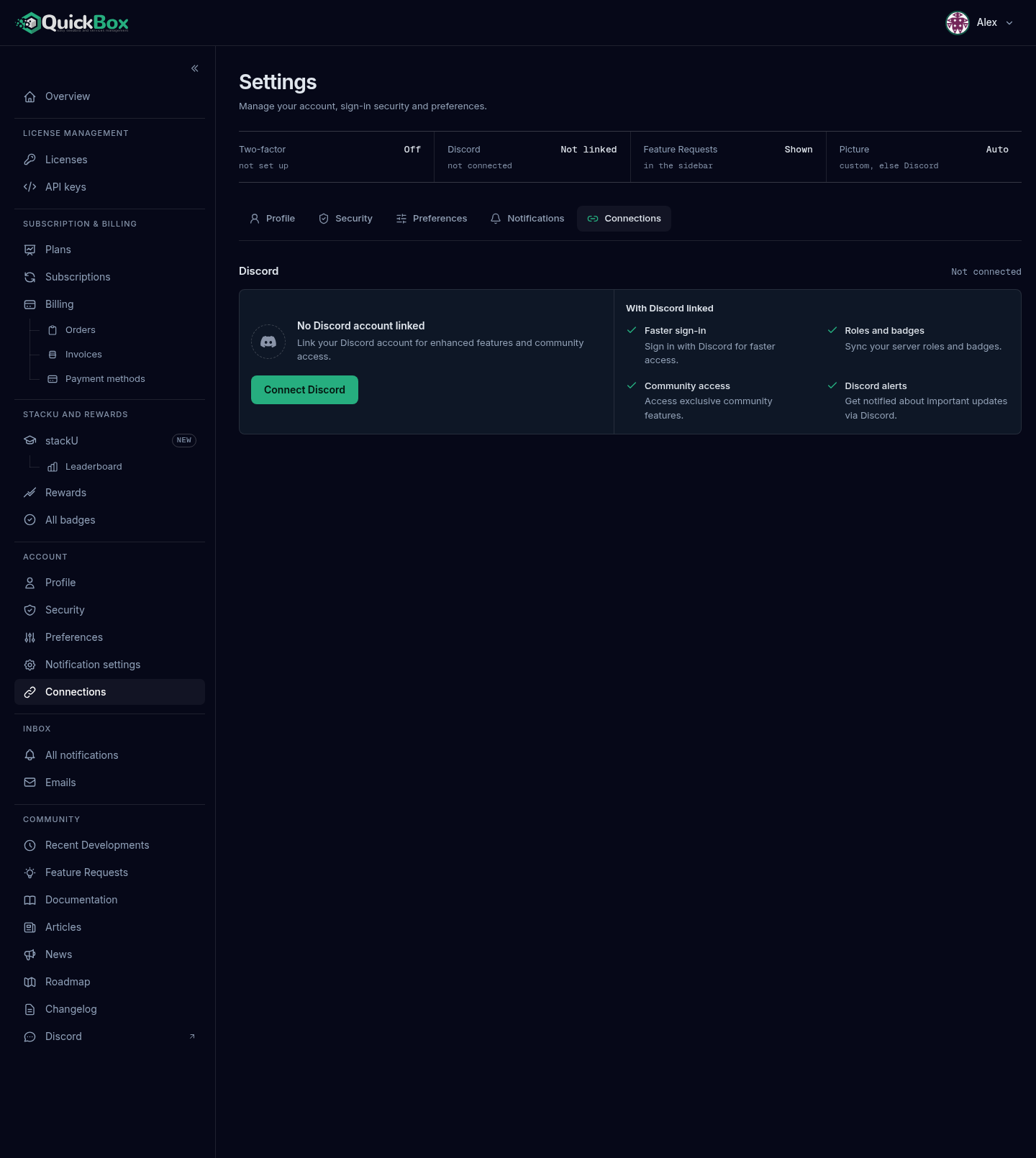
- Sidebar
- Connections (under Account)
- Address
- /dashboard/
settings ?tab=connections - Needs
- A verified email address (on your account)
The section header reads Connected or Not connected. The same state shows as the Discord readout in the Account status band at the top of the Settings page, and as the Discord line on the Profile tab.
What linking gives you
When you are not linked, the panel titled With Discord linked lists what you gain:
| Benefit | What the portal says |
|---|---|
| Faster sign-in | Sign in with Discord for faster access. |
| Roles and badges | Sync your server roles and badges. |
| Community access | Access exclusive community features. |
| Discord alerts | Get notified about important updates via Discord. |
Once Discord is linked, the sign-in page’s Continue with Discord button signs you in to this account. The QuickBox Discord bot can also look up your servers by your Discord account instead of an address you type.
Link your Discord account
- Open Account → Connections in the sidebar.
- In the Discord section, click Connect Discord.
- You are taken to Discord. Sign in there if asked, then approve the request. Discord shows what QuickBox will read: your account details, your email address and the servers you are in, which is how your roles are matched.
- Discord sends you back to the Connections tab with a green message: “Discord account connected successfully!” The page then reloads so every part of the portal shows the new link.
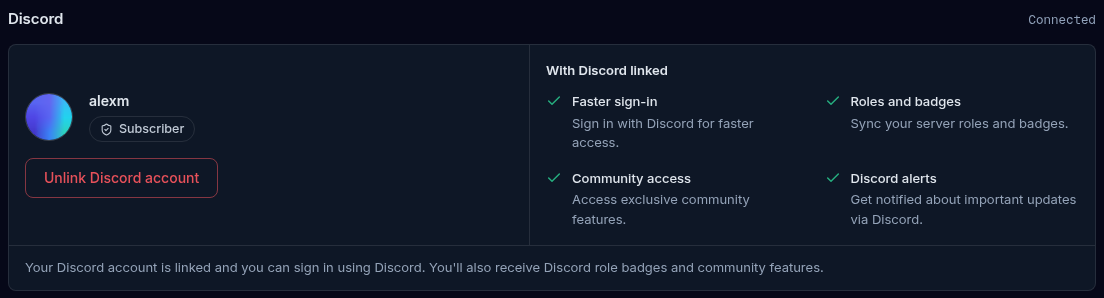
The card now shows your Discord name or handle with a chip carrying your Discord role, and the line “Your Discord account is linked and you can sign in using Discord. You’ll also receive Discord role badges and community features.”
Link through the Discord bot instead
You can also link by completing the / conversation with the QuickBox bot in the Discord server. That proves you hold a licence and links the two accounts in one go. See Verifying your licence in Discord.
If linking fails
The tab shows a red message at the top of the section:
| Message | What it means |
|---|---|
| Discord connection was cancelled | You declined on Discord’s page. |
| Authorization request expired | Too long passed on Discord’s page. Start again. |
| Invalid state token, Invalid request parameters or Session mismatch - please try again | The return trip did not match the request you started. Click Connect Discord again. |
| Failed to exchange authorization code or Failed to fetch Discord user info | Discord did not complete the hand-off. Try again shortly. |
| This Discord account is already linked to another user | That Discord account belongs to another QuickBox account. Unlink it there first. |
| Verify your email address before adding a passkey, two-factor authentication or a Discord connection. | Your email address is not verified yet. Verify it, then try again. |
Unlink Discord
- Open Account → Connections. With Discord linked, the section header reads Connected.
- Click the red Unlink Discord account button.
- Your browser asks “Are you sure you want to unlink your Discord account?” Confirm.
- A green “Discord account unlinked successfully” message appears and the page reloads after about two seconds. The card is back to No Discord account linked.
You receive a security alert email that Discord was unlinked. See Security alerts.
If your account has no password, for example because it was created through Discord, unlinking is refused with “Cannot unlink Discord. Please set a password first to prevent account lockout.” That protects you from removing your only way in. If you are in this position, email echo@quickbox.io.
A Discord account can be linked to only one QuickBox account at a time. To move it, unlink it from the old account first, then link it from the new one.
Troubleshooting
Symptoms
- The Connections tab shows a loading placeholder
- Connect Discord says to verify your email
- Unlink says to set a password first
Resolution
- It waits for your Discord status to load. Reload the page if it does not settle.
- Verify your email address first, then link Discord.
- Your account has no password to fall back on. Email echo@quickbox.io.
FAQ
Related pages
Join the Community
Media server operators sharing configs, getting support, and shaping the future of QuickBox Pro.
- Dedicated Support
- Feature Previews
- Community Configs
- Active Discussions