Your Overview Page
The Overview page is where the portal opens after you sign in. It is a summary of your whole account on one screen: who you are, what is running, what needs you, and where to go next. Nothing on it is a dead end. Every card, readout and row is a link into the page that holds the detail.
- Sidebar
- Overview
- Address
- /dashboard
- Who sees it
- Every signed-
in customer
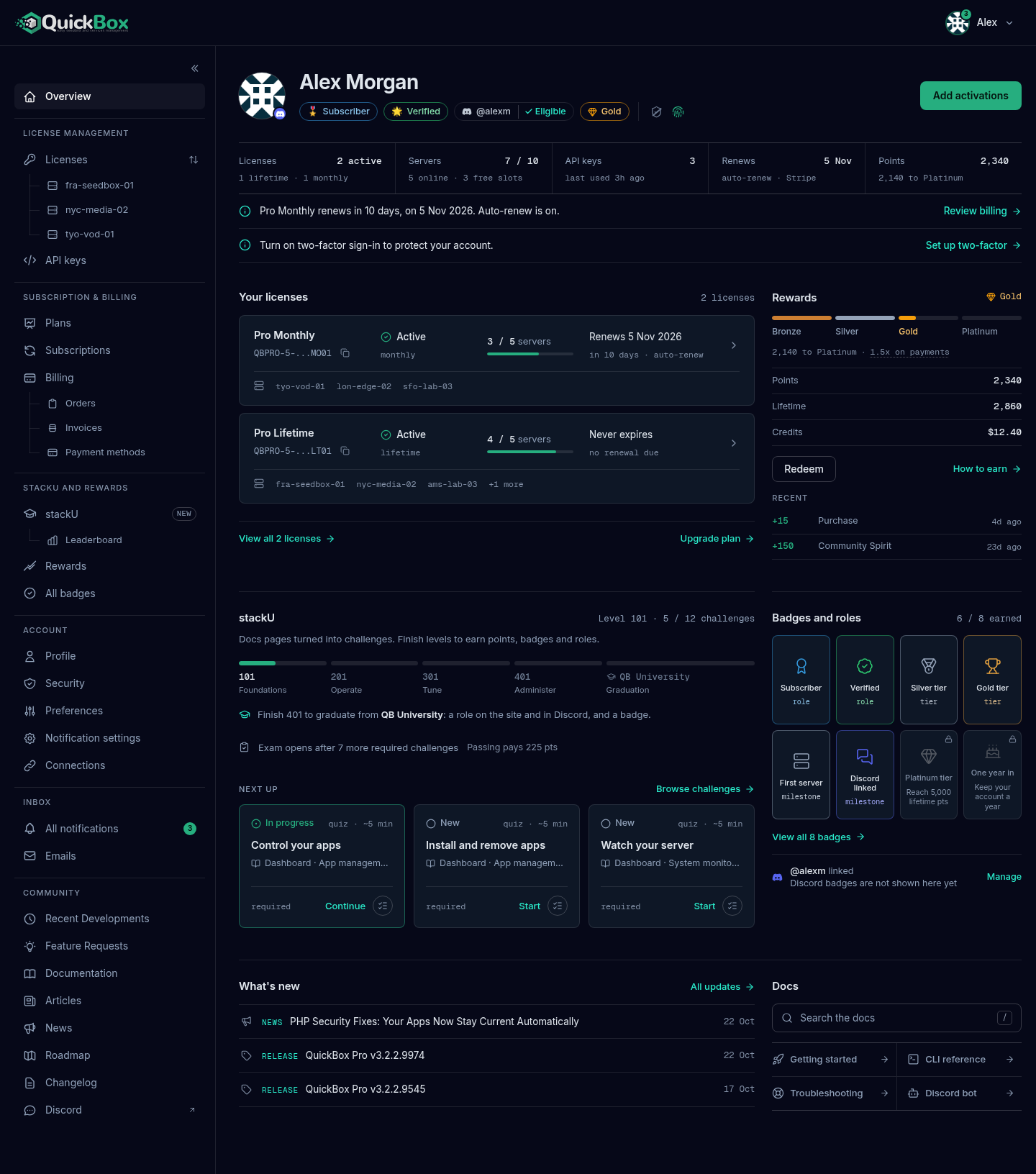
If any part of the page fails to load, only that part shows a short line such as “We could not load your licenses right now. Refresh the page to try again.” The rest of the page keeps working, so you can still reach everything else.
The identity header
The top of the page says who is signed in.

- Picture. The picture you chose on your Profile. A small Discord mark sits on its corner when your Discord account is linked.
- Name. The name on your account.
- Role chips. One chip for each role on your account.
- Discord chip. Shows Connect Discord (a dashed chip) until you link an account, and opens the Connections tab. Once linked it shows your
@handle. A tick and the word Eligible appear when your account qualifies for the Verified role in the QuickBox Discord server. The portal works this out from your account; the role itself is granted in Discord, see the verification guide. - Rewards tier chip. Your tier: Bronze, Silver, Gold or Platinum.
- Two security icons. A shield for two-factor sign-in and a fingerprint for passkeys. Green means on. Grey with a slash means off. Hover an icon for the words, for example “Two-factor sign-in is off”. Turn either on in Security settings.
The action button
The green button on the right changes with your account. It always offers the one next step that matters most.
| Button | When you see it | Where it goes |
|---|---|---|
| Get QuickBox Pro | You have no license yet | Plans |
| Fix billing | A license is suspended for non-payment, or the last payment on a license failed | Payment methods, or Billing |
| Add payment method | A subscription is coming due and has no valid payment method | Payment methods |
| Renew | A license ends within 14 days and will not renew on its own, or none of your licenses grants access any more | The renew page for that license |
| Add activations | Nothing needs fixing | Plans |
The status band
Under the header, five readouts summarize your account. Each one is a link to the page that holds the detail.

| Readout | What it shows | Opens |
|---|---|---|
| Licenses | How many licenses are active, then how many of each kind you hold, for example one lifetime and one monthly. Reads “none yet” before your first license. | Licenses |
| Servers | Servers in use out of the servers your licenses currently allow, for example 3 / 5, then how many are online and how many slots are free. | Servers |
| API keys | How many of your keys are active, then when one was last used (“last used 2h ago”, “never used” or “none created”). | API keys |
| Renews | The date of your next automatic renewal, then “auto-renew” and the payment provider on file. Reads “none” when nothing renews on its own. | Billing |
| Points | Your spendable Rewards points, then how many more you need for the next tier, or your tier name once you are at the top. | Rewards |
The Renews readout names the provider on file, Stripe or PayPal. It never shows card details.
Needs attention
When something wants you, a short list appears between the status band and the sections. It is hidden completely when there is nothing to flag.
Each line has a colored icon (red for urgent, amber for a warning, blue for a notice), one sentence and one link. The list shows at most three lines and ends with “+N more items need attention” when there are more.
| What it says | What it means | Link |
|---|---|---|
| ”Your license is suspended for non-payment. Add or update a payment method by a date or it expires.” | Access is paused until payment is fixed. | Update payment method |
| ”The last payment on your license failed. Update your payment method to keep it active.” | The most recent charge did not go through. | Fix billing |
| ”Your subscription renews on a date and has no valid payment method. Link one.” | The renewal will fail unless you add a method. | Add payment method |
| ”Your license ends in N days, on a date, and will not renew on its own.” | A license ends within 14 days with no automatic renewal. | Renew |
| ”Your plan renews in N days, on a date. Auto-renew is on.” | A heads-up only. A renewal is coming within 14 days. | Review billing |
| ”Turn on two-factor sign-in to protect your account.” | Shown once you have a license and two-factor is off. | Set up two-factor |
When more than one license is affected the sentence counts them, for example “2 licenses end within 14 days”.
The billing guides explain each state in full. Start with Grace period for what happens after a failed payment and Payment methods for adding or replacing one.
Your licenses
This section lists up to three of your licenses, most urgent first: payment trouble, then suspended, then ending soon, then expired, then healthy ones by soonest end date, with cancelled licenses last.
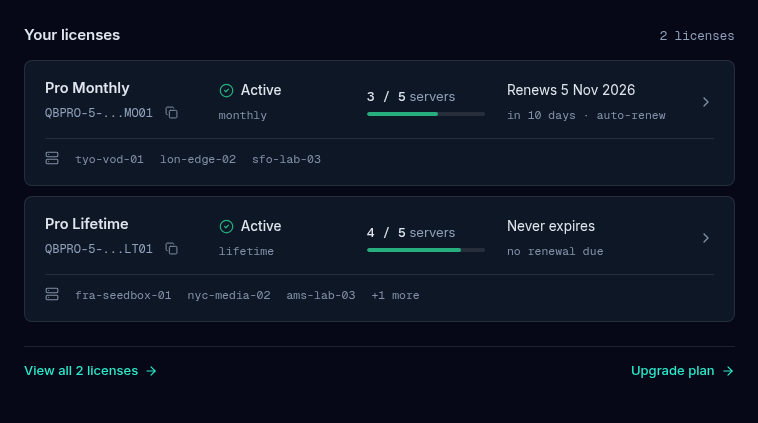
Each row shows, left to right:
- The license name and its masked key, with a Copy license key button. The button copies the whole key without opening the license.
- Its status (Active, Payment failed, Billing setup, Suspended, Expired or Cancelled) and its kind (monthly, yearly, lifetime, subscription or complimentary).
- Servers in use out of servers allowed, with a small bar.
- What happens at the end date: “Renews 14 Nov 2026” with the days left and “auto-renew”, “Ends” with the date, “Never expires” for a lifetime license, or “Renewal due”, “Expired” or “Ended” once the date has passed.
- A chevron. The whole row is a link to that license’s page.
Under a row, up to three server names are listed with “+N more” for the rest.
At the foot of the section, View all N licenses opens Licenses. With a single license it reads Manage licenses. Upgrade plan opens Plans.
If you have no license yet, the section is one card: “No license yet”, three things a license gives you, Compare plans and Try the live demo (which opens the public demo in a new tab), and a short list of plan links.
Rewards
The Rewards section is your points at a glance. The tier you are in is shown at the top right of the section.
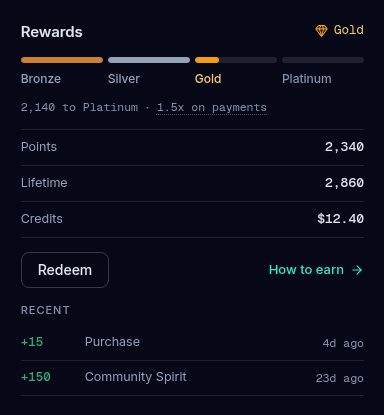
- Tier bar. Four segments, Bronze, Silver, Gold and Platinum. Tiers you have passed are full and the one you are in is partly filled.
- Progress line. Points still needed for the next tier, or “Top tier”. Next to it, your earning rate, such as “1 pt per $1” or “1.5x on payments”. Select the rate to open a short “How points work” note.
- Points, Lifetime and Credits. Points you can spend, points you have earned in total (the total decides your tier), and your site credit balance in dollars.
- Redeem. Opens the Rewards page. It is greyed out until you have points, and its tooltip then reads “Earn points first”.
- How to earn. Opens the Rewards guide.
- Recent. Your latest earnings with how long ago each one landed. Before your first earning, this list shows the ways to earn instead.
stackU
stackU turns the docs into challenges. Finish them to earn points, badges and roles.
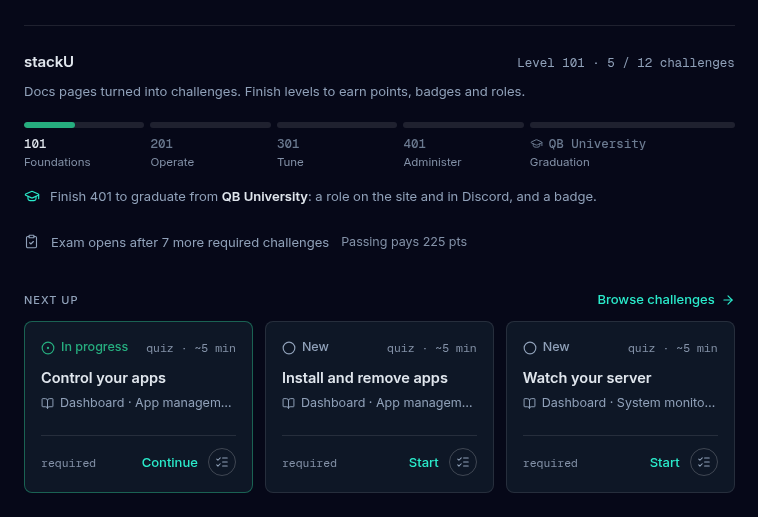
The section shows the level you are working on with how many of its challenges are done, a ladder of every level with the final graduation step, a line about the level’s exam when it has one, and Next up, with up to three challenge cards. Browse challenges opens the full stackU page. When you have finished every level the section says “All levels complete” and links to the leaderboard.
The details of levels, challenges, exams and rewards are in stackU.
Badges and roles
This section shows the badges you hold in color, then the next few you can earn, dimmed with a lock and a short hint on how to unlock each one. Hover a tile for the full description. View all N badges opens the page with every badge, earned and locked.
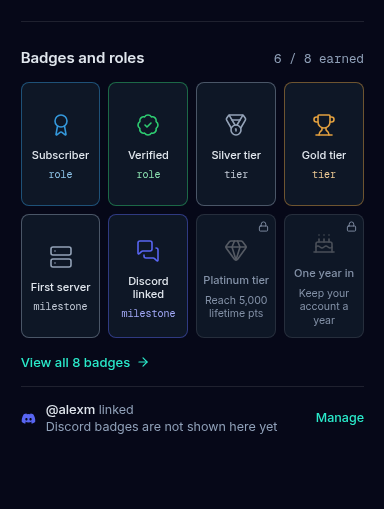
The row under the grid is about Discord. While Discord is not linked it reads “Connect Discord to bring your Discord badges here” with a Connect button. Once linked it shows your handle with a Manage link and the note “Discord badges are not shown here yet”. More about badges is in Badges.
What’s new and docs
The bottom row has two parts.
- What’s new lists the three latest news posts and releases, each with a date, and All updates opens the News page.
- Docs has a Search the docs field and four quick links: Getting started, CLI reference, Troubleshooting and Discord bot. Press the
/key anywhere on the Overview page (outside a text field) to jump straight to docs search.
Troubleshooting
Symptoms
- A section shows a short error message instead of its content.
- The status band says 'none yet' but you bought a license.
- Servers shows fewer online than you expect.
- Discord says 'Eligible' but you do not have the Verified role in Discord.
Resolution
- Only that section failed to load. Reload the page. The other sections are unaffected, and every page in the sidebar still works.
- Make sure you are signed in to the account that made the purchase. A license belongs to the account that bought it. See Licenses to check what that account holds.
- A server counts as online only while it keeps sending its heartbeat, and it is shown offline after 7 minutes without one. See Servers & Activations.
- Eligible means your account qualifies. Run the verify command in the QuickBox Discord server to receive the role, as described in the verification guide.
Good habits
Do
- Treat the Needs attention list as your to-do list and clear it when it appears.
- Turn on two-factor sign-in or add a passkey once you own a license.
- Link Discord so your roles and badges follow you.
Don't
- Do not share a screenshot of the page that shows your full license key or API key.
- Do not ignore a Fix billing button. A failed payment pauses that license's API keys and servers until it is fixed.
FAQ
Where to go next
Join the Community
Media server operators sharing configs, getting support, and shaping the future of QuickBox Pro.
- Dedicated Support
- Feature Previews
- Community Configs
- Active Discussions