Payment Methods
The Payment methods page is where you save the cards and the PayPal account that QuickBox Pro uses to charge renewals and purchases. You can save a card, your PayPal account, or both. A saved method does nothing until it is used: no money moves when you add one.
Open Payment methods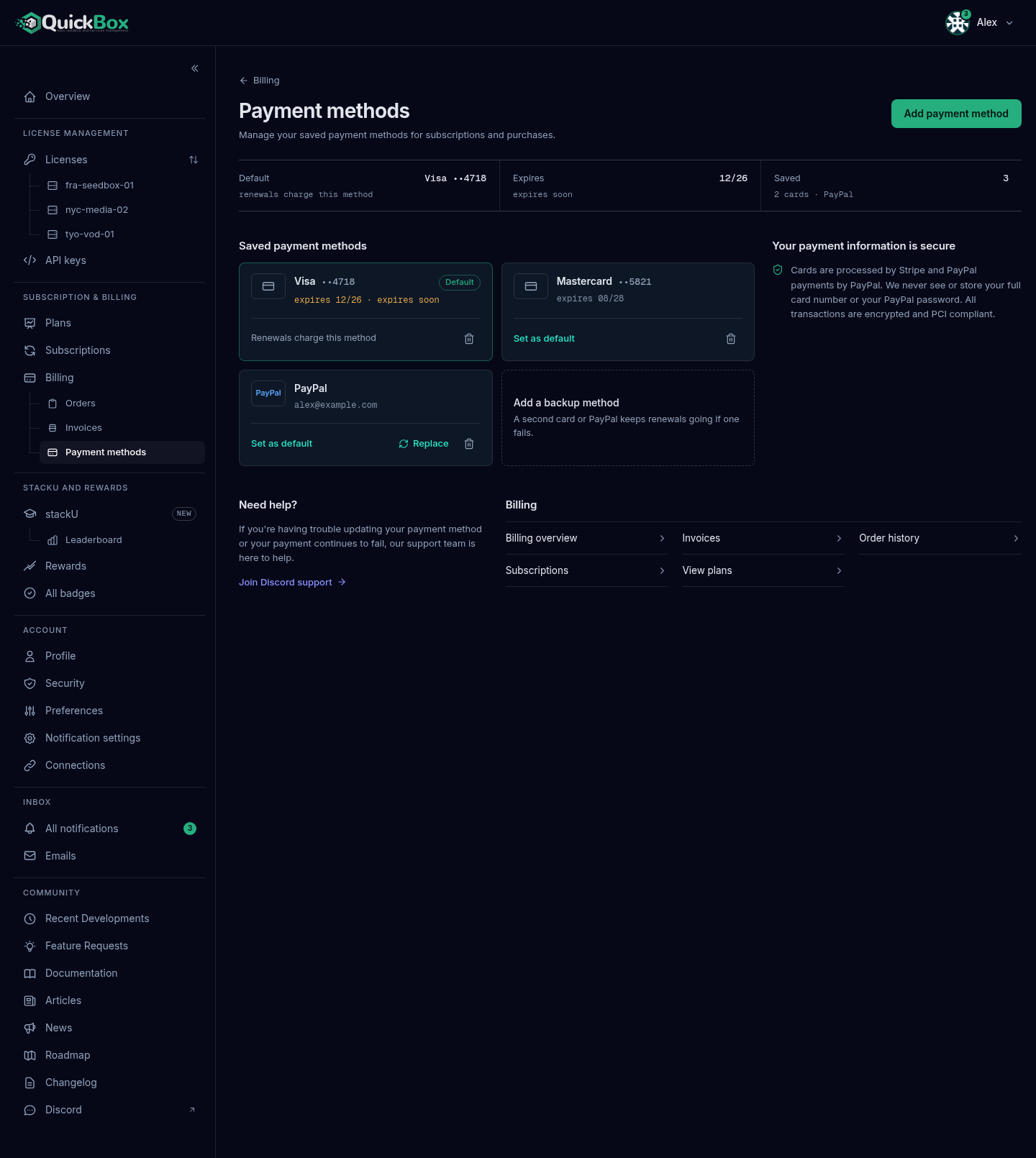
- Sidebar
- Payment methods (under Subscription & Billing, then Billing)
- Address
- /dashboard/
billing/ payment- method - Who sees it
- Every signed-
in customer
What you will see
The header is Payment methods, with a Billing link back to the overview, the line “Manage your saved payment methods for subscriptions and purchases.” and an Add payment method button.
| Readout | What it shows |
|---|---|
| Default | Your default method, such as a card brand and last four digits, or PayPal, with “renewals charge this method”. It reads “None” with “choose a default below” when you have methods but no default, or “add one to auto-renew” when you have none. |
| Expires | For a card default, its expiry date with “valid”, “expires soon” or “expired, update it”. For PayPal it reads “Linked” with “account on file”. |
| Saved | How many methods you have, for example “1 card · PayPal”. |
Under the readouts, Saved payment methods shows one tile per method:
- A card tile shows the brand and last four digits, “expires” with its date, and a Default marker if it is the default. A card that expires within about two months shows “expires soon” in amber, and an expired card shows “expired” in red.
- The PayPal tile shows PayPal and the account it is linked to.
- The default tile reads “Renewals charge this method” at its foot. Every other tile has a Set as default button instead.
- The PayPal tile also has Replace.
- Every tile ends with a trash button named Remove with the method, for example “Remove Visa ending 4242” or “Remove PayPal”.
- The last tile reads Add a backup method: “A second card or PayPal keeps renewals going if one fails.” With nothing saved, the section reads “No payment methods” and offers Add your first payment method.
Beside the tiles, Your payment information is secure explains who handles the data: cards are processed by Stripe, PayPal payments by PayPal, and QuickBox Pro never sees or stores your full card number or your PayPal password.
Add a card
- Select Add payment method at the top of the page or the Add a backup method tile.
- In the Add Payment Method dialog, leave Stripe selected. It is labelled “Credit/debit card, Apple Pay, Google Pay”.
- Fill in the form. It is Stripe’s secure card form, so your card details go to Stripe, not to QuickBox Pro.
- Select Add Payment Method. The button reads “Processing…” while it saves.
- You see “Payment method added successfully”. The new card is your default.
Adding a card also moves your running Stripe subscriptions onto it, so the next renewal is charged to the new card. If a license that came over from the earlier QuickBox platform needed billing set up, saving a card starts its subscription. When a license cannot be started on the new card, an information notice gives the reason for each.
Link PayPal
- Select Add payment method and choose PayPal. It is labelled “Link your PayPal account for subscriptions”.
- Select Link PayPal Account. The button reads “Redirecting to PayPal…”.
- Log in at PayPal and approve QuickBox Pro for automatic payments. No charge is made until you purchase or renew a plan.
- You return to Payment methods with “PayPal account linked successfully!” and a PayPal account linked notice.
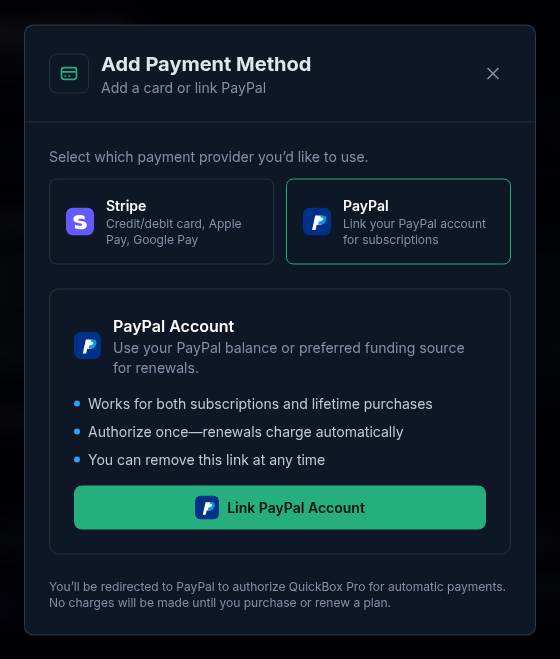
Only one PayPal account can be saved at a time. When one is already linked, the PayPal side of the dialog says “PayPal already linked” and offers Replace PayPal account instead.
If linking does not finish, the page tells you why:
| You see | What it means |
|---|---|
| PayPal linking failed: “This PayPal account is already linked to another user.” | That PayPal account belongs to a different QuickBox Pro account. Use another one. |
| PayPal linking failed: “Failed to link PayPal account. Please try again.” | The link did not complete. Select Try again. |
| ”PayPal linking was cancelled.” | You closed PayPal without approving. Nothing was saved. |
| Renewal payment did not go through: “PayPal is linked, but the renewal payment did not go through. Check your PayPal funding source, or add a card.” | The account is saved, but a renewal it was asked to pay failed. Select Add a card, or fix the funding source in PayPal. |
Set the default
Select Set as default on any tile that is not the default. You see “Default payment method updated”, and the tile now shows the Default marker.
The default is the method QuickBox Pro offers first. A default card is what makes the Quick Pay option at checkout charge without leaving the page. A new card you add becomes the default on its own.
A subscription renews through the gateway it was bought with, Stripe or PayPal. Changing the default does not move it to the other one. See Billing Overview.
Replace your PayPal account
Use this to charge a different PayPal account without removing the old one first.
- On the PayPal tile, select Replace. Or open Add payment method, choose PayPal and select Replace PayPal account.
- Approve the new account at PayPal.
- You return to Payment methods with “PayPal account replaced. Renewals from your saved account now charge the new one.”
Renewals that are charged from your saved PayPal account move to the new account. Your default stays as you set it. A PayPal subscription that PayPal itself bills keeps its original account until you switch it with Switch billing on the Subscriptions page.
Remove a method
- Select the trash button on the tile.
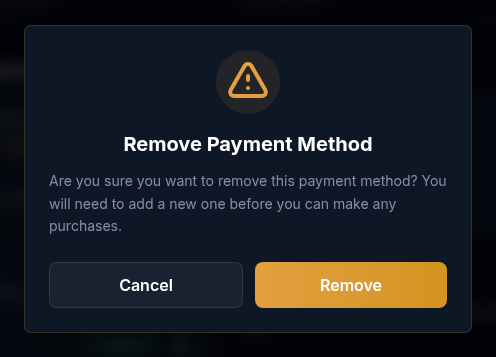
- In the Remove Payment Method dialog, read “Are you sure you want to remove this payment method? You will need to add a new one before you can make any purchases.” and select Remove.
- You see “Payment method removed successfully”.
QuickBox Pro refuses a removal that would leave a renewal with nothing to charge:
- Your only card cannot be removed while you have an active subscription billed by Stripe. The message reads “Cannot remove your only payment method while you have active subscriptions”. Add another card first.
- Your PayPal account cannot be removed while it pays something. With an active PayPal subscription the message is “Cannot unlink PayPal while you have active PayPal subscriptions. Please cancel them first.” When it pays the renewal of a license, it says: “Your saved PayPal account pays the automatic renewal of a license. To change accounts, use Replace on the PayPal tile. To stop paying with PayPal, cancel that renewal on the Subscriptions page first, then unlink PayPal.”
Removing a PayPal account that does not pay anything also stops it being charged. If PayPal was your default and you have a card, the default moves to the card.
Credits and your payment method
Whatever method you use, your site credits come off a renewal first, and the method is charged only the rest. When credits cover the whole renewal, nothing is charged. This is on by default and controlled by Auto-apply credits to renewals in Preferences. A new PayPal subscription asks you once to approve saving your PayPal account, then charges what is owed after your coupon and credits.
Troubleshooting
Symptoms
- My card shows "expires soon" or "expired"
- I cannot remove my only card
- I cannot remove my PayPal account
- A renewal from my PayPal account failed
- My payment methods list is empty but I have a subscription
Resolution
- Add the replacement card with Add payment method. It becomes the default and your running Stripe subscriptions move onto it. Then remove the old one.
- Add a second card first, or cancel the Stripe subscription on the Subscriptions page.
- Cancel the PayPal subscription or the renewal it pays on the Subscriptions page first, or use Replace to point to a different account.
- Fix the funding source inside your PayPal account, or select Replace and approve a different account. The next daily retry charges it, as long as you act within the 72-hour grace period.
- A lifetime license needs no saved method. For a subscription, check its Billed via column on Subscriptions and add a method here if a renewal needs one.
Frequently asked
Do
- Keep at least one method saved while a subscription is running.
- Add a second method as a backup so a failed charge has somewhere else to go.
- Replace a card before it expires.
- Use Replace on the PayPal tile to change PayPal accounts.
Don't
- Don't unlink PayPal before cancelling the PayPal subscription or renewal it pays.
- Don't expect changing the default to move a subscription to another gateway.
- Don't wait past the 72-hour grace period to fix a failed renewal.
Related guides
Join the Community
Media server operators sharing configs, getting support, and shaping the future of QuickBox Pro.
- Dedicated Support
- Feature Previews
- Community Configs
- Active Discussions