Orders & Invoices
Your payment history lives in two places that answer two different questions. Order history is a list of everything you bought, with each renewal tied to the purchase that began it. Invoices holds the invoice or receipt for each payment, which you can print, download as a PDF or, when one is still open, pay.
Open Order history Open Invoices- Order history
- Orders (under Subscription & Billing, then Billing)
- Order history address
- /dashboard/
orders - Invoices
- Invoices (under Subscription & Billing, then Billing)
- Invoices address
- /dashboard/
billing/ invoices - Who sees them
- Every signed-
in customer
Order history
The page is titled Order history, with the line “Every purchase and renewal payment, with the license each one belongs to.”
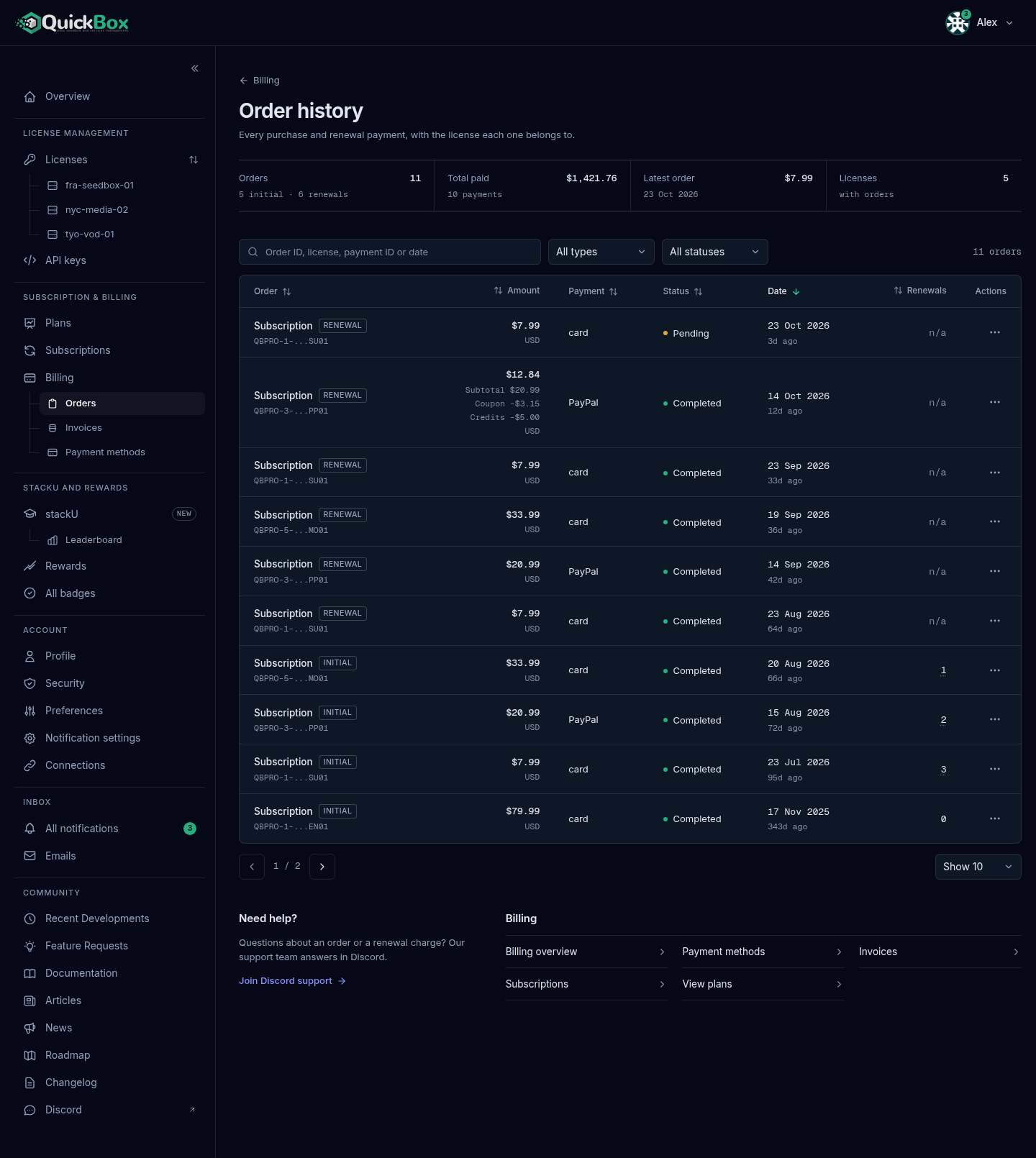
The summary band
| Readout | What it shows |
|---|---|
| Orders | How many orders you have, split into initial purchases and renewals. |
| Total paid | The total that was actually charged. Credits are not counted as money taken, and complimentary licenses are left out. It reads “Mixed” if you paid in more than one currency. |
| Latest order | The amount and date of the newest order, or “Free” for a complimentary license. |
| Licenses | How many licenses have orders. |
The orders table
| Column | What it shows |
|---|---|
| Order | The order type, such as Subscription, Lifetime or Comped license, with a tag: Initial for the purchase that created a license, Renewal for a payment on an existing license. The masked license key sits underneath. |
| License | The masked key, as its own column on wide screens. |
| Amount | What was charged, with the subtotal and any coupon or credits that came off it, and the currency. A complimentary license reads Free. |
| Payment | How it was paid: card, PayPal, Site credits or Coupon when they covered it, or QB Classic with a Migrated tag for an order that came from the earlier QuickBox platform. |
| Status | Active, Completed, Pending, Suspended, Expired, Cancelled, Failed or Refunded. |
| Date | When the order was placed. Hover over it for the exact date and time. |
| Renewals | On an initial order, how many renewal payments have been processed. Renewals read “n/a”. |
| Actions | The three-dot menu for that row. |
Above the table, Search orders matches an order ID, license, payment ID or date. Two filters narrow the list: Filter by order type and Filter by status. The count beside them updates as you filter. With more than one page of orders, buttons at the foot move between pages and Show 10 to Show 50 sets the page size.
If you arrived from the Orders button on a subscription row, a notice reads “Filtered to license” with the masked key and Clear filter returns to the full list.
The order menu
Select the three dots on a row. Order actions offers:
| Item | What it does |
|---|---|
| View Order Details | Opens the Order details dialog. |
| Copy Order ID | Copies the ID to the clipboard. |
| Copy Payment ID | Copies the Stripe or PayPal payment ID. Shown only when the order has one. |
| View Associated License | Opens that license’s page. Shown when the order belongs to a license. |
| View Parent Order | On a renewal, scrolls to the initial order that began it. |
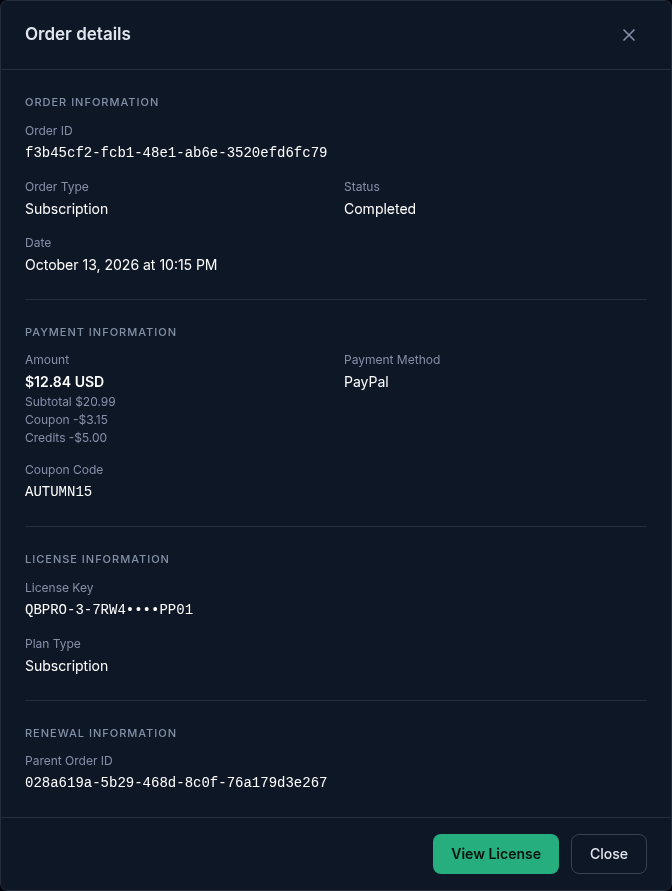
The Order details dialog groups the order’s facts into Order Information (the ID, type, status and date), Payment Information (the amount, payment method, any coupon code, and the Stripe or PayPal payment ID), License Information and Renewal Information. Select Close, press Escape or click outside it to close.
Invoices
The page is titled Invoices: “Every invoice and payment receipt. Open one to print it, download a PDF or pay what is due.”
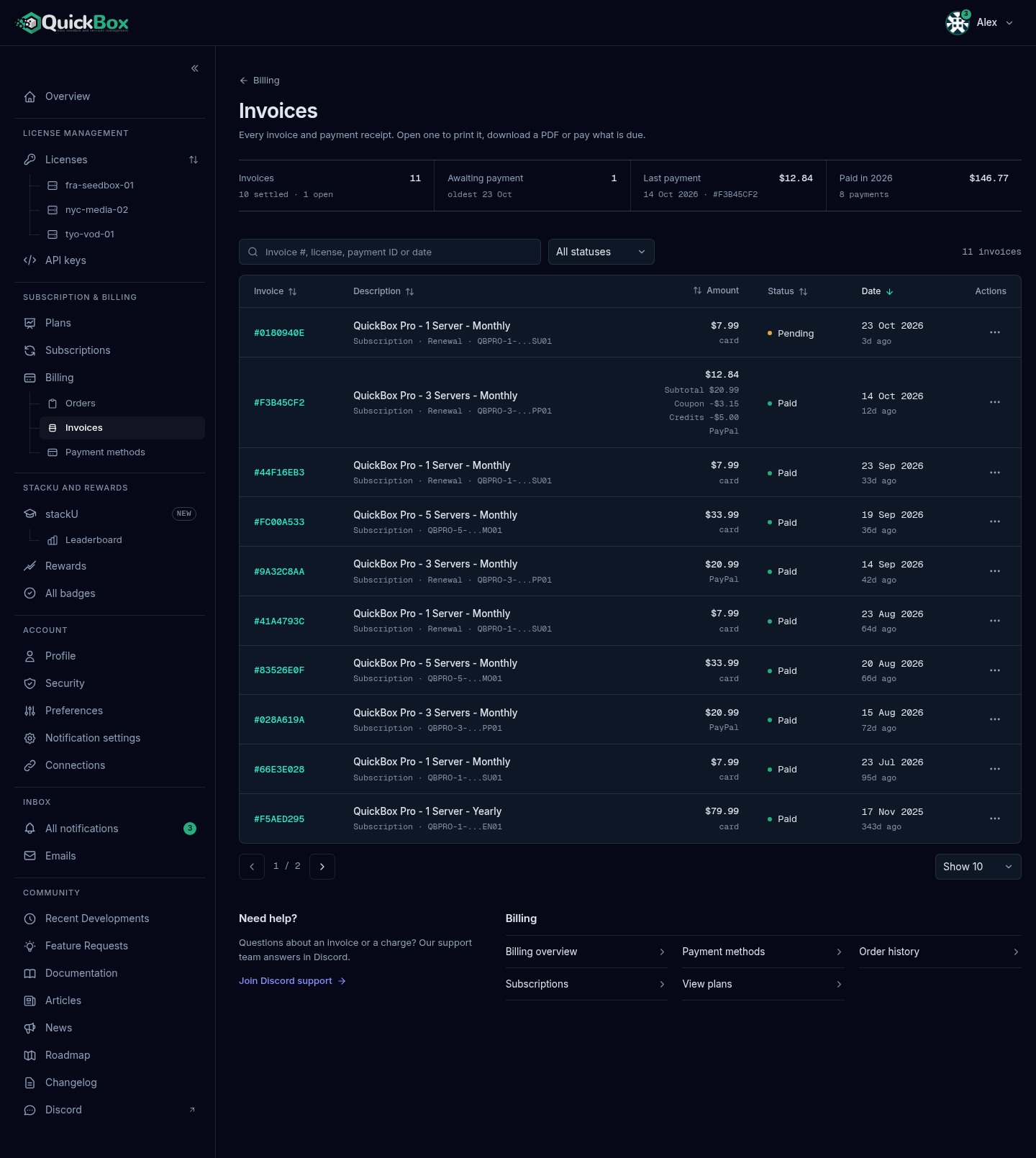
The summary band
| Readout | What it shows |
|---|---|
| Invoices | The total count, split into settled and open. |
| Awaiting payment | How many invoices are still open, with the date of the oldest. Selecting it opens that invoice. It reads “None” with “nothing due” when you owe nothing. |
| Last payment | The amount of your latest payment that took money, with its date and invoice number. |
| Paid in, followed by the year | The total charged this year and how many payments made it up. It reads “Mixed” if the payments were in more than one currency. |
The invoices table
The newest invoice is first. Columns:
| Column | What it shows |
|---|---|
| Invoice | The invoice number. Select it to open the invoice. |
| Description | The plan, with the type and masked license key beneath. |
| Type | Wide screens only: for example Subscription · Initial or a renewal. |
| License | Wide screens only: the masked key. |
| Amount | What was charged, with the subtotal, coupon and credits that changed it. |
| Payment method | Wide screens only: card, PayPal, Site credits, Coupon, or Complimentary extension for a free grant. |
| Status | Paid, Pending, Failed, Refunded or Cancelled. |
| Date | The issue date. |
| Actions | The three-dot menu. |
Search invoices matches the invoice number, license, payment ID or date. Filter by status limits the list to one status. Column headings sort the list. With more than one page, use the page buttons and the Show menu at the foot. With no invoices the page reads “No invoices yet. You don’t have any invoices yet. They appear here after your first purchase.” with Browse plans.
The invoice menu
Select the three dots on a row. Actions for invoice offers View Invoice, Copy Invoice ID and Copy Invoice Number. A pending invoice that has a payment link also offers Pay with PayPal or Pay with Card, which open the payment page in a new tab.
Open an invoice
Select the invoice number, or View Invoice from the menu. The page is titled Invoice with the number, “Issued” with the date, and the kind of payment.
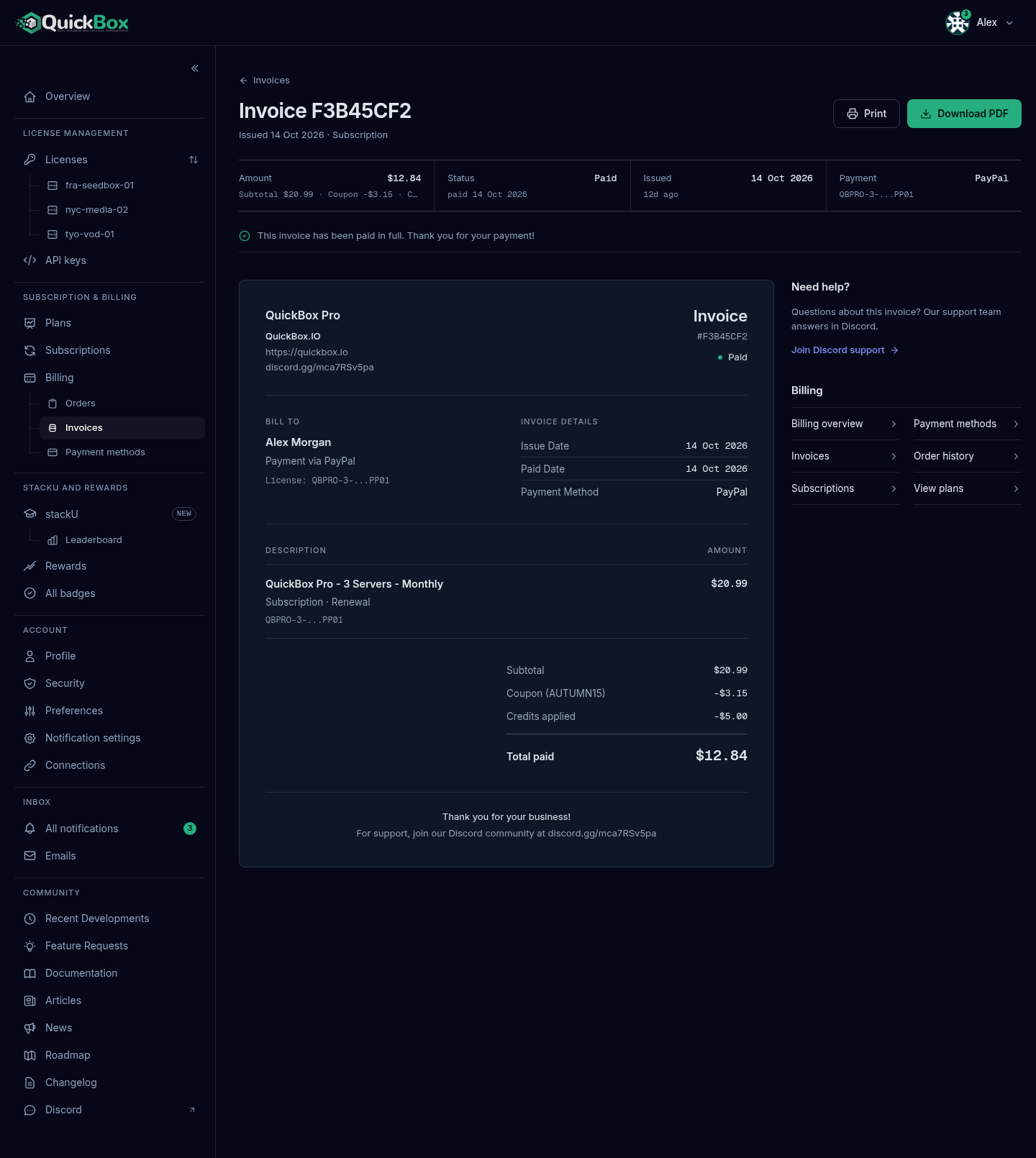
At the top right are two buttons:
- Print opens a clean print view in a new window and starts printing.
- Download PDF saves the invoice as a file named
Quickfollowed by the invoice number. The page shows “Generating PDF…” and then “Invoice downloaded successfully!”.Box- Invoice-
The band shows Amount, Status, Issued and Payment; selecting Payment opens the license the invoice belongs to. The sheet below is the invoice itself: Bill To, Invoice Details (Issue Date, Paid Date, Payment Method), the line items with Subtotal, any Coupon and Credits applied, and the total. A paid-in-full invoice also shows “This invoice has been paid in full. Thank you for your payment!”. When credits or a coupon covered everything, it says so and “Nothing was charged”.
Pay an invoice that is still open
An open invoice has the status Pending, and a panel called Discounts & Payment appears to the right of the invoice sheet. An invoice that Stripe collects, such as a Stripe renewal that could not be charged, is the common case. Its panel is short: the note “This invoice is paid through Stripe. Use the Pay button to settle it.”, the Invoice Summary and one button, Pay with Stripe when Stripe has a payment page for the invoice, otherwise Pay with Card.
- Open the invoice from Awaiting payment on the Invoices page, from a View invoice link on Billing, or from the invoices list.
- Check the Invoice Summary, which shows the Balance Due.
- Under Payment Options, select the button. A Pay with Stripe button opens Stripe’s page in a new tab; Pay with Card prepares a card payment page for you.
- When the payment confirms, the invoice changes to Paid.
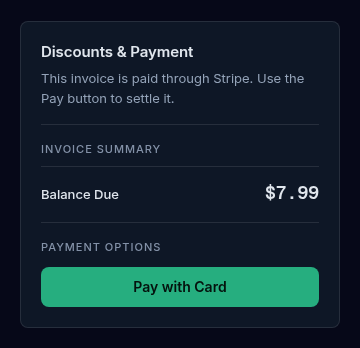
A Stripe-collected invoice has no coupon or credits boxes, because Stripe holds the amount it will charge.
Other open invoices, such as one paid through PayPal, show more in the panel. Type a coupon under Have a coupon code? and select Apply. Under Account credits to apply, choose an amount (the 25%, 50%, 75% and Max buttons fill it in) and select Apply Credits. The summary then also shows the Original Amount, Coupon and Credits Applied, and Payment Options offers Pay with PayPal. Credits you type stay unapplied until you select Apply Credits, so the invoice is not paid until you do. If your credits cover the balance, the invoice is marked paid and nothing is charged.
If an invoice shows Payment failed, the page explains that the payment could not be processed and shows the reason when one is known. Retry Payment opens the payment link when there is one. Without a link, Update Payment Method opens Billing. Contact Support opens the Discord community.
Troubleshooting
Symptoms
- I cannot find a receipt for a payment
- A renewal shows in Orders but not as a pending invoice
- My order total looks lower than the plan price
- An invoice says Pending and I did not expect it
- Download PDF does nothing
Resolution
- Open Invoices and search by date or amount. A payment made entirely with credits or a coupon still has an invoice, shown as Site credits or Coupon.
- A renewal from a card or a saved PayPal account is charged automatically and appears as a Paid invoice. Only an invoice still waiting for payment, such as a Stripe renewal that could not be collected, shows as Pending.
- Credits and coupons come off the price. The Amount cell shows the charge with the subtotal, coupon and credits beneath it.
- Open it to see what it is for and the balance due. Pay it, or ask in Discord if you do not recognise it.
- Wait for "Generating PDF..." to finish, and allow downloads from this site. Use Print as a fallback.
Frequently asked
Do
- Download the PDF for any invoice you need for your records.
- Note the Order ID or invoice number before you contact support.
- Use the Orders button on a subscription row to see one license at a time.
Don't
- Don't pay an invoice you do not recognise; ask in Discord first.
- Don't expect typed credits to count until you select Apply Credits.
Related guides
Join the Community
Media server operators sharing configs, getting support, and shaping the future of QuickBox Pro.
- Dedicated Support
- Feature Previews
- Community Configs
- Active Discussions