Inbox
The Inbox is one place for everything QuickBox has told you. The page is titled Communication Center and has two tabs: Notifications, the alerts that appear inside the portal, and Email History, a copy of every email sent to you with a preview of what it said.
Open Inbox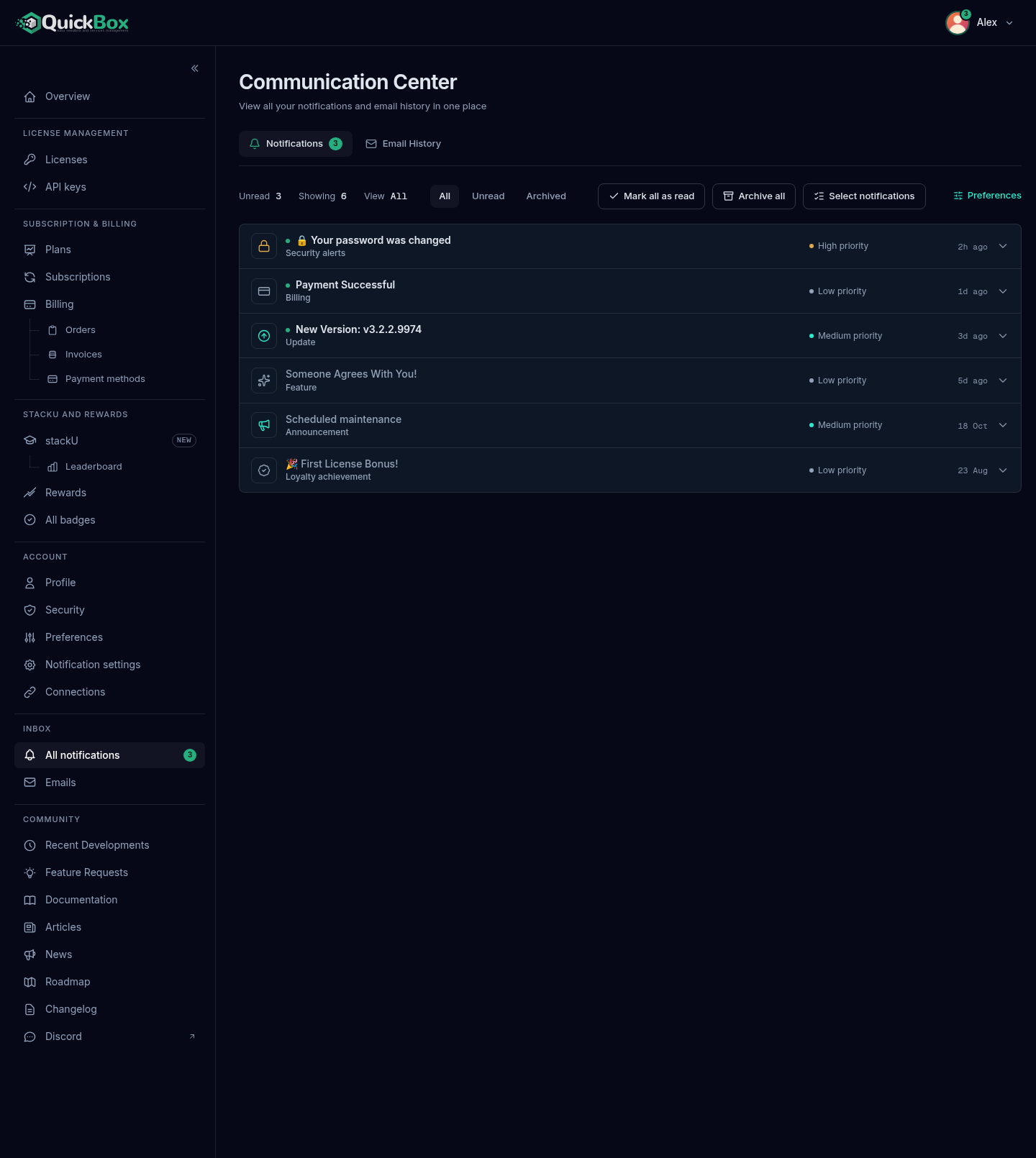
- Sidebar
- All notifications (and Emails, both under Inbox)
- Notifications tab
- /dashboard/
notifications - Email History tab
- /dashboard/
notifications ?tab=emails
The two sidebar rows under Inbox open the two tabs: All notifications opens the Notifications tab and Emails opens the Email History tab.
Knowing when something new has arrived
- A number on the sidebar. The All notifications row shows a count of everything unread, notifications and emails together (“99+” above ninety-nine). When the sidebar is collapsed to icons the count becomes a small dot.
- A number on your avatar. The account menu button at the top right carries the same count.
- A banner. The portal checks for new notifications every 30 seconds. A new one appears as a short banner on screen for about eight seconds, longer if it is critical. Click it to open what it points to, or click the close button, labelled Dismiss notification, to hide it.
- The notifications panel. Open the account menu and choose Notifications to see your most recent ones, with an unread dot beside each. View all (or View All Notifications on a narrow screen) opens this page.
The Notifications tab
Each tab shows its own unread count in a badge on the tab label.
The toolbar
On a wide page the toolbar is a single row above the list; on a narrow page the readouts drop away and the controls stack.
| Control | What it does |
|---|---|
| Unread, Showing, View | Readouts: how many are unread, how many are loaded (with a ”+” when there are more), and which filter is active. |
| All, Unread, Archived | Filter the list. All is everything not archived. |
| Mark all as read | Marks every notification read. |
| Archive all | Moves every active notification to Archived and marks it read, including ones beyond the page you are looking at. Hidden while you are viewing Archived. |
| Select notifications | Starts selection mode for bulk actions. The button then reads Done selecting. |
| Preferences | Opens Notification settings to change which alerts reach you. |
Read a notification
Each row shows an icon, the title, the type (for example Billing or Security alerts), a priority and how long ago it arrived. A green dot and a bolder title mean it is unread. The priority reads Low priority, Medium priority, High priority or Critical priority. An archived row also carries an Archived tag.
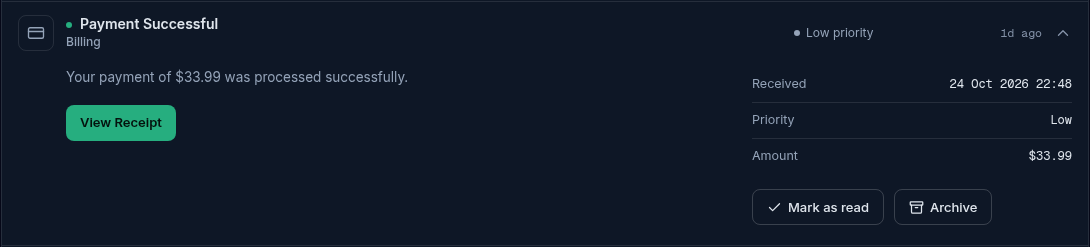
- Click a row to open it. The full title and the message appear beneath it.
- Beside the message are the details: Received, Read (once it is read), Expires (when it has an expiry), Priority, and any extra facts that apply, such as an amount or a date.
- If the notification points somewhere, a button with its own label, for example Review Security, takes you there and marks the notification read.
- Click Mark as read to clear the unread dot without leaving, or Archive to move it out of the main list.
Opening a row does not mark it read by itself. Hover the age at the right of a row to see the exact date and time.
Archive, unarchive and bulk actions
Archiving moves a notification out of All without deleting it. Switch the filter to Archived to find it, and click Unarchive to put it back.
To act on several at once:
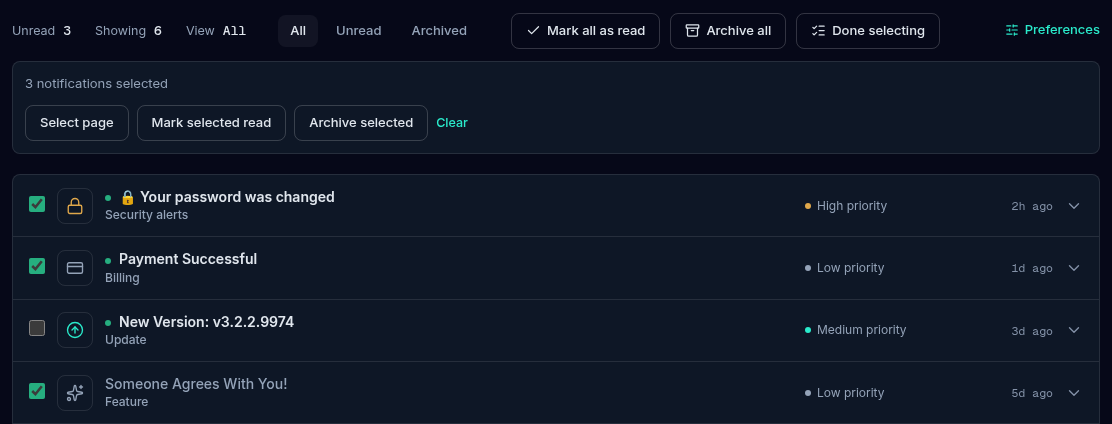
- Click Select notifications. A checkbox appears on every row.
- Tick the notifications you want. The panel counts them (“3 notifications selected”). Select page ticks every row currently loaded.
- Choose Mark selected read, Archive selected (or Unarchive selected in the Archived view), or Clear to untick everything.
- Click Done selecting when you finish.
The list loads 20 at a time. Click Load more at the bottom for the next 20.
When the list is empty
You will see No notifications yet, No unread notifications or Nothing archived, depending on the filter, with the line “We’ll notify you when something important happens.” A What lands here panel lists the kinds of alert you can receive: Onboarding & First-Time Guidance, Billing, Software Updates, Subscription, Feature Requests, Announcements, Migration, Loyalty Achievements and Security Alerts.
The Email History tab
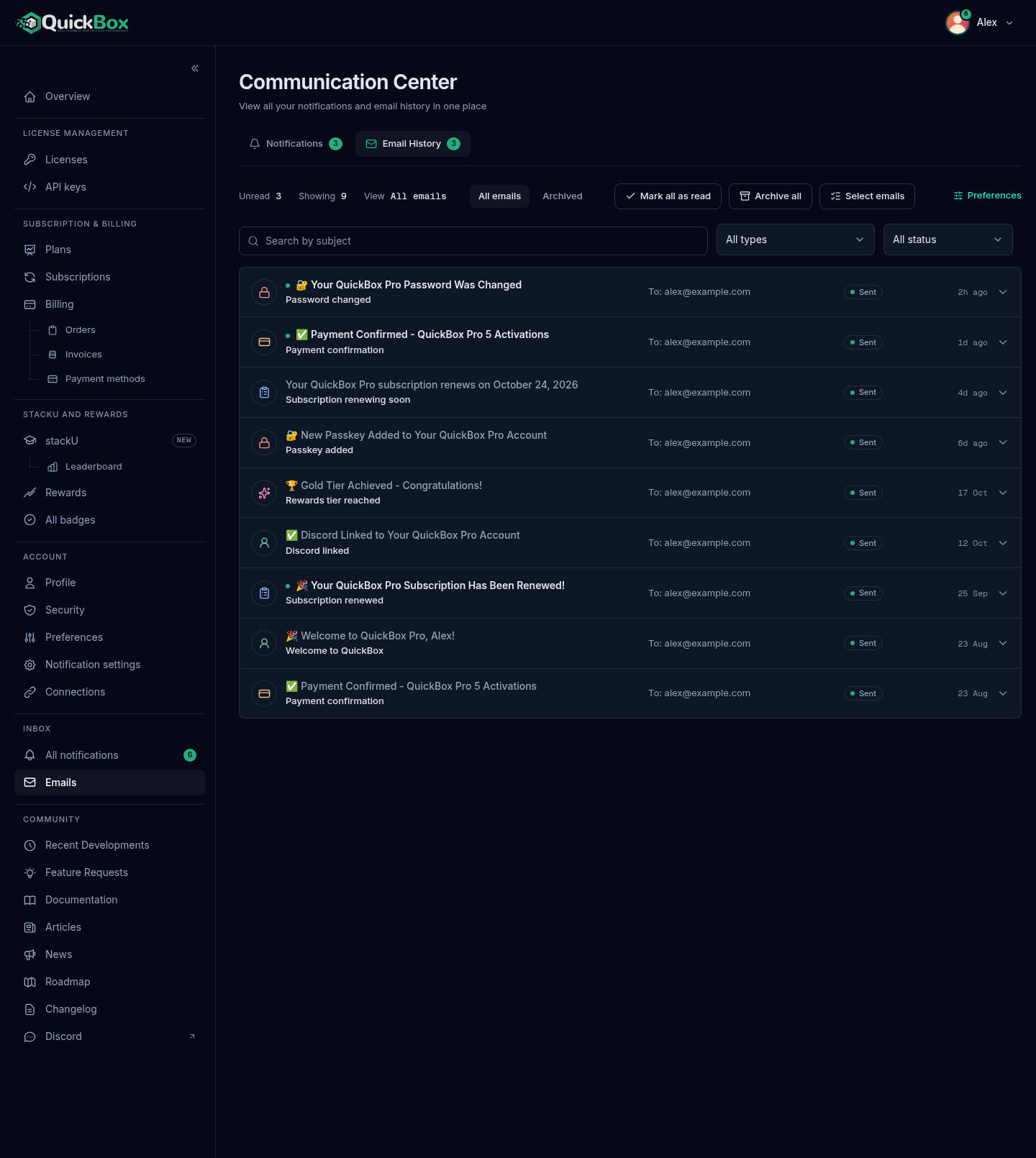
Email History keeps a record of every email QuickBox has sent to your address, so you can find a receipt, a renewal notice or a security alert without searching your own mailbox.
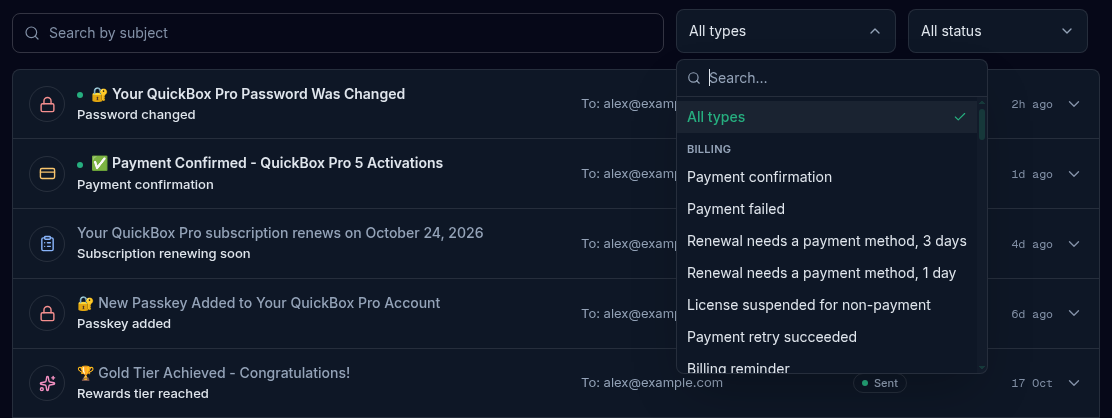
Find an email
- Open Inbox → Emails in the sidebar.
- Type in Search by subject to match on the subject line. The small cross clears it.
- Use Email type to narrow to one kind of email. The list is grouped into Billing, Subscription, Security, Account, Migration and Community, and you can type in it to search by name.
- Use Status to show All status, Sent, Failed or Pending.
- Click Clear filters (it appears once any filter is active) to start over.
If nothing matches, the page says “No emails match your filters” and suggests adjusting your search or filters.
Read an email
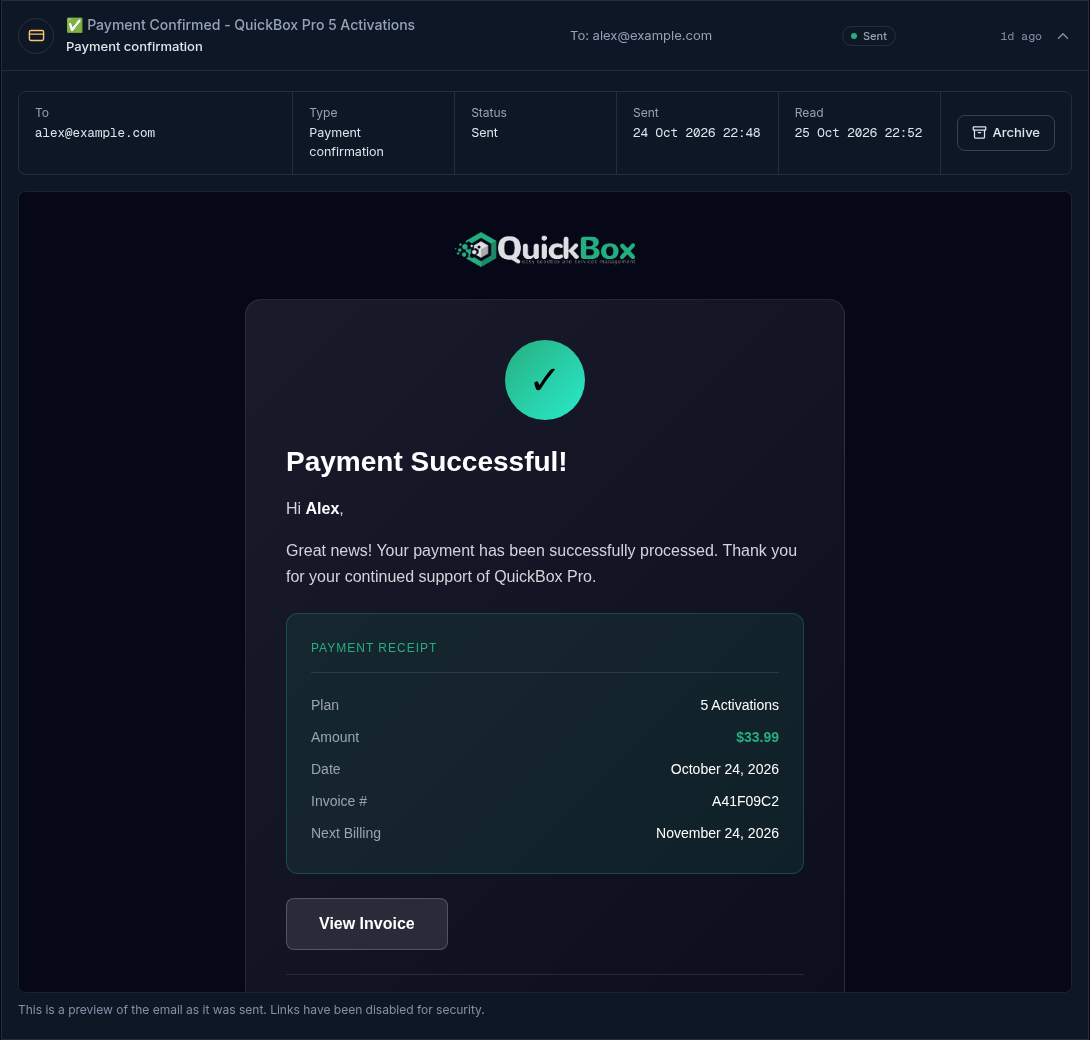
- Click a row. The details band shows To, Type, Status, Sent and Read.
- Under it, the email itself is shown as a preview, as it was sent. A note under the preview reminds you “Links have been disabled for security.” so nothing inside the preview can be clicked.
- Use Archive to move it to Archived, or Restore when you are in the Archived view.
Opening an unread email marks it read. If the stored copy cannot be shown you will see Email preview not available, with the note that content may not be stored for that kind of email.
| Status | Meaning |
|---|---|
| Sent | The email left QuickBox and has a send time. |
| Pending | It is queued and has not been sent yet. |
| Failed | It could not be sent. |
Bulk actions on emails
The toolbar has Mark all as read, Archive all and Select emails, which work the same way as on the Notifications tab. The filter has two settings, All emails and Archived. When you have no emails at all the page says “No emails sent yet”, with a What lands here panel: Payment confirmations, Billing reminders, Subscription notices, Welcome and verification, and Migration billing.
QuickBox records when an email was sent, and when you opened it here. It does not know whether your mail provider delivered it, put it in spam or whether you read it in your own mailbox. If an email you expect is missing from your inbox, check spam first, then look for it in Email History.
Troubleshooting
Symptoms
- The sidebar shows a number but the Notifications tab looks empty
- An email you expected is not in Email History
- An email in Email History has no preview
- A notification has no button to act on
Resolution
- The count includes unread emails as well as notifications. Check the Email History tab too.
- Check the Archived filter and the Status and Email type filters. If nothing is there, the email was not sent to this account's address.
- Content is not stored for every kind of email. The row's details still show who it went to and when.
- Only notifications that point to a page show a button. The message itself is the notification.
FAQ
Related pages
Join the Community
Media server operators sharing configs, getting support, and shaping the future of QuickBox Pro.
- Dedicated Support
- Feature Previews
- Community Configs
- Active Discussions