Badges
Badges are small marks on your account for the things you have done with QuickBox Pro: holding a license, activating a server, reaching a Rewards tier, linking Discord. You earn them by using the product. There is nothing to claim.
The Badges page lists every badge in one place, the ones you have earned first, then the ones still locked, each with a hint that says how to unlock it.
Where to find it
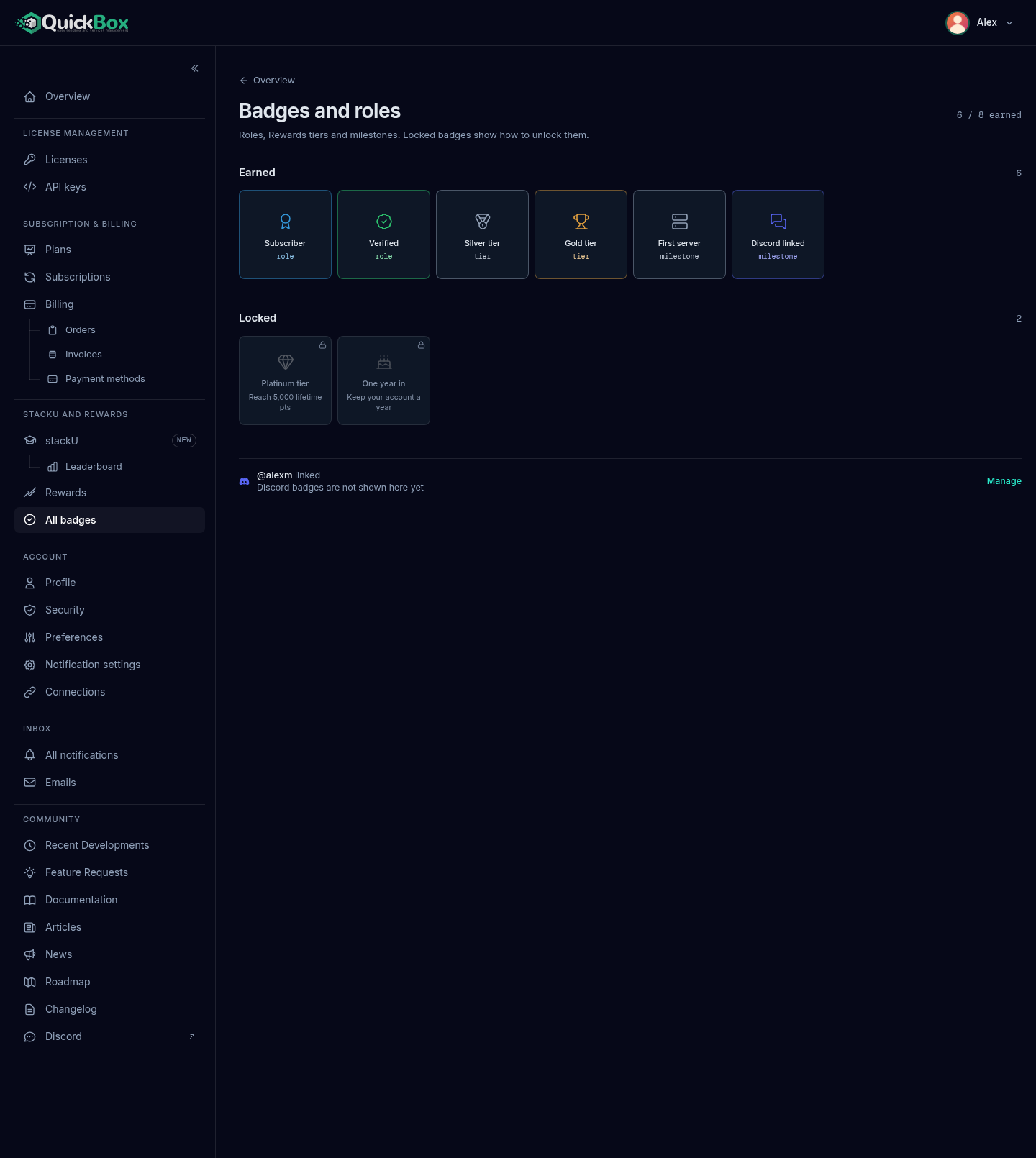
Open All badges in the left sidebar, in the group called stackU and rewards. The page title is Badges and roles.
You can also reach it from the badges section on your Overview page, where a View all N badges link shows the total number of badges.
- Sidebar
- All badges (under stackU and rewards)
- Address
- /dashboard/
badges - Page title
- Badges and roles
What the page shows
- A back link labelled Overview at the top left takes you back to your Overview page.
- The page title has a count on its right, such as “6 / 16 earned”.
- Under the title a line reads “Roles, Rewards tiers and milestones. Locked badges show how to unlock them.”
- An Earned group lists everything you hold. If you have nothing yet, it reads “Nothing earned yet. The locked badges below show where to start.”
- A Locked group lists everything still to earn, closest first. Once you have every badge it reads “You have earned every badge.”
- A Discord line at the bottom invites you to connect Discord, or shows the account you linked.
Badges are tiles four across. An earned tile is framed in its own colour, with the badge name and a small label under it that says whether it is a role, a tier or a milestone. A locked tile is dimmed, shows a small lock in its corner, and prints a short hint such as “Connect Discord”.
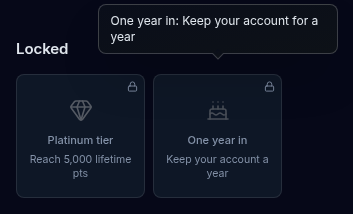
Hover over a tile, or move to it with the keyboard, to see a note with the badge’s full description. For a locked tile the note gives the full unlock instruction.
The badges
Which badges appear depends on your account. Every account can see the following.
Roles
| Badge | What it means | How to unlock it |
|---|---|---|
| Verified | A verified user with an active license | Get an active QuickBox Pro license |
| Subscriber | An active subscription holder | Start a QuickBox Pro subscription |
Other roles you hold, such as Legacy or Beta Squad, appear in the Earned group once you have them. They are never suggested in the Locked group.
Tiers
| Badge | What it means | How to unlock it |
|---|---|---|
| Silver tier | You reached Silver in Rewards | Earn 500 lifetime Rewards points |
| Gold tier | You reached Gold in Rewards | Earn 2,000 lifetime Rewards points |
| Platinum tier | You reached Platinum in Rewards | Earn 5,000 lifetime Rewards points |
There is no badge for the Bronze tier, which every account starts on. Tier badges follow your lifetime points, so spending points never removes one. See Rewards points for how points are earned.
Milestones
| Badge | What it means | How to unlock it |
|---|---|---|
| First server | You activated QuickBox Pro on a server | Activate QuickBox Pro on a server |
| Discord linked | You connected a Discord account to the website | Connect your Discord account |
| One year in | You have been a member for a full year | Keep your account for a year |
stackU badges live on the stackU page
Passing a stackU level exam earns a level badge. Those badges, and the QB University graduate badge, are shown on the stackU badges card on the stackU page, one tile for each of the five steps.
The Badges page lists roles, tiers and milestones. The stackU level badges are listed on the stackU page itself.
Connect Discord
The line at the bottom of the page depends on whether Discord is linked.

- Not linked. It reads Connect Discord, “to bring your Discord badges here”. Select Connect to open the Connections tab in your account settings.
- Linked. It shows your Discord handle with “linked” and the note “Discord badges are not shown here yet”. Select Manage to open the same tab.
Linking Discord earns the Discord linked badge either way. Badges you earn inside the Discord server itself are not shown on this page yet.
Questions
Keep reading
Join the Community
Media server operators sharing configs, getting support, and shaping the future of QuickBox Pro.
- Dedicated Support
- Feature Previews
- Community Configs
- Active Discussions