Security and Sign-in
The Security tab holds everything that protects how you sign in: your password, two-factor authentication with an authenticator app, and passkeys. All three live on one tab, side by side on a wide screen and stacked on a narrow one.
Open Security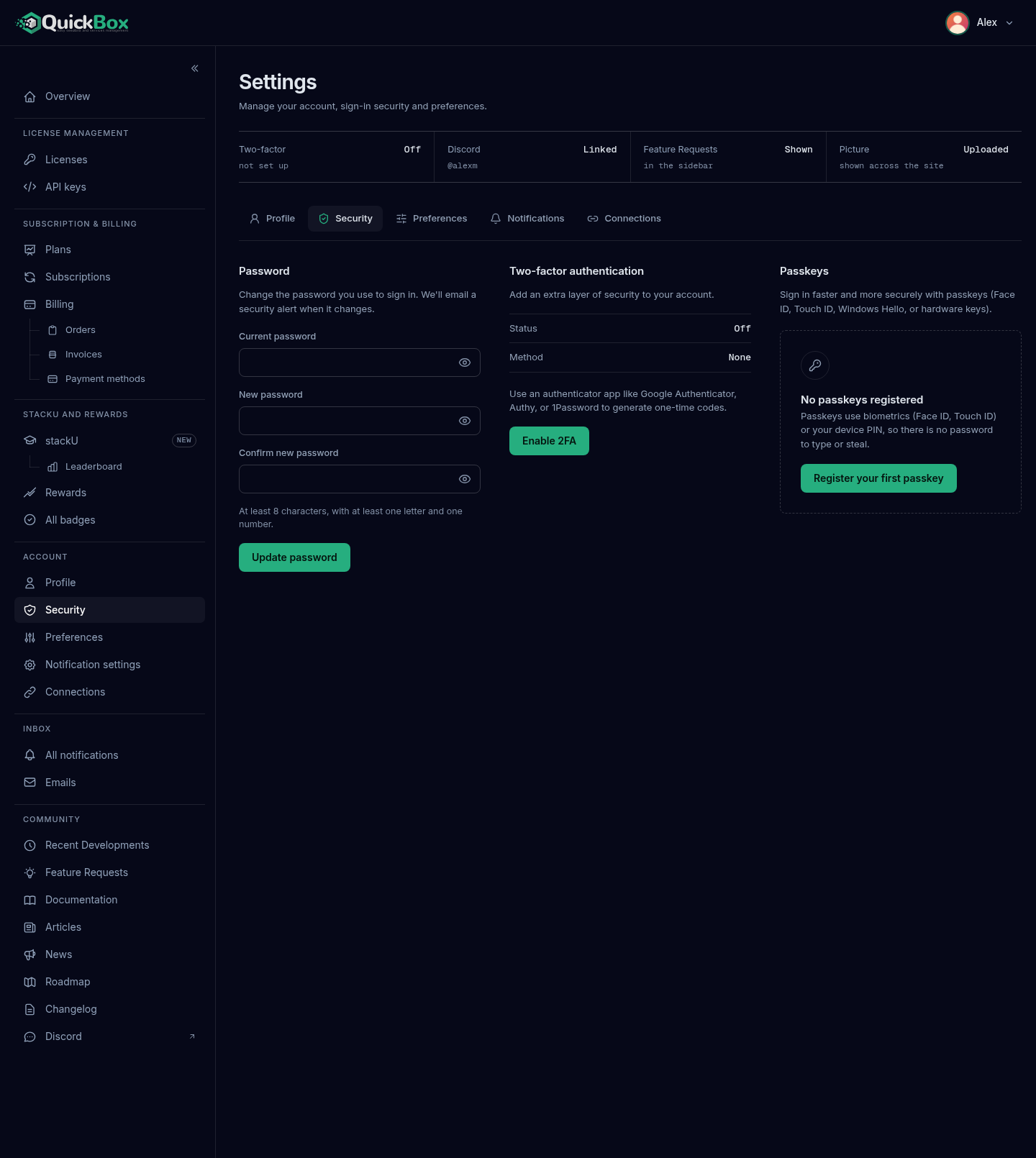
- Sidebar
- Security (under Account)
- Address
- /dashboard/
settings ?tab=security - Layout
- Three sections (side by side from about 1000 pixels of content width, stacked below that)
Changing your password, turning two-factor authentication on, and turning it off each end every session on your account, including the one you are using. The page shows a success message, then takes you to the sign-in page with the note “Your account security settings changed, so every session was signed out. Sign in again to continue.” This is also how you sign out a device you no longer trust, because the portal does not list individual sessions.
Change your password
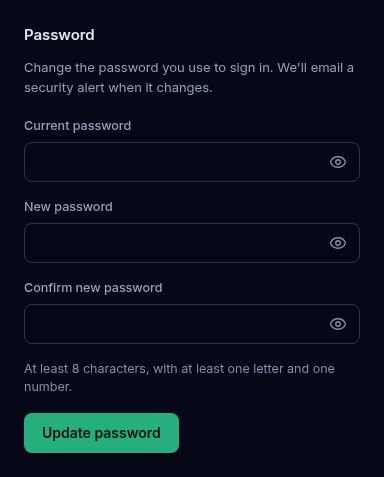
The Password section reads “Change the password you use to sign in. We’ll email a security alert when it changes.”
- Open Account → Security in the sidebar.
- In Current password, type your existing password.
- In New password, type the new one. The hint under the fields states the rule: “At least 8 characters, with at least one letter and one number.”
- In Confirm new password, type it again.
- Click Update password.
Each field has an eye button on its right edge. Hover it for “Show password” or “Hide password” and click it to reveal or hide what you typed.
On success the fields clear, the page says “Password updated. Sign in again with your new password.”, and about a second and a half later you are taken to the sign-in page. You also receive a security alert email for the password change and one for the sessions that were ended.
If the form refuses
| Message | Why |
|---|---|
| Please enter your current password. | The first field is empty. |
| Your new password must be at least 8 characters. | Too short. |
| Your new password must contain at least one number. | No digit in it. |
| Your new password must contain at least one letter. | No letter in it. |
| Your new password must be different from your current password. | The new one matches the old one. |
| Your new password and confirmation do not match. | The last two fields differ. |
| Your current password is incorrect. | The first field is wrong. |
| Password changes are not available on this account. You may sign in with a social provider or passkey only. | The account has no password, for example one created through Discord. |
Sign out, then use Forgot password? on the sign-in page to get a reset link by email. The Security tab needs your current password and cannot reset it for you.
Two-factor authentication
The Two-factor authentication section reads “Add an extra layer of security to your account.” A small table shows Status (Off or Enabled) and Method (None or Authenticator app). The same state appears as the Two-factor readout at the top of the Settings page.
Two-factor authentication here uses a 6-digit code from an authenticator app. The section suggests “Google Authenticator, Authy, or 1Password” as examples.
Turn it on
- Install an authenticator app on your phone.
- Open Account → Security and, in the Two-factor authentication section, click Enable 2FA.
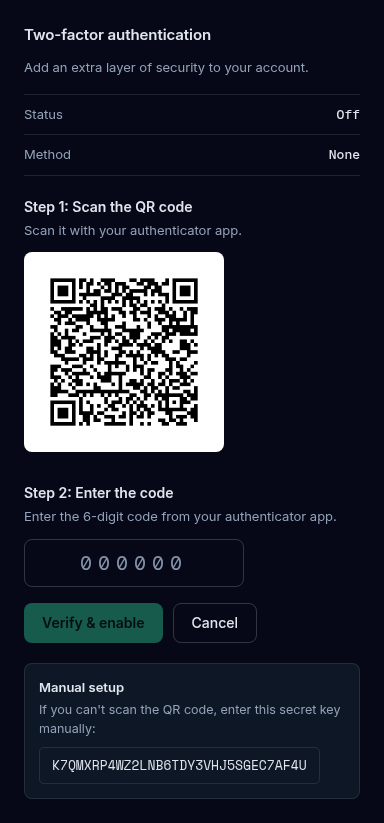
- Under Step 1: Scan the QR code, scan the code with your authenticator app. If you cannot scan it, use the Manual setup box underneath and type the secret key it shows into the app instead.
- Under Step 2: Enter the code, type the 6-digit code your app now shows. Verify & enable stays disabled until you have typed six digits.
- Click Verify & enable.
The page says “2FA enabled. Sign in again with your authenticator code.” and signs you out. From then on, sign-in asks for an Authentication code after your password. You receive a security alert email that two-factor authentication was enabled.
Click Cancel at any point before verifying to discard the set-up without changing anything.
Two-factor authentication, passkeys and a Discord link can only be added once your email address is verified. Until then the portal says “Verify your email address before adding a passkey, two-factor authentication or a Discord connection.”
Turn it off
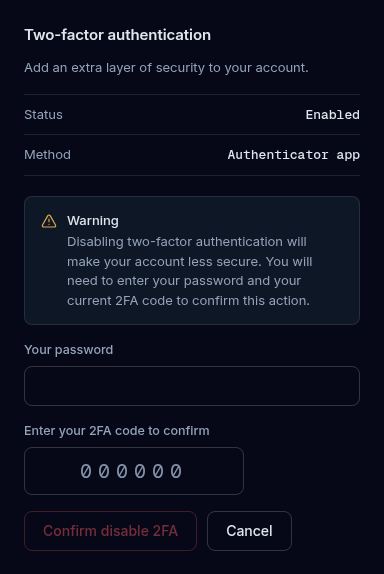
- Open Account → Security. With two-factor authentication on, the section says “Two-factor authentication is currently enabled on your account.”
- Click the red Disable 2FA button.
- Read the warning: “Disabling two-factor authentication will make your account less secure.”
- Type Your password (shown only when your account has a password) and your current 6-digit code under Enter your 2FA code to confirm.
- Click Confirm disable 2FA, or Cancel to keep it on.
The page says “Two-factor authentication has been disabled. Sign in again to continue.” and signs you out. You receive a security alert email.
Move to a new phone or authenticator
There is one way to replace an authenticator: turn two-factor authentication off, then turn it on again and scan the new QR code. The portal refuses to enrol a new authenticator while one is still active.
Wrong codes
Five wrong codes within 15 minutes, counted across turning it on and turning it off together, make the portal answer “Too many attempts. Try again in a few minutes.” Your account is not locked; the attempts simply resume once the window passes.
Passkeys
A passkey lets you sign in with Face ID, Touch ID, Windows Hello, a device PIN or a hardware security key, with no password to type. The Passkeys section reads “Sign in faster and more securely with passkeys (Face ID, Touch ID, Windows Hello, or hardware keys).”
Register a passkey
- Open Account → Security. With no passkeys, the section shows No passkeys registered. Click Register your first passkey. If you already have passkeys, click Add another passkey under the list.
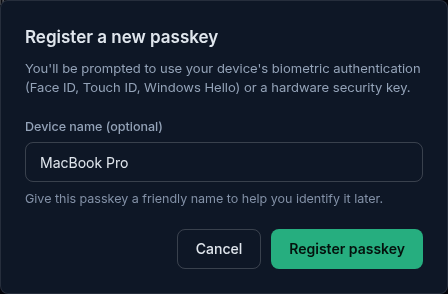
- In the Register a new passkey window, optionally type a Device name such as “MacBook Pro” so you can recognize it later.
- Click Register passkey. Your browser or device then asks you to confirm with its biometric check, PIN or security key.
When the device accepts it, the window closes and “Passkey registered successfully!” appears. If you dismiss your device’s prompt, the portal says “Registration cancelled” and nothing is added. You receive a security alert email whenever a passkey is added.
Manage your passkeys
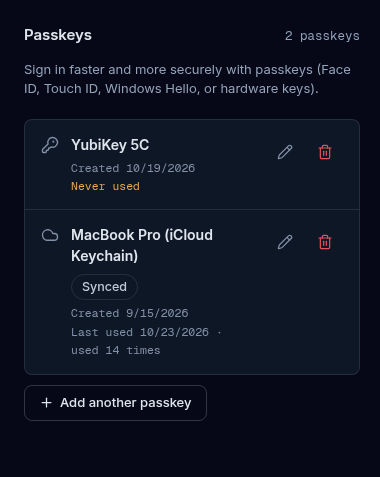
Each passkey is one row in a list headed by a count such as “2 passkeys”. A row shows:
- The name you gave it, or Unnamed passkey, and a Synced chip if the passkey is backed up through your device’s cloud.
- Created with a date, and either Last used with a date and how many times it has been used, or Never used in amber.
At the right of each row are two buttons:
- Rename passkey (the pencil) turns the name into a text box. Type a new name and click Save, or press Enter. Cancel, or Escape, leaves it as it was. An empty name is refused.
- Delete passkey (the red bin) asks your browser to confirm with “Are you sure you want to delete “name”?”. Confirm and the passkey is gone. You receive a security alert email.
Sign in with a passkey
On the sign-in page, click Sign in with Passkey and confirm with your device. If it does not complete, the page says “Passkey sign-in did not complete. Try again, or sign in with your password.”
Troubleshooting
Symptoms
- Enable 2FA or Register your first passkey says to verify your email address
- The authenticator code is rejected
- Too many attempts after entering codes
- Sign-in says Too many attempts. Try again in a few minutes.
- The passkey prompt never appears
- You lost the phone that holds your authenticator
Resolution
- Verify your email address first. Open the verification page, enter the 6-digit code we emailed you and click Verify Email. The page has a resend option if the code did not arrive.
- Check that the phone's clock is set automatically, then enter the current code, not one that has just rotated.
- Wait 15 minutes. Five wrong codes in that window pause further attempts; nothing is locked.
- Five wrong passwords for the same email in 15 minutes pause sign-in for that email until the window ends. A correct sign-in resets the count.
- Passkeys need a browser and device that support them. Try another browser, or use a hardware security key.
- The Security tab has no backup codes. Email echo@quickbox.io with
[Security]at the start of the subject.
Best practices
Do
- Turn on two-factor authentication and register at least one passkey
- Give each passkey a device name so you can tell them apart
- Use a long, unique password that you do not use anywhere else
- Read every security alert email the moment it arrives
Don't
- Share an authenticator code with anyone, including someone who says they are from QuickBox
- Delete a passkey you still sign in with before you have another way in
- Ignore an alert for a change you did not make
FAQ
Related pages
Join the Community
Media server operators sharing configs, getting support, and shaping the future of QuickBox Pro.
- Dedicated Support
- Feature Previews
- Community Configs
- Active Discussions