Plans & Checkout
Plans is where you buy a QuickBox Pro license. You choose how many servers the license covers, choose monthly, yearly or lifetime billing, and finish in a checkout dialog where coupons and site credits come off the price before you pay.
Open Plans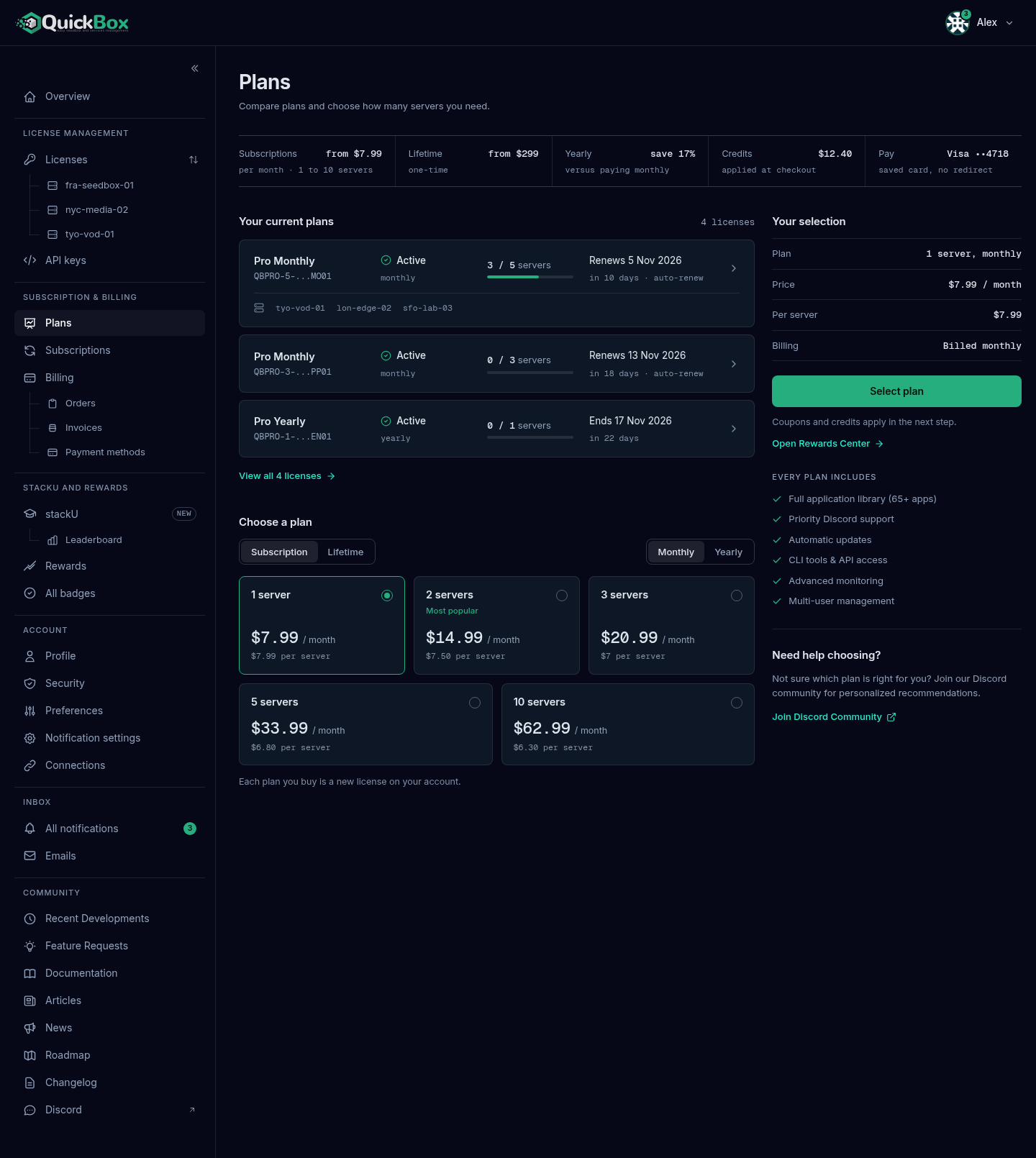
- Sidebar
- Plans (under Subscription & Billing)
- Address
- /dashboard/
plans - Who sees it
- Every signed-
in customer
What you will see on the Plans page
From top to bottom:
- The header. The title is Plans and the line under it reads “Compare plans and choose how many servers you need.” During maintenance a Maintenance notice appears here, and new purchases are paused until it clears.
- The price band. One readout per fact that applies right now. A cell only appears when it applies.
- Your current plan. Your active licenses, so you can see what you already own before you buy more.
- A sale notice. Shown only while a sale is running.
- Choose a plan. The plan type and billing cycle switches and the server-count cards.
- Your selection. The panel on the right that names the choice and holds the buy button.
- Need help choosing? A link to the Discord community.
The price band readouts are:
| Readout | What it shows |
|---|---|
| Subscriptions | The lowest monthly price and the range of server counts on offer, for example “from” a price “per month”. |
| Lifetime | The lowest one-time price and the range of server counts. |
| Yearly | The best saving from paying yearly instead of monthly, as a percentage. |
| Sale | When a sale ends, or “on now” if it has no end date. |
| Credits | Your site credit balance with “applied at checkout”. With no credits it reads $0.00 and “earn credits in Rewards”. Selecting it opens the Rewards page. |
| Pay | Your saved default card with “saved card, no redirect”, or “Card or PayPal” with “chosen at checkout” when you have no saved card. |
Under Your current plan each license shows its plan name and masked key, its status, how many servers it uses out of the number it allows, and when it renews or ends. It is the same row you see on the Overview and Licenses pages. At most three rows show. Select Manage licenses, or View all with your license count when there are more than three, to open the Licenses page. With no license yet, the section says “No license yet. Choose a plan below to activate your first server.”
A “server” on this page is one activation: one server that can run QuickBox Pro under the license. A license with 2 servers has 2 activations, and its row on the Licenses page reads used out of allowed. See Licenses & API Keys for how activations are used and freed.
Choose a plan
- Open Plans in the sidebar, under Subscription & Billing.
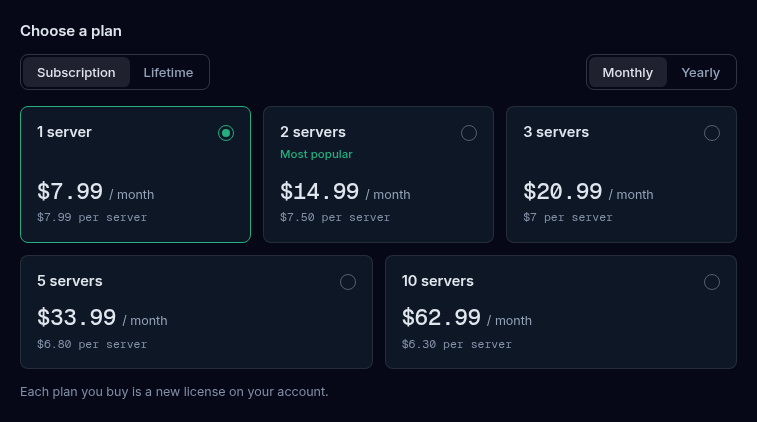
- If both subscriptions and lifetime licenses are on sale, a Plan type switch shows Subscription and Lifetime. Pick one. If only one kind is on sale, the switch is replaced by a plain label.
- For subscriptions, pick Monthly or Yearly in the Billing cycle switch. The yearly cards add “save” with a percentage against paying monthly.
- Select a card. The first card is selected when the page opens. Each card is one server count, such as 1, 2 or 5 servers, with its price, what each server works out to, and tags:
- Most popular marks the server count highlighted as the popular choice.
- Sale marks a card whose price is reduced. The regular price shows crossed out beside the sale price.
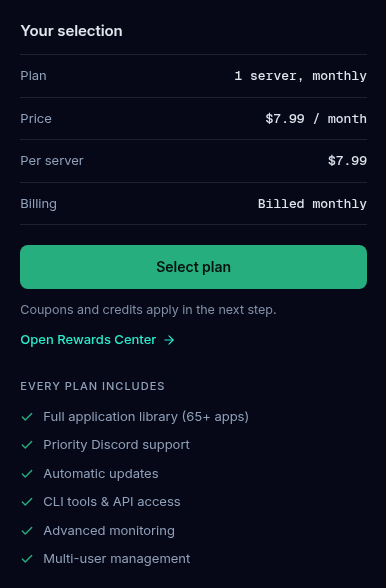
- Read the Your selection panel. It lists the plan, the price, the price per server, how it is billed, and any sale or yearly saving.
- Select Select plan for a subscription or Get lifetime access for a lifetime license.
Below the cards, a line reminds you “Each plan you buy is a new license on your account.” Lifetime cards add “Pay once, own it, no recurring fees.”
When the page is narrow (under about 900 pixels of content), the panel sits below the cards. Once you pick a card, a bar pinned to the bottom of the screen repeats the plan, the price and the same buy button while the panel’s own button is out of view.
The panel also lists what every plan includes, and a lifetime selection adds “No recurring fees, ever”. Open Rewards Center in the panel opens the Rewards page, where points become coupons and credits.
Checkout refuses a second subscription while another subscription is still running, on either payment gateway, and the same goes for one that is set to end at the period’s close. The message reads “You already have an active subscription. Please cancel or manage your existing subscription before purchasing a new one.” Manage it on the Subscriptions page. Lifetime licenses are not affected by this rule, so you can buy one while a subscription runs. If you need more servers while a subscription is running, ask in Discord.
The checkout dialog
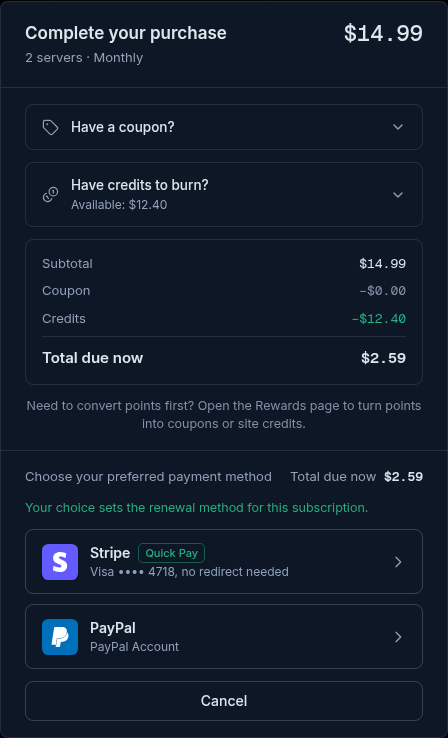
Selecting the buy button opens Complete your purchase. The header shows the server count and billing (Monthly, Yearly or Lifetime) on the left and the price on the right.
Add a coupon
- Select Have a coupon? to open it.
- Type the code in Enter coupon code and select Apply. The button reads “Checking…” while the code is verified.
- A valid code shows “Applied” with the code and the amount taken off. Use Update to try another code or Remove to clear it.
- An invalid or ineligible code shows the reason in red, or “Enter a coupon code” when the box is empty.
A coupon applies to the first payment of a subscription. Renewals are charged at the regular price, less your credits.
Use site credits
- Select Have credits to burn? to open it. The row already shows “Available” with your balance.
- If you have credits, they are switched on for you and filled in up to the order total. Clear Enable to keep them, or type a different amount in Credits to apply, in dollars.
- Select Use max to apply as much as the order total and your balance allow.
An amount above your balance or the order total shows “Amount exceeds available credits or order total”. For a subscription, credits come off the first payment, and also come off every renewal while Auto-apply credits to renewals is on in Preferences. Your card or PayPal is charged only the remainder. Paying by card with credits needs a saved card.
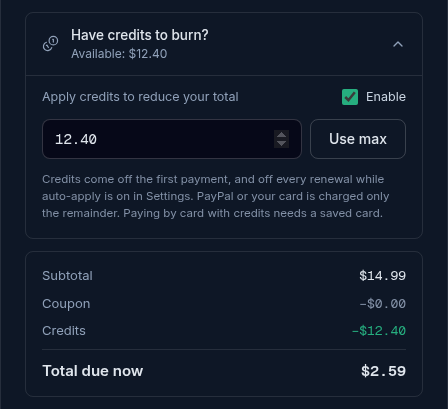
Under both rows, the summary lists Subtotal, Coupon, Credits and Total due now. A line at the bottom, “Need to convert points first?”, points you to the Rewards page.
Choose how to pay
Under Choose your preferred payment method you see the total again and two rows.
| Row | What it shows | What it does |
|---|---|---|
| Stripe | ”Credit/Debit Card” with the tag “Recommended”. With a saved default card, the tag is “Quick Pay” and the row shows the card brand and last four digits with “no redirect needed”. | Pays by card. |
| PayPal | ”PayPal Account”. | Pays through PayPal. |
If you have both a card and a PayPal account saved and you are buying a subscription, a line above the rows reads “Your choice sets the renewal method for this subscription.” Whatever you pick here is what pays that subscription’s renewals. See Payment Methods.
Select Cancel to close the dialog without buying anything.
What happens when you pay
| You choose | What happens next |
|---|---|
| Stripe, with a saved default card (Quick Pay) | The card is charged without leaving the page. You see “Payment successful! Your license has been created.” and land on the Licenses page, where “Payment completed! Your license will appear shortly.” shows once. |
| Stripe, with no default card saved | You are sent to Stripe’s hosted payment page. After you pay you return to the Licenses page with the same notice. If you leave Stripe’s page without paying, you return to Plans. |
| PayPal, subscription, with a PayPal account already saved | The saved account is charged what is owed, without leaving the page. |
| PayPal, subscription, no saved account | You are sent to PayPal to approve saving your PayPal account once. QuickBox Pro then charges what is owed after your coupon and credits, and every renewal is charged from that account. You return to Licenses with “PayPal payment completed! Your license will appear shortly.” |
| PayPal, lifetime | You are sent to PayPal to approve the payment, then return to Licenses. |
If you close PayPal without approving, you return to Plans with “PayPal checkout was canceled. No charges were made.”
When coupons and credits cover everything
- Lifetime license. The dialog shows Nothing to pay. Either row finishes the order without taking a payment, and the license is issued straight away.
- Subscription, with credits covering the first payment. The dialog shows First payment covered: “Your discounts cover the first payment, so PayPal is not charged for it.” The Stripe row is switched off with “Cards cannot be used when credits bring the first payment to $0”. Choose PayPal to finish.
Troubleshooting a purchase
Symptoms
- "You already have an active subscription..." after you select a payment row
- "Purchases are temporarily unavailable during maintenance."
- A coupon shows an error instead of "Applied"
- The Stripe row is switched off and says cards cannot be used
- Paying by card with credits fails because no card is saved
- "PayPal declined the payment, so nothing was charged."
- "We could not confirm your PayPal payment yet. Do not pay again..."
- "You already have a PayPal checkout waiting to be finished."
Resolution
- Another subscription is still running. Manage or cancel it on Subscriptions; a lifetime license can still be bought.
- The Maintenance notice at the top of Plans explains the pause. Try again later.
- Read the reason shown in red under the coupon box. The code may not be valid for this plan, billing cycle or purchase.
- Your credits cover the whole first payment. Choose PayPal, or reduce the credits so the card pays the rest.
- Add a card first on Payment methods, or clear Enable under credits and pay the full amount.
- Try again, or choose another payment method. Check the funding source inside your PayPal account.
- Do not pay again. Support is checking the payment and will finish the purchase. Contact support in Discord.
- Finish it at PayPal, or wait 30 minutes and start a new one.
Frequently asked
Do
- Check the Total due now line in the checkout dialog before you choose a payment row.
- Save a card first if you want to use credits with a card payment.
- Use Plans for every purchase, including more servers, so each license shows in your account.
Don't
- Don't pay again if a notice says support is checking your PayPal payment.
- Don't expect a coupon to discount renewals; it applies to the first payment only.
- Don't start a second subscription while one is running; checkout refuses it.
Related guides
Join the Community
Media server operators sharing configs, getting support, and shaping the future of QuickBox Pro.
- Dedicated Support
- Feature Previews
- Community Configs
- Active Discussions