Failed Payments & Grace Period
When a renewal cannot be collected, such as an expired card, not enough funds or a PayPal funding source that no longer works, your license is suspended and a 72-hour grace period begins. This page explains what you see, how to recover the same license, and what happens if the window closes first. The 72 hours apply to Stripe and PayPal alike.
Open Payment methods Open Invoices- Grace period
- 72 hours (counted from the moment the license is suspended)
- Status during grace
- Suspended
- Where to fix it
- Payment methods (also Invoices and Subscriptions)
What happens, step by step
| When | What happens |
|---|---|
| Renewal date | Your site credits come off first, then the rest is charged. If the charge fails you receive the payment-failed email and an in-app notice. Stripe and PayPal keep trying on their own schedules. |
| About an hour after your paid period ends without payment | The license is suspended. Its status on the Subscriptions page reads Suspended and you receive one email, “Payment missed: your QuickBox Pro license is suspended”, that names the date it will expire if the payment is still outstanding. Its API keys are suspended too. |
| During the 72 hours | Payment is retried. A renewal from your saved PayPal account is retried once a day. Any successful payment restores access, and the API keys come back. |
| 72 hours after the suspension | The license expires. It cannot be revived. Its API keys are permanently deleted, its activations are switched off, and you receive a “Subscription expired” email. |
After the window closes, paying does not bring the same license back. You would buy a new subscription or a lifetime license. Your account, settings, order history and reward points are kept.
A license whose very first payment failed is different: it shows Payment failed instead of Suspended and never became active. Billing shows a line under Needs attention for it, with View invoice or Update card. See Billing Overview.

How to recover
How you recover depends on what pays the renewal. The Billed via column on Subscriptions tells you which of the three below applies.
1. Update your card (Stripe)
The fastest fix when the cause is the card:
- Open Payment methods.
- Select Add payment method, keep Stripe selected and add the new card.
- The new card becomes your default, and your running Stripe subscriptions move onto it. The next automatic retry, or paying the open invoice yourself, uses the new card.
2. Pay the open invoice (Stripe)
When a Stripe renewal fails, Stripe leaves an invoice waiting for payment. You can pay it yourself:
- Open Invoices.
- Find the invoice with the status Pending. The Awaiting payment readout at the top counts them and opens the oldest.
- Select the invoice number to open it. Under Payment Options, select the one button: Pay with Stripe or Pay with Card. You can also use the three-dot menu on the row, which offers Pay with Card for a pending invoice that has a payment link.
- When the payment confirms, the invoice reads Paid and the license is active again.
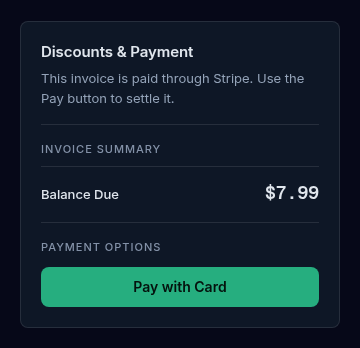
A Stripe-collected invoice has no coupon or credits boxes. For other open invoices, see Orders & Invoices.
3. Renewals from your saved PayPal account
A renewal charged to your saved PayPal account works differently:
- No invoice is created. There is nothing to pay by hand.
- The renewal is retried once a day while your license is active or suspended.
- Fix the payment in one of two ways:
- Fix the funding source inside your PayPal account, for example by adding or updating the card or bank account PayPal uses.
- Or replace the saved PayPal account. On Payment methods, select Replace on the PayPal tile, or Replace PayPal account in the add-method dialog, and approve the new account in PayPal. Your default method stays as you set it.
- The next daily retry charges it, and a successful charge restores access.
- Do this inside the 72 hours. After that the license expires.
Your saved PayPal account cannot be removed while it pays an active renewal. To stop renewing instead, cancel the renewal on the Subscriptions page first.
A PayPal subscription that PayPal suspended
If PayPal itself suspended an older PayPal subscription, Billing shows a line under Needs attention that reads “on PayPal is suspended, so it is not active. Check its payment in your PayPal account, or ask support to restore it.” with View subscription. Fix the funding source inside PayPal, or ask in Discord.

Why a renewal might fail
- Expired card. The commonest reason. Add the new card.
- Replaced card. The old number no longer works. Add the new one.
- Not enough funds, or a hold. The card or the account behind PayPal could not cover it when the charge ran.
- The bank declined it. Some banks decline recurring charges. Approving the charge with your bank usually fixes it.
- A change inside PayPal. You removed a funding source, or cancelled automatic payments for QuickBox Pro in PayPal.
- No method saved. The renewal had nothing to charge.
The portal does not show the exact reason a bank or PayPal gave. If you cannot tell why a charge failed, ask your bank or PayPal first.
What you keep and what you lose
| During the 72 hours | After the license expires | |
|---|---|---|
| Access to the license | Paused | Gone |
| API keys | Suspended, restored when you pay | Permanently deleted |
| Servers (activations) | Cannot be used until you pay | Switched off |
| Your account, settings, orders and reward points | Kept | Kept |
If you start a new subscription later, your account picks up where it left off, but a new license gets new API keys. See Licenses & API Keys.
Under the Refund Policy, no refund or credit is given for service paused or ended after a failed payment. The 72 hours exist to give you time to fix it first.
Emails and notices
| You receive | When |
|---|---|
| A payment-failed email and an in-app notice | The renewal charge fails. For a renewal from your saved PayPal account, which is retried daily, you are told once for that renewal rather than on every retry. |
| ”Payment missed: your QuickBox Pro license is suspended” | The license is suspended. Sent once per suspension. |
| A payment-recovered notice | A retry or your payment goes through. |
| A “Subscription expired” email | The 72 hours pass without payment. |
You can choose which email and in-app categories you receive in Notification settings. The Billing and Subscription categories carry these messages, so keep them on. Check that your account email is current and that QuickBox Pro mail is not filtered away.
Troubleshooting
Symptoms
- The status says Suspended but I just paid
- I fixed my card and the license is still suspended
- I see no Pending invoice for a failed renewal
- My server stopped working after the payment failed
- The 72 hours have passed
Resolution
- Some payments take a short time to confirm. Reload the page. If a payment shows Paid and the license stays suspended after a while, contact support in Discord with the invoice number.
- Stripe retries on its own schedule. Open Invoices and pay the Pending invoice yourself to restore access at once. For a saved PayPal account, the next daily retry does it.
- A renewal from your saved PayPal account creates no invoice. Fix the funding source in PayPal or use Replace on the PayPal tile, as described above.
- The license is suspended, so its API keys are suspended until you pay. Paying restores them.
- The license has expired and cannot be revived. Buy a new subscription or a lifetime license on Plans.
Frequently asked
Do
- Replace a card before it expires.
- Act inside the 72 hours: add a card, pay the Pending invoice, or fix the funding source in PayPal.
- Keep your account email current so the payment-failed email reaches you.
- Leave the Billing and Subscription notification categories on.
Don't
- Don't wait past 72 hours; the license then expires for good.
- Don't remove your only payment method before a renewal date.
- Don't expect a refund for an expiry after a failed payment.
Related guides
Join the Community
Media server operators sharing configs, getting support, and shaping the future of QuickBox Pro.
- Dedicated Support
- Feature Previews
- Community Configs
- Active Discussions